Add deal dates and deadlines
Add inspection, appraisal, financing and closing dates to a deal in AveryIQ, and Avery puts a reminder task in your deck the day before each one is due.
A deal's dates are its deadlines: the inspection contingency, the appraisal, loan approval, the final walkthrough, closing. Add each one with its day and time, and Avery reminds you the day before. Find them on a deal's details, under Dates.
Step 1Open the deal's dates
Open the deal, tap Details, then Dates. Or tap Next up at the top of the deal's thread.
Step 2Add a date
Tap + Add a date (or Add a date on a deal with none yet). Type what's due in What's due, like "Inspection contingency", pick the day and time, and tap Add.
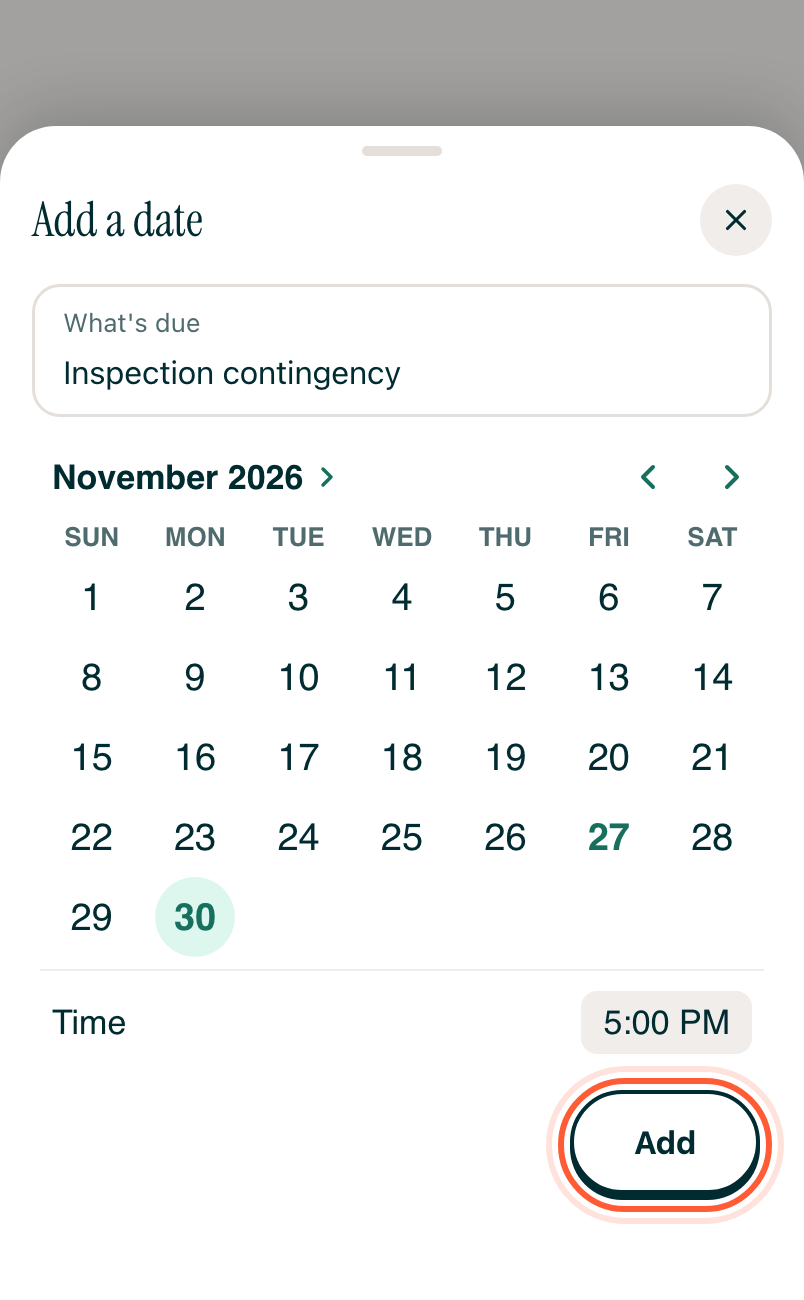
A new date starts a week out at 5 PM. Leave the time at 5 PM and the date shows without a time.
Step 3Check it off when it's done
Tap the circle beside the date. It moves under Done, and a bar at the bottom says "Done: Inspection contingency" with Undo, in case you tapped the wrong one. Tap a done date's circle again to reopen it.
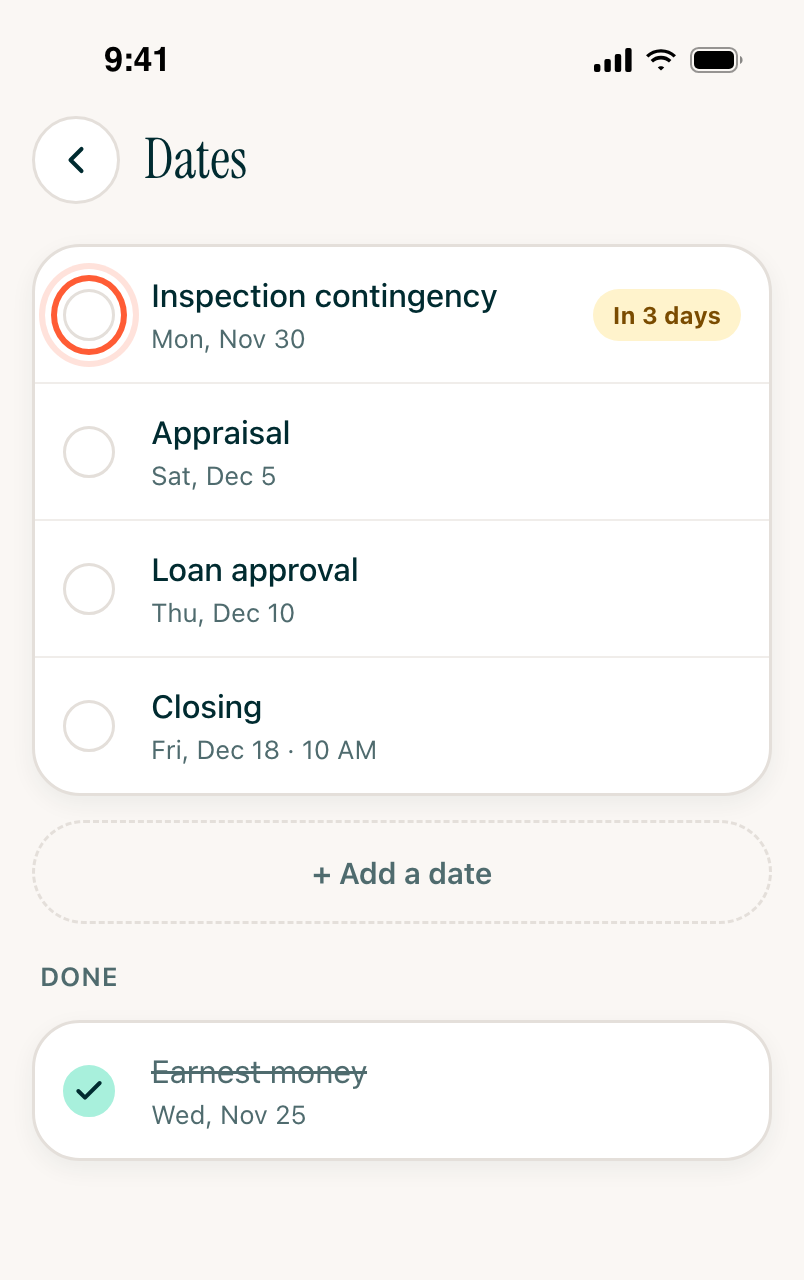
To change a date's name or day, tap the date itself (not the circle), change it and tap Save.
What does Avery do with the dates?
- The day before, Avery puts a task for that date in your deck and sends you one notification, like "Inspection contingency is due tomorrow". A date due today, or one that's overdue, gets a task too.
- Within the week, dates show under Coming up on the deal's details, with a chip like In 4 days, Tomorrow, Today or Overdue.
- Next up at the top of the deal's thread always shows the soonest open date.
Marking the task done in your deck checks the date off on the deal too. The task goes to whoever started the deal, or to the teammate covering for them while they're away.
Reminders stop when a deal is closed or lost.
When you'd use it
- Your buyers just went under contract. Add the inspection contingency, the appraisal, loan approval and closing from the contract.
- Closing moved back a week. Tap Closing, pick the new day and tap Save. Avery's reminder moves with it.
- The inspection is done. Check it off from the deal, or from the reminder in your deck.
I skipped the reminder by mistake. How do I get it back?
Skipping a deadline's task in your deck drops that reminder. Tap Undo right away to bring it back. If the date moves later, Avery reminds you again for the new day.
How do I remove a date I added by mistake?
Open the deal's History, find "Added ... to ..." and tap Undo. Or check it off so it no longer reminds you.