Run a giveaway or raffle in AveryIQ
Set up a giveaway with prizes and a QR sign people scan to get a numbered ticket, at your client event or on its own, like a pie raffle before Thanksgiving or an open-house drawing.
A giveaway is a raffle you run from AveryIQ. People scan your QR sign (or open your link), type their name and mobile number, and get a numbered ticket on their phone. You can give bonus tickets for things like bringing a friend. When it's time, you draw the winners on your phone in front of the room, and Avery writes a note to each winner, and to entrants who said you can contact them. Everyone who enters lands in your database. Giveaways live under More, then Client events.
When you'd use it
- A raffle at your client appreciation party: a basket of local goodies and two restaurant gift cards, drawn at 8 PM.
- A pie giveaway before Thanksgiving: a QR sign at the coffee shop and a Facebook post, "Win one of 10 pies", drawn the Monday before.
- A raffle at your open house: a sign by the door, "Enter to win a $50 Home Depot gift card", to get more visitors to leave their number.
Step 1Start a giveaway
Pick one:
- At an event: open the event and tap Add a giveaway.
- On its own: go to More, then Client events, and scroll to the bottom. Tap New giveaway (beside Giveaways once you have one).
Starting from an event, the top lets you choose At the event or On its own. A giveaway at an event is named after it, and its drawing starts an hour before the event ends.
Step 2Fill it in
- Give it a Name, like "Thanksgiving Pie Giveaway".
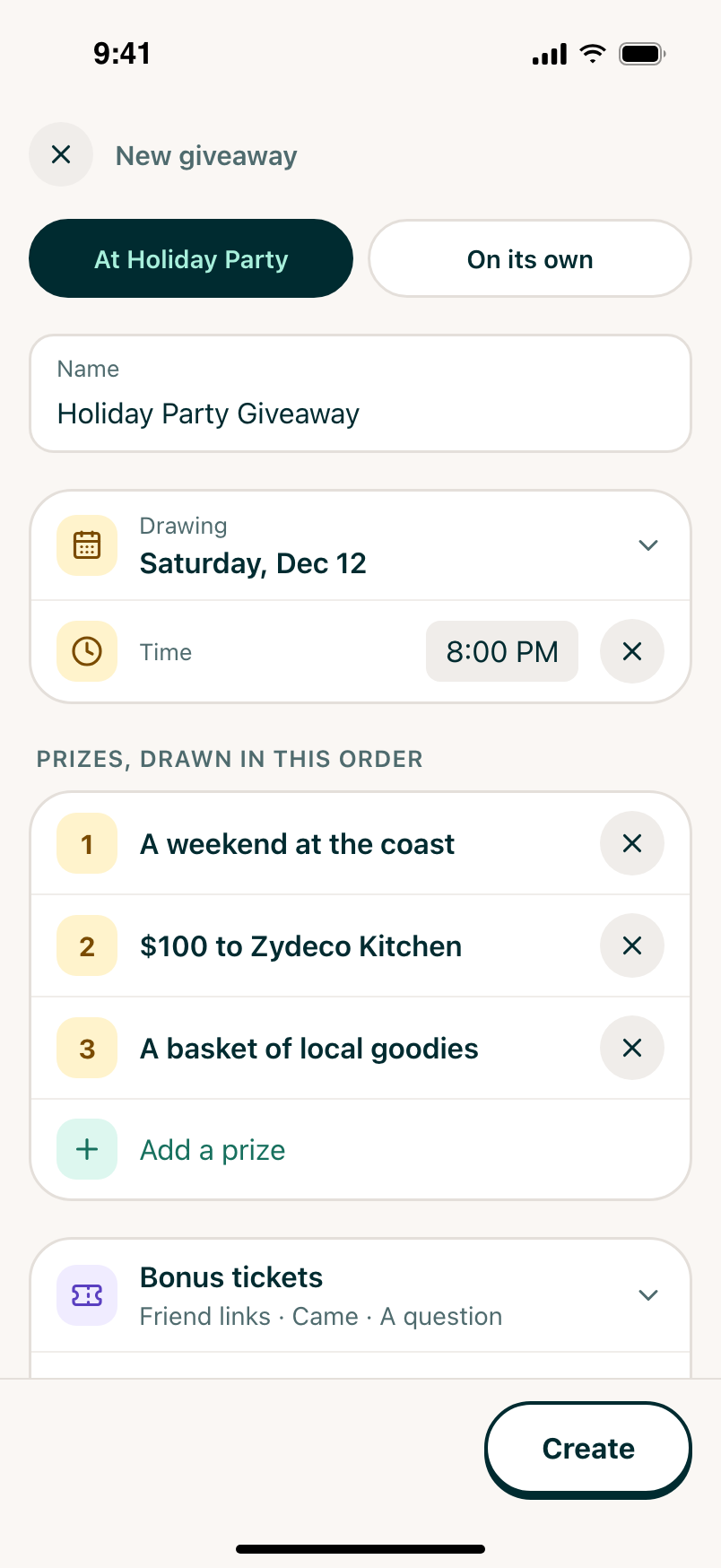
- Tap Drawing to pick the day. Tap + Add a time to set the hour.
- Under Prizes, drawn in this order, type each prize in Add a prize. Prize 1 is drawn first. Tap × to remove one.
- Tap Bonus tickets to choose extra ways to earn tickets (Give bonus tickets). A friend link and one question are on to start.
- Tap + Add official rules and paste your rules. They're recommended, not required, and show as a link on the entry page.
- Tap Create. Without rules, AveryIQ asks once: tap Add rules, or Create anyway.
AveryIQ doesn't give legal advice. Ask your own attorney what your giveaway needs.
Step 3Put out the QR sign
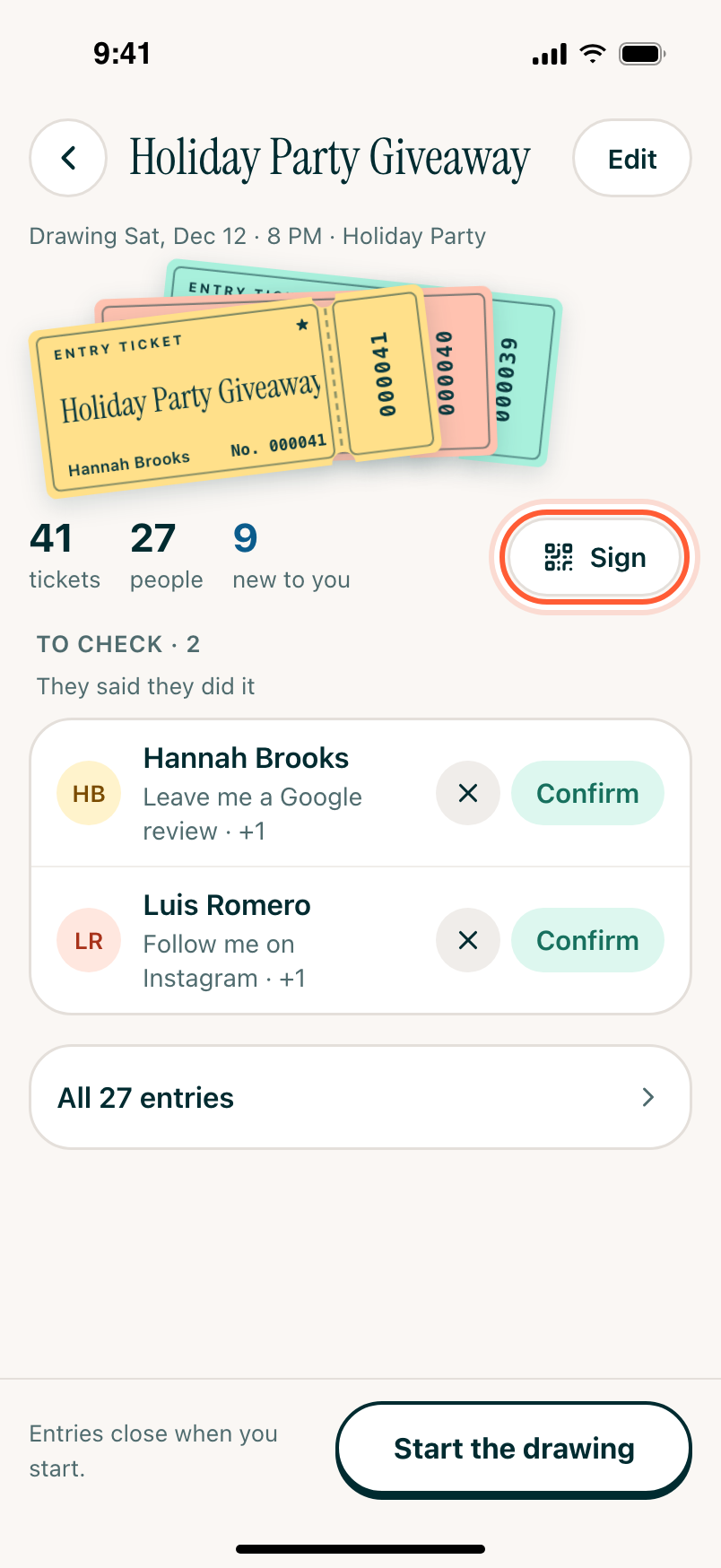
On the giveaway's page, tap Sign, then:
- Print the sign to print it now.
- Save or send the PDF to save it or send it to a print shop.
- Email it to me to print it later.
- Share the entry link for a Facebook post or a text.
What do people see?
The entry page says what they can win, then asks First name, Last name, Mobile phone, an optional email, and a checkbox agreeing that you can text and email them. They tap Get my ticket and see their ticket with its number, and ways to earn more. One entry per person: entering again with the same name and number opens the tickets they already have.
Watch it fill up
The giveaway's page counts tickets, people and new to you. Tap All 27 entries to see everyone and their tickets. To enter someone yourself, like a client who called in, tap Add someone there.
People who came to the event are entered on their own when you mark them on Who came?.
Change it
Tap Edit on the giveaway's page to change anything until the drawing starts. Once you tap Start the drawing, entries close and the giveaway can't change.
Is it a lead source?
Yes. Each new entrant is added to People, with the giveaway as how they came in. After the drawing, Avery prepares a note for each entrant who agreed to hear from you, and an introduction for new ones.