Make a call from AveryIQ
Call a client or lead from their page, their conversation or a task in AveryIQ. With a team number the call goes from the team line inside the app; without one it opens your phone's dialer.
To call someone, open their page and tap Call, then Call again to confirm. You can also tap the phone icon at the top of their conversation, or the phone button on a task in your deck. With a team number, the call goes from the team line right inside AveryIQ. Without one, AveryIQ opens your phone's own dialer with their number.
Where you can start a call
- Their page: tap Call, then Call in the sheet. Tap +2 more under their name to call another of their numbers.
- Their conversation: tap the phone icon at the top right. In a group text, pick who to call.
- A task in your deck: tap the phone button beside the send button.
- A number that isn't in AveryIQ yet: tap +, then Call (or Messages, then ⋯, then Call a number). Type the number or tap Paste a number, then tap the green call button. If someone in your database has that number, their name shows under it.
- A missed call: tap Call back on it in their conversation.
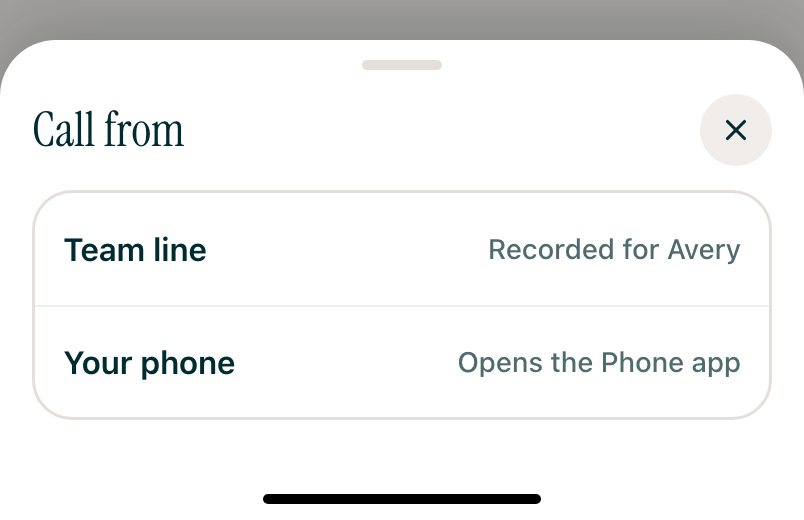
Which number does the call come from?
AveryIQ uses the line you text that person from, so they always hear from one number. Someone new gets the team line once your team number can make calls.
To pick the line yourself, touch and hold Call (or the phone icon) and choose Team line or Your phone. Their texts move to that line too.
| Team line | Your phone | |
|---|---|---|
| Where the call happens | In AveryIQ, on its own call screen | In your Phone app |
| What they see | Your team number | Your cell number |
| Recording and summary | If you turned on recording | No |
| On a computer | Yes, in the browser | Your computer's calling app, if it has one |
During a team-line call
Under their name, the call screen shows WHY NOW (the reason from your task) or LAST TIME (how you last talked), then WHAT AVERY KNOWS about them. Use Mute, Keypad, Speaker and the red button to end the call. Tap the arrow at the top left to shrink the call and use the rest of the app, like looking up a listing. The call's timer stays in the dock or at the top of the screen; tap it to come back.
The first time, AveryIQ asks to use your microphone. Allow it, or the call can't start.
After the call
- A recorded call shows up in their conversation with Avery's short summary. See Find a call's recording and summary.
- A call that wasn't recorded, including any call from your phone, gets ✦ How did it go? Tell Avery (see Tell Avery how a call went) under it in their conversation. Tap it, then We talked, and tell Avery what you discussed. If you forget, AveryIQ reminds you 10 minutes after the call.
- Called a number that wasn't in AveryIQ? The keypad adds them to your people and opens their page so you can name them.
Example uses
- Your deck says Luis's lease ends in 60 days. Tap the phone button on the task, and the call screen shows WHY NOW while it rings.
- A number from a yard sign is on a sticky note. Tap +, then Call, type it in, and they're in your database before you hang up.
- Hannah always texts your cell. Touch and hold Call and pick Your phone so she sees the number she knows.
Why did the call open my phone's dialer?
Your team doesn't have a team number yet, the number isn't ready for calls, or this person's conversation uses Your phone. Touch and hold Call and pick Team line to change that.
Why can't I call from the team line?
If AveryIQ says it couldn't call from your team line, check your connection and try again, or pick Your phone. If it asked for the microphone and you said no, turn it on in your iPhone's Settings, under AveryIQ.