Design an email
Add, move and change the pieces of an email blast on your phone or computer, with photos, buttons, listings, market numbers and First name, saved as you go.
An email blast is a stack of pieces: a header, headings, words, photos, buttons, homes, market numbers and more, with your footer always last. You edit the email itself, in your branding, and AveryIQ saves as you go.
Step 1Open the design
Go to More, then Email blasts, open an email and tap Design. A new email opens here straight from the template picker.
Step 2Change a piece
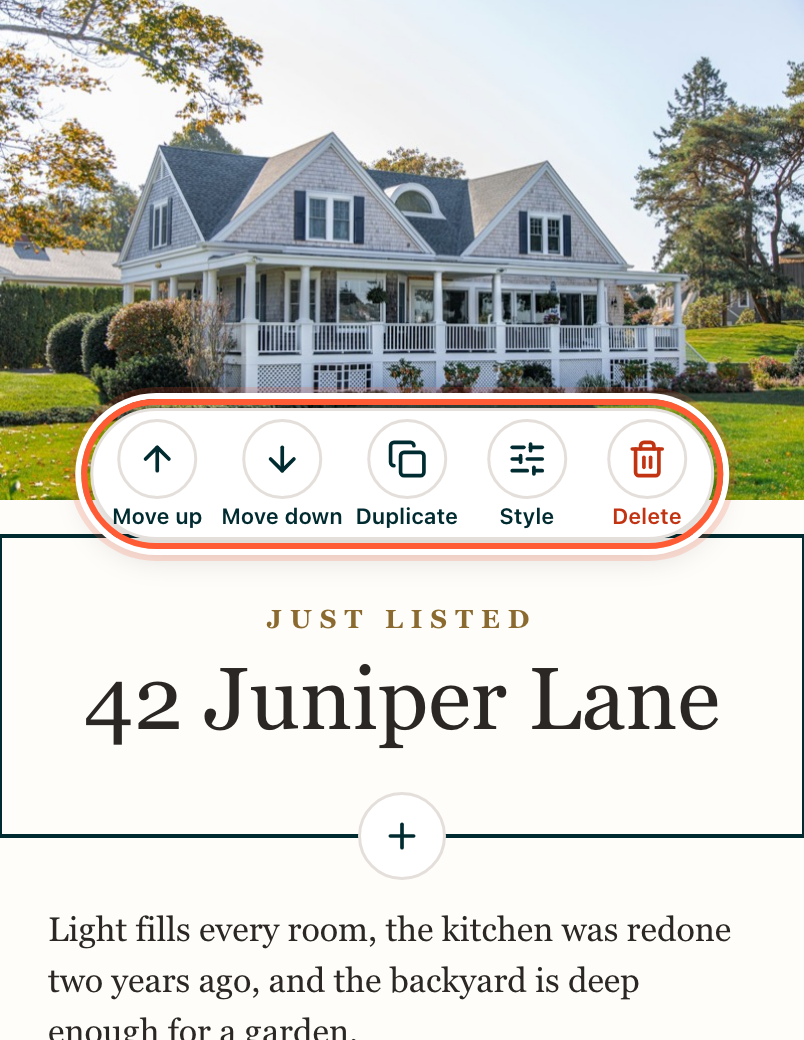
On your phone, tap a piece to select it. A toolbar appears with Move up, Move down, Duplicate, Style and Delete. Tap the words again to type. A bar above the keyboard has bold, italic, links, lists, alignment and First name. Tap Done on that bar when you've finished typing.
On a computer, click words to type in them. The panel on the right holds the selected piece's settings: alignment, padding, background and everything else the piece has. On a smaller screen, the settings open beside the piece instead.
Words in yellow, like {Area}, and tags that say Needs your words are the template's. Type over them: a template's sample numbers, names and reviews can't be sent until they're yours.
Step 3Add, move and delete
- Add: tap the round + under a piece, or Add to your email at the end, and pick from the list. On a computer, click a piece in Add on the left, or drag it onto the email.
- Move: Move up and Move down, or press and hold a piece on your phone and drag it. On a computer, drag the grip on its toolbar.
- Delete: Delete on the toolbar. Undo puts it back.
The header stays first and the footer stays last. Tap the footer to see its words: they come from your footer details, so every email ends the same way.
Step 4Photos and buttons
An empty photo offers Photos and Camera on your phone, Upload a photo on a computer (or paste or drop a picture onto it), and Add listing photos on a home or listing email. Then use Style for:
- Crop: Original, 3:2, 1:1 or 16:9.
- Description: what the photo shows, for people who can't see it. Every photo needs one before you send.
- Link or Video link: a YouTube or Vimeo link adds a play mark.
AveryIQ removes the location and camera details from every photo you add.
For a button, choose What's it for? (Home value, Selling, Buying, A home for sale, Market report, Let's talk or Other). For Home value and Let's talk you can send people to Your request page, which AveryIQ hosts, or to a link of your own.
Step 5Homes, market numbers and First name
- A Home card shows a photo, status, price, address and beds, baths and square feet. Pick your listings fills it from your listings (see Feature a listing in an email).
- Market numbers need a source line, like "Source: Central Oregon MLS, October". Say where your numbers come from.
- First name fills in for each person. For someone without one, "Hi {First name}," reads "Hi there,". Select the chip to choose Leave it out instead, which drops the name and its comma.
End with a line that invites replies, like "Just reply. I read every one."
Step 6Preview, save and share
- Preview shows the email exactly as people get it, on a computer, a phone or in dark mode. Preview as shows it to someone with no first name.
- AveryIQ saves as you go. The top of the screen says Saved. Offline, your changes stay on this device and save when you're back.
- Version history, at the top of the screen, lists earlier versions. Open one to see it, then Restore this version if you want it back. What was there is kept as a version too.
- If the email changes somewhere else while you're editing (a teammate, or you on another device), you choose Keep mine or Use theirs. Nothing is lost: the one you don't keep is saved in Version history first.
- Changes you hadn't saved stay with you: when you sign out, the next person to sign in on that phone or computer never sees them.
- If a change can't be saved yet, Done still takes you back, and the checklist's Design row says so until you open the design again online.
- Share a preview, in Preview, makes a web page of the email for 7 days, for your broker's compliance review or a partner.
Tap Done when you're finished. You go back to the email's checklist, which counts anything left to check before it's ready.