Feature a listing in an email
Announce a listing, an open house or a sale by email blast, fill home cards from your listings, and add listing photos once for every email about that home.
AveryIQ fills a listing email from what it already knows: the address, the price from your selling deal, beds, baths and square feet, and any photos you've added for that home before.
Step 1Pick the template
| Template | Use it for |
|---|---|
| Just Listed | One new listing, with its photos, price and details. |
| Featured Homes | Several homes at once, two across on a computer. |
| Open House | Inviting people to an open house. |
| Just Sold | Celebrating a sale. |
From Email blasts, tap New and pick the template (see Pick an email template).
Step 2Choose your listings
In a Home card's settings, tap Pick your listings. You'll see your listings on the market, under contract and sold. Choose up to six and tap Use these. Come back any time to add or take off a home: the homes already in the email keep your changes, and cards you filled in by hand stay.
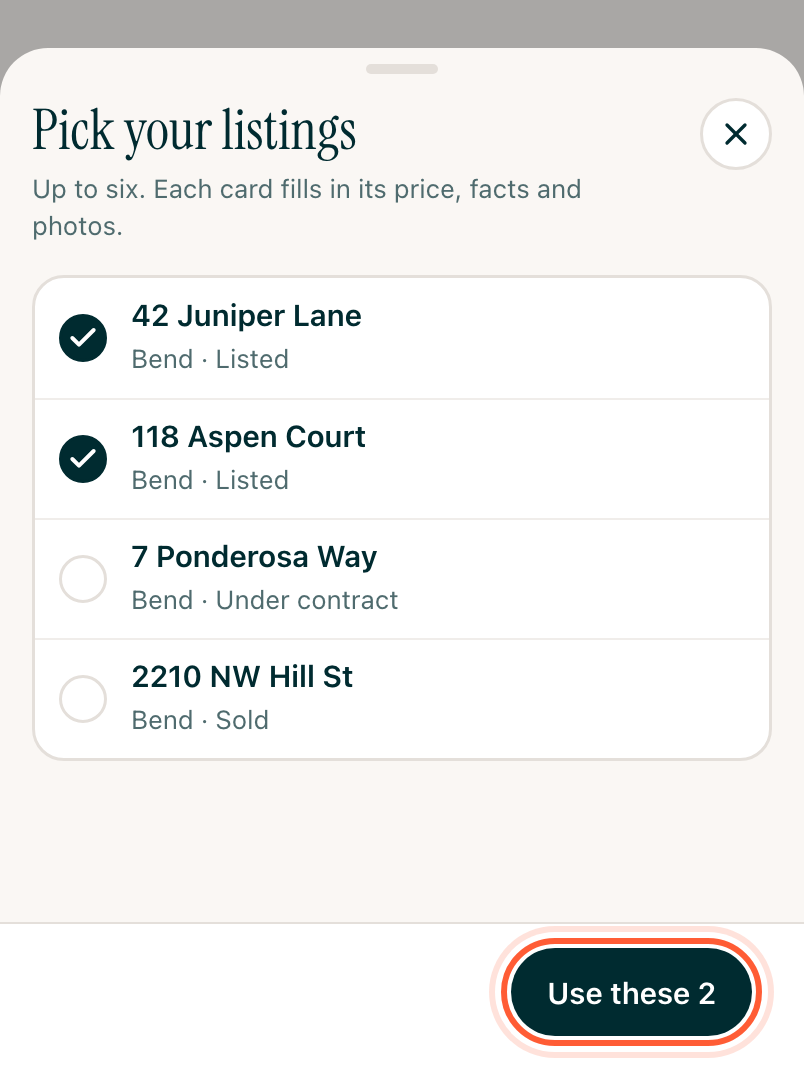
Each card fills in what AveryIQ knows. Anything it doesn't know, like square feet nobody has entered, stays blank for you to type. Change the status (Just listed, Coming soon, Under contract or Sold), the price or the two lines about the home right in the card's settings.
Step 3Add listing photos once
Tap Add listing photos on an empty photo and pick up to 12 at once. They fill that photo first, then the email's other empty photos in order. AveryIQ keeps them on the home, so the next email about it offers them again.
Give each photo a short description, like "Front of 42 Juniper Lane". A photo needs one before the email can go.
On a Just Sold email, Show Sold on the photo, in the photo's settings, adds a Sold band across it.
[!WARNING] Use photos you have the right to use. MLS listing photos and a photographer's pictures often come with rules about where they can go, so check your MLS rules and your photographer's license before you email them.
Step 4Quotes and reviews
Quoting a client's review? Ask them first. A quote from a template is a sample, and it can't be sent until you replace it with real words someone gave you.