Choose where copies of email replies go
In AveryIQ Settings, choose which of your own addresses gets a copy of each reply to your email blasts, turn copies off, and review held replies from people Avery doesn't know.
Replies to your email blasts land in AveryIQ, and a plain copy of each one also goes to your own email. To choose where those copies go, or turn them off, tap More, then Settings, then Replies under Email blasts. The same screen shows replies that are waiting because Avery couldn't tell who sent them.
When you'd use it
- You live in Gmail and want replies there too: pick your Gmail address under Also send replies to.
- Your inbox is overflowing and the deck is enough: pick Off.
- The row says "3 held": someone new wrote back and Avery wants you to look.
Step 1Open Replies
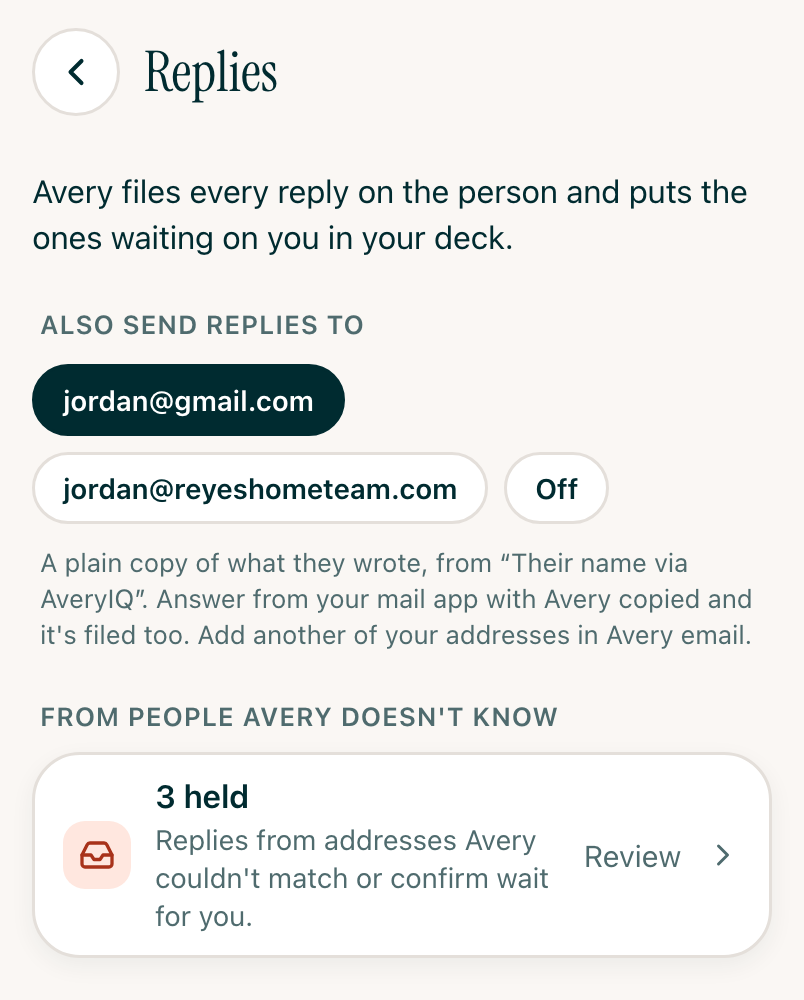
Tap More, then Settings. Under Email blasts, tap Replies. The row says where copies go now, like "Also send to [email protected]", "Copies off" or "Copies aren't arriving".
Step 2Pick where copies go
Under Also send replies to, tap one of your addresses, or Off. The choices are your sign-in email and any addresses you added in Avery's email. Picked the wrong one? Tap Undo.
Each copy comes from "Priya Shah via AveryIQ". Reply to it from your mail app and it goes back to her. With Copy Avery on sends on, Avery files your answer too.
Step 3Review held replies
Under From people Avery doesn't know, "3 held" means replies from addresses Avery couldn't match to anyone your email went to, or couldn't confirm. Tap Review to read each one and let it in, or leave it. Avery never reads held mail.
The screen says "Choose your Avery email"
Replies come to your Avery email name, so pick it first: tap Choose your Avery email. It's the same name your email blasts come from.
Copies stopped arriving
The row says "Copies aren't arriving", and the screen says "Couldn't send copies to" your address. Pick another, or tap the same one again to try once more. Replies are still filed in AveryIQ either way.