Set up Avery's email address
Give Avery, the AI assistant in AveryIQ, her own email address so you can CC, BCC or forward the emails that belong in your CRM. Choose the name, save her as a contact, and add the addresses you work from.
Avery has her own email address, like an assistant would, such as [email protected]. Copy or forward her the emails that belong in your CRM, and she files each one on the right person and deal. Set it up once in Settings, then Avery's email, and it takes about two minutes.
Step 1Choose the name
Tap your initials at the top of Tasks (or More, then Settings), then Avery's email. Under Choose a name, Avery suggests one. Keep it, tap another suggestion, or type your own. When it says Available, tap Claim.
Choose carefully: clients see this address when you copy Avery, and you can't change it once picked.
Step 2Save Avery as a contact
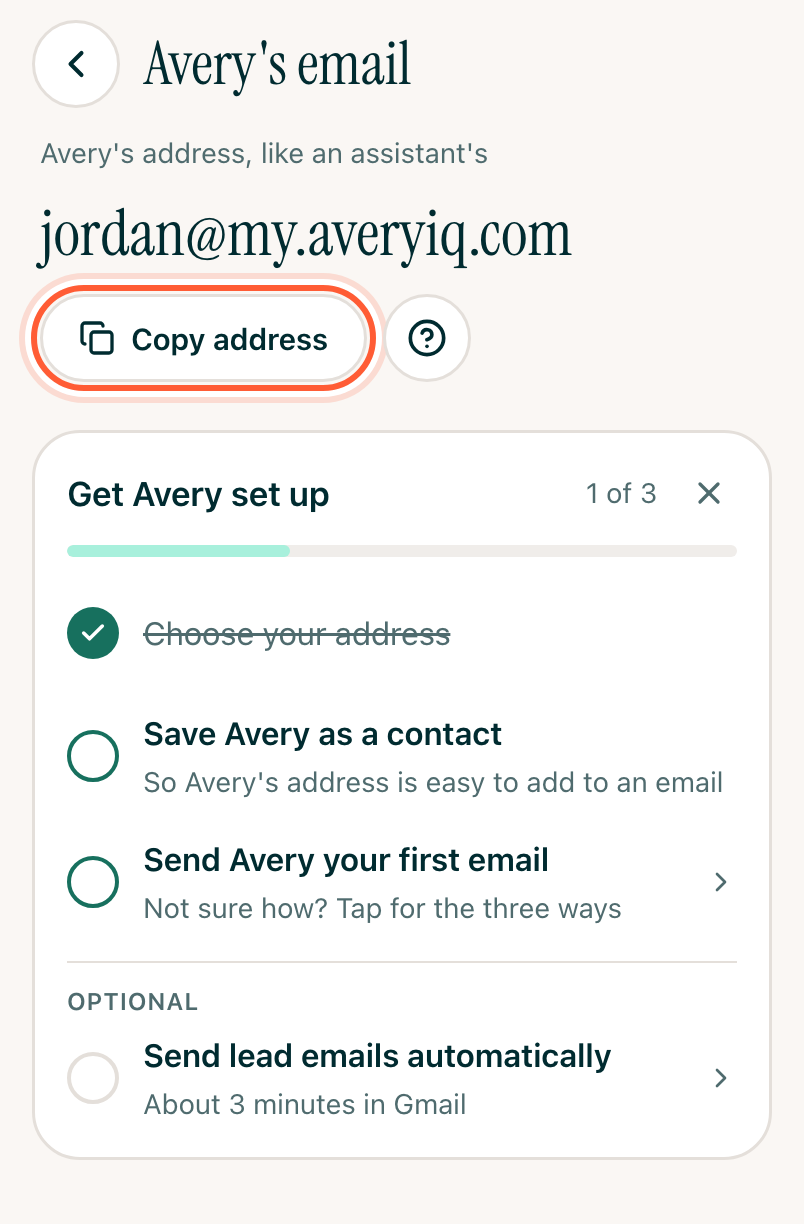
Tap Copy address. Save it in your phone's contacts as "Avery", so she comes up when you start typing her name in an email. Then tap Save Avery as a contact on the checklist to tick it off.
Step 3Send Avery your first email
CC her on an email to a client, BCC her, or forward her one. See Copy or forward email to Avery for which to use when. The checklist ticks itself off when it arrives. Tap the ? next to Copy address any time for the three ways.
The checklist also offers Send lead emails automatically, optional, for Zillow and other portal leads. See Send portal leads to Avery automatically.
Add the other addresses you work from
Email you send, CC or forward from these addresses reaches Avery as yours, and Avery checks it really came from you. Your sign-in email is always on the list. If you also email clients from your brokerage address or a personal Gmail, add it:
- Tap Allowed addresses.
- Type it under Add an address, like [email protected].
- Tap Add.
Clients replying to an email you copied Avery on always get through. Email from a sender Avery doesn't know waits in the email log for you to let in. To take an address off, tap Remove beside it.
Copy Avery on what you send from AveryIQ
Copy Avery on sends, on the same screen, copies Avery on emails you send from AveryIQ, so when clients reply all, Avery sees it. Turn it off if you'd rather not.
Examples
- Your buyer's lender emails a pre-approval letter. Forward it to Avery and it lands on the buyer's deal.
- You're writing to a seller about an offer. CC Avery so their reply all comes back to her.
- You use your brokerage email for contracts. Add it to Allowed addresses, then forward from it like any other.
Who can see what I send Avery?
Everyone on your team. Send Avery work email, not personal mail.
It says receiving is still being set up
Right after you claim the address, you may see Receiving is still being set up. Mail sent now won't arrive yet. Try again in a little while.