Message your team in AveryIQ
Send direct messages to teammates in AveryIQ, like Slack or Messenger, and use Reply to team to talk about a client's text without the client ever seeing it.
AveryIQ has two ways to talk with your team. Direct messages are private chats between you and one or more teammates, under Direct messages in Messages. Reply to team lets you talk about a client's text right under it, in their conversation, and the client never sees it. Neither one is ever texted to anyone.
Send a direct message
- Open Messages.
- Next to Direct messages, tap +. (No messages yet? Tap Message a teammate.)
- Tap a teammate's name.
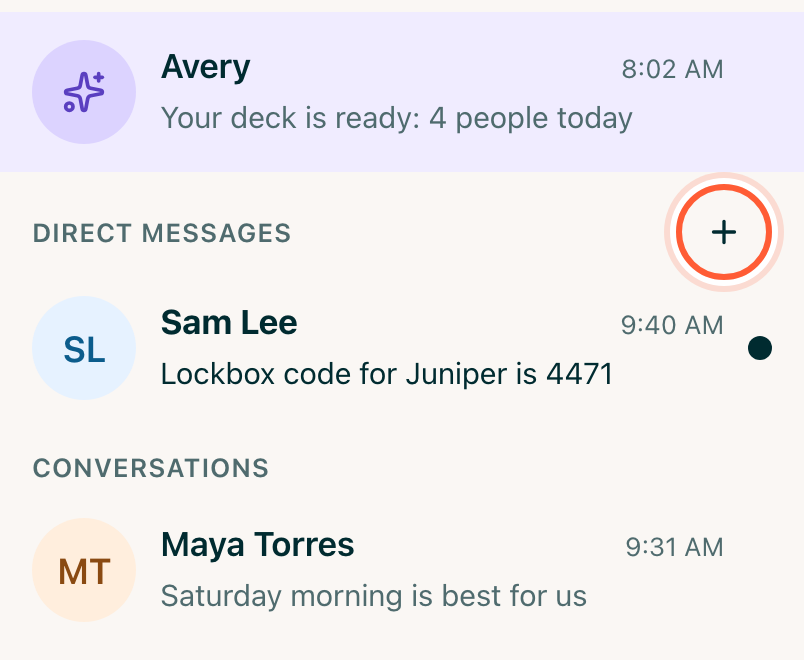
Your conversation with them opens. Type in the box that says Message Sam and tap send. Only you and Sam can see it.
To message several teammates at once, tap Group message at the top of the list, tick up to eight teammates, then tap Message.
In a direct message you can add photos, files and voice notes with +, and type @ to mention someone. Type @Avery to ask Avery a question right there; she answers in the conversation.
A teammate's own page has Message at the top too, which opens the same conversation.
Reply to team on a client's conversation
- Open the client's conversation in Messages.
- Touch and hold their message.
- Tap Reply to team.
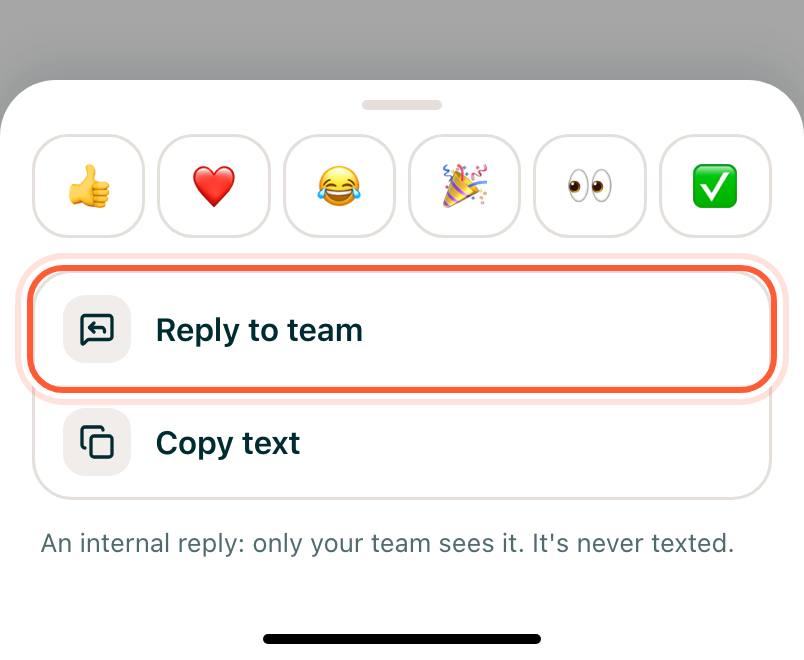
Internal reply opens with Maya's message on top and the words "Only your team sees this. It's never texted." Write your note and send it. Back in the conversation, the message shows a count like 2 replies under it; tap it to open the thread.
Type @ and a teammate's name to make sure they see it. Touch and hold a message to react with an emoji instead of writing.
Who gets notified?
- Direct messages: everyone in them, unless they've muted it.
- Replies to team: whoever the client is assigned to, or the whole team while nobody is. Anyone you @mention hears about it too.
Change what you hear about one conversation with ⓘ at the top. See Notify me about, Mute and Pin.
Example uses
- Maya texts "Can we see it Saturday?" Touch and hold, Reply to team, and write "@Sam can you cover 2 PM? I'm at the Juniper open house."
- Your assistant needs the lockbox code. Send a direct message instead of a text to their cell, so it stays with your work.
- Daniel's lender just called you. Direct message your teammate: "Daniel's approval came through, 650 max."
Can the client see a reply to team?
No. Replies to team stay inside AveryIQ. They are never texted, and they don't show in your phone's Messages.