Pick an email template
Start an email blast from one of AveryIQ's templates in your branding, from a blank page, or from an email you already sent.
Every email blast starts from a design. The templates are drawn in your own colors and fonts, so what you see in the picker is what your sphere gets.
Step 1Start a new email
Go to More, then Email blasts, and tap New. On a computer, it's the New button above your list of emails.
Step 2Pick a design
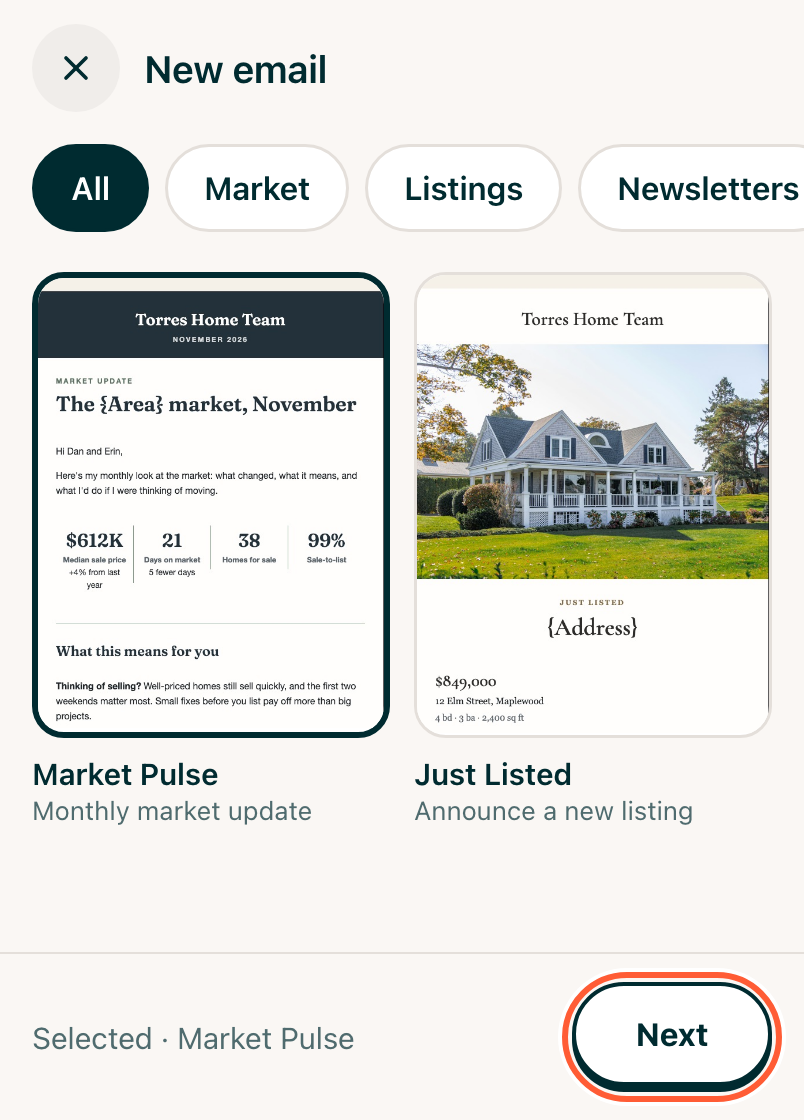
Tap a design, then tap Next. The chips at the top narrow the list: Market, Listings, Newsletters, Events & holidays and Personal.
| Template | When to use it |
|---|---|
| Market Pulse | Your monthly market update: the numbers for your area and what they mean for buyers and sellers. |
| Just Listed | Announce a new listing with its photos, price and details. |
| Featured Homes | Several homes at once, like this week's new listings in a neighborhood. |
| Just Sold | Celebrate a sale and show your sphere you get results. |
| Open House | Invite people to an open house. |
| The Neighborhood | A monthly newsletter about what's happening near your clients. |
| Season's Greetings | A holiday greeting to everyone who knows you. |
| Home Care | Seasonal home tips your past clients will actually use. |
| Personal Letter | A note to your whole sphere: a thank-you, a referral ask or big news. |
Words in yellow, like {Area}, are the template's. Type over them before you send.
Writing to one person? Text or email them from their page instead. Email blasts are for many people at once.
Step 3Or start from blank or a past email
- Blank, under the templates, starts with an empty page in your branding.
- Start from a past email, at the top once you've sent one, copies an email that already went out. Anything that might be out of date, like the subject, numbers and dates, is marked so you check it before it goes again.
Tapping Next opens your new email right away. There's nothing to set up first: AveryIQ picks your branding from your logo, and you can change it any time (see Set your email branding).
[!NOTE] Offline, your emails stay readable, but a new one waits until you're back online.