Set your email branding
Choose your logo or team name, brand colors and fonts for your email blasts, see them on your email before you save, and undo a change.
Your branding is your team's logo or name, two brand colors and a font pairing. Every email blast that follows the team's branding uses it, so your newsletters and listings look like they come from you.
You don't have to set it up first. Your first email picks colors from your logo, or uses the template's own colors if you haven't added a logo yet. Anyone on your team can change it.
Step 1Open Your branding
Open an email, then tap the Your branding chip above it.
Step 2Pick your logo or your name
Under Logo, choose Your logo, or Use your name to show your team name in the header of new emails instead. No logo yet? Add your logo takes you to your team's logo.
Step 3Pick your colors
Under Brand colors, choose:
- From your logo: colors AveryIQ picked from your logo.
- Template's own: the colors the email's template came with (shown until your team picks colors).
- One of six ready pairs: Harbor, Forest, Charcoal, Burgundy, Slate or Midnight.
- Pick your own: type a color code, like #1F4E5F, for Main (headings and buttons) and Accent (bands and lines).
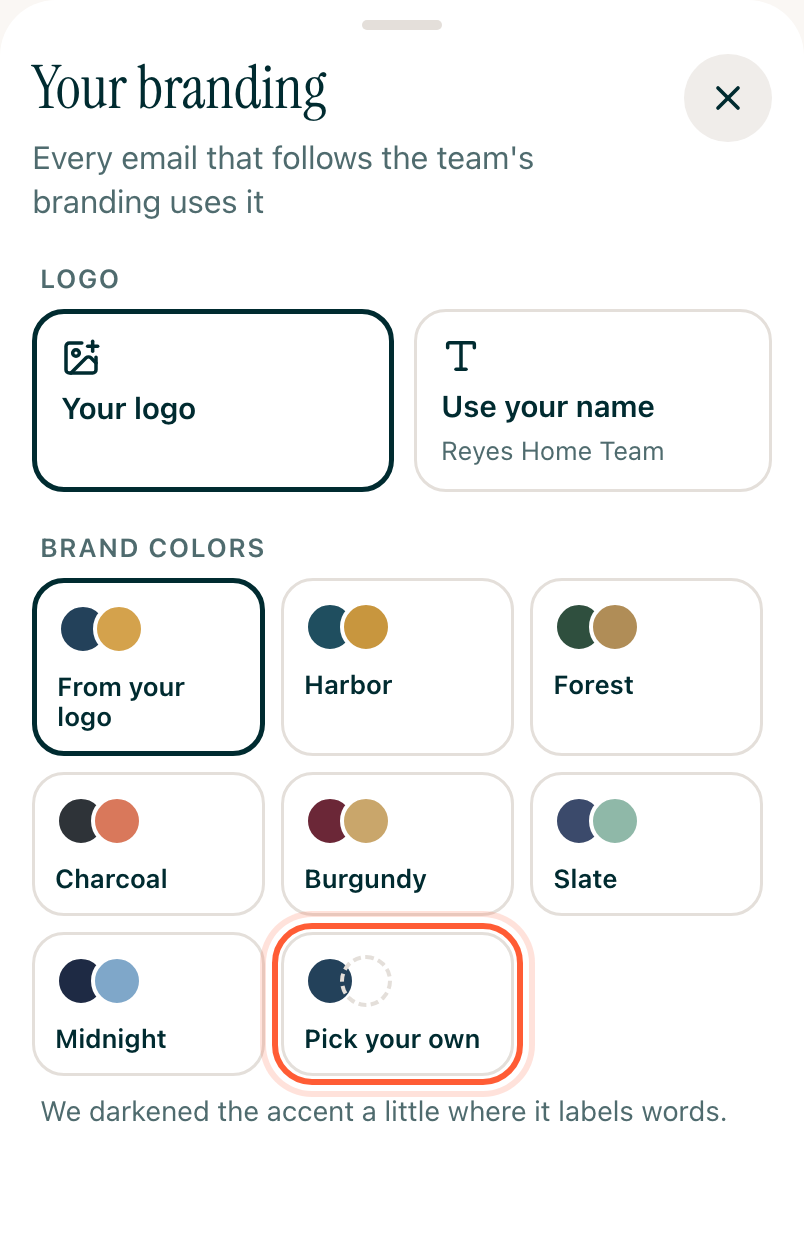
Some colors are hard to read as text, like a pale gold on white. AveryIQ darkens them just enough where they sit behind or under words, and tells you under the colors, for example "We darkened the accent a little where it labels words." Your colors stay as you picked them everywhere else.
Step 4Pick your fonts
Under Fonts, each of the five pairings shows a heading in its own typeface: Classic, Editorial, Modern, Elegant and Simple. Under them, This email shows the email you have open in the colors and fonts you've picked, before you save.
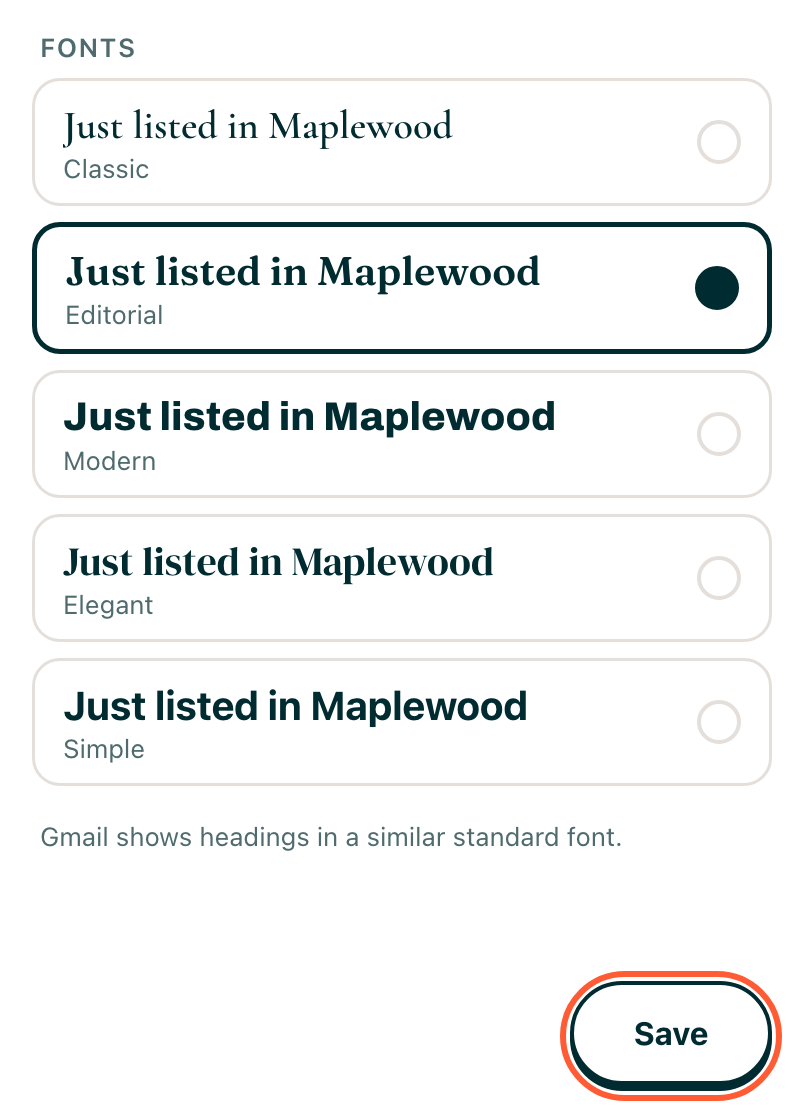
[!NOTE] Gmail shows headings in a similar standard font instead of yours. The rest of your email looks the same.
Step 5Save
Tap Save. The colors and fonts change on every email that follows the team's branding, including drafts. If the email you have open was using its template's colors, it switches to your branding too.
Changed your mind? Tap Undo right after saving to put back your branding. If nobody has edited that email since, it goes back to its template's colors too.