Pin a conversation
Pin a chat in your AveryIQ Inbox so you can find it quickly, and unpin it when you're done.
Pin a conversation to keep it handy while you're waiting for a reply or working with a client. Pins are personal to your Inbox.
On your phone
- Open Inbox and select All.
- Press and hold the conversation in the list.
- Tap Pin.
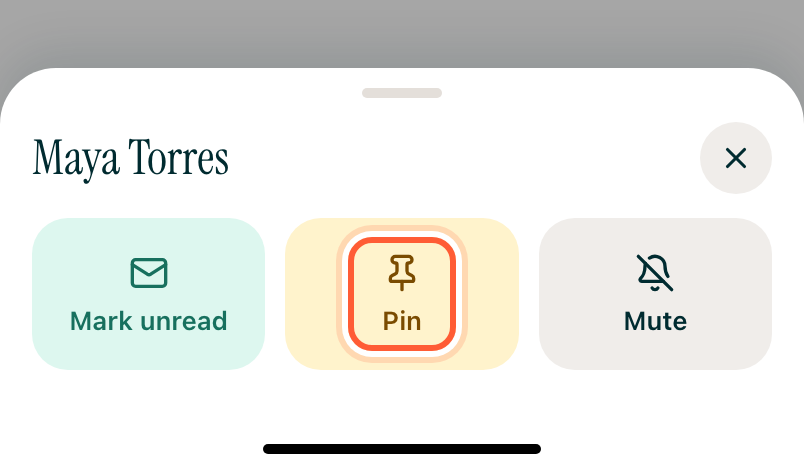
You can also swipe left on the conversation and tap Pin. Pinned conversations move to the top of their list and show a pin icon next to the name.
On your computer
- Find the conversation in the Inbox sidebar.
- Right-click it, or hover over it and click the three dots.
- Click Pin.
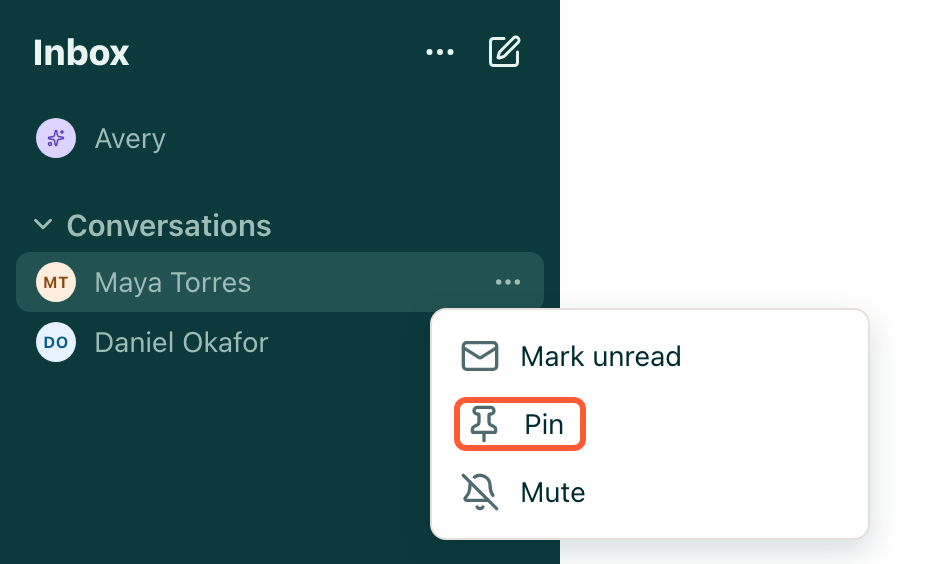
Client conversations appear under Pinned when they're read. While they're unread, look under Unread.
Unpin a conversation
Open the same menu and choose Unpin. You can still open the conversation from your Inbox.