Print your cards on a receipt printer
Like paper on your desk? Print a card from your deck as a ticket on a USB receipt printer, then scan its QR code with your phone to finish it.
If you'd rather work from paper, you can print a card from your deck as a small ticket on a receipt printer plugged into your computer. When you've made the call or done the to-do, scan the ticket's QR code with your phone and AveryIQ takes it from there.
You'll need:
- A computer with Chrome or Edge.
- The AveryIQ extension added to that browser.
- A USB receipt printer, the kind a shop uses for receipts (ESC/POS). We built this with a Rongta on 80 mm paper.
Step 1Link your printer
Plug the printer into your computer and turn it on. Click the AveryIQ icon in your browser's toolbar (it's under the puzzle piece if you haven't pinned it), then Receipt printer at the bottom. A page opens.
Click Link printer and pick your printer from Chrome's list. A short test ticket prints to say it worked.
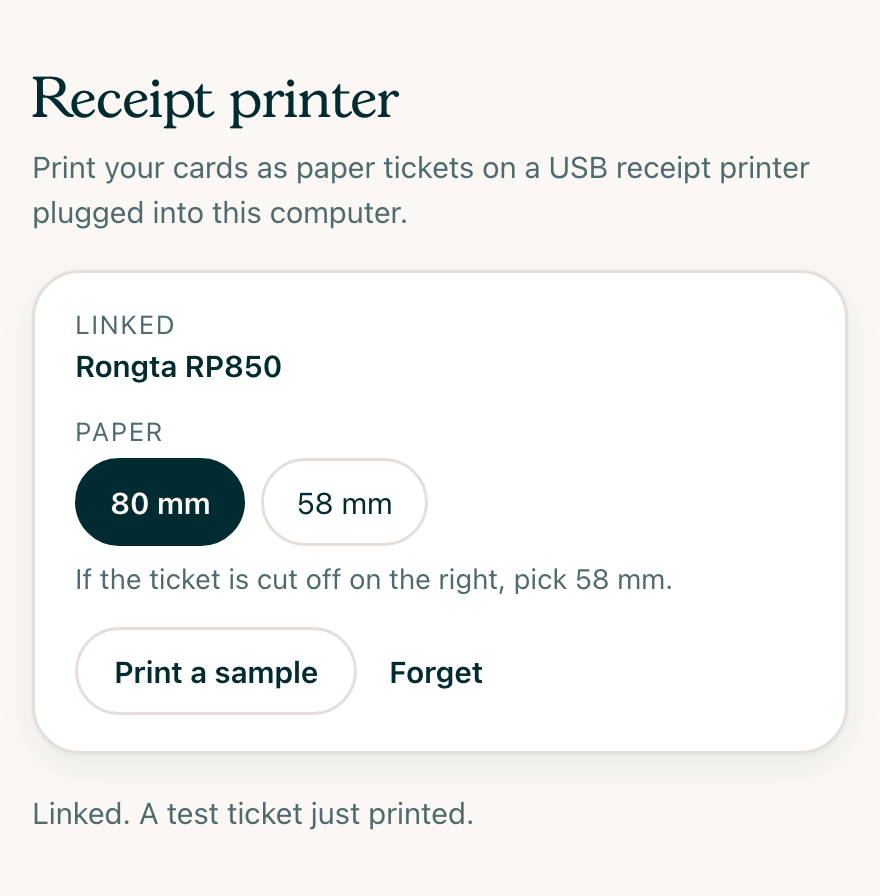
Paper is 80 mm unless you change it. If the ticket is cut off on the right, pick 58 mm. Print a sample prints a made-up card so you can see how one looks. Forget unlinks the printer.
Step 2Print a card
Open AveryIQ in the same browser on your computer. Once a printer is linked, each card in your deck has a small printer circle in its top corner. Click it and the card prints right away.
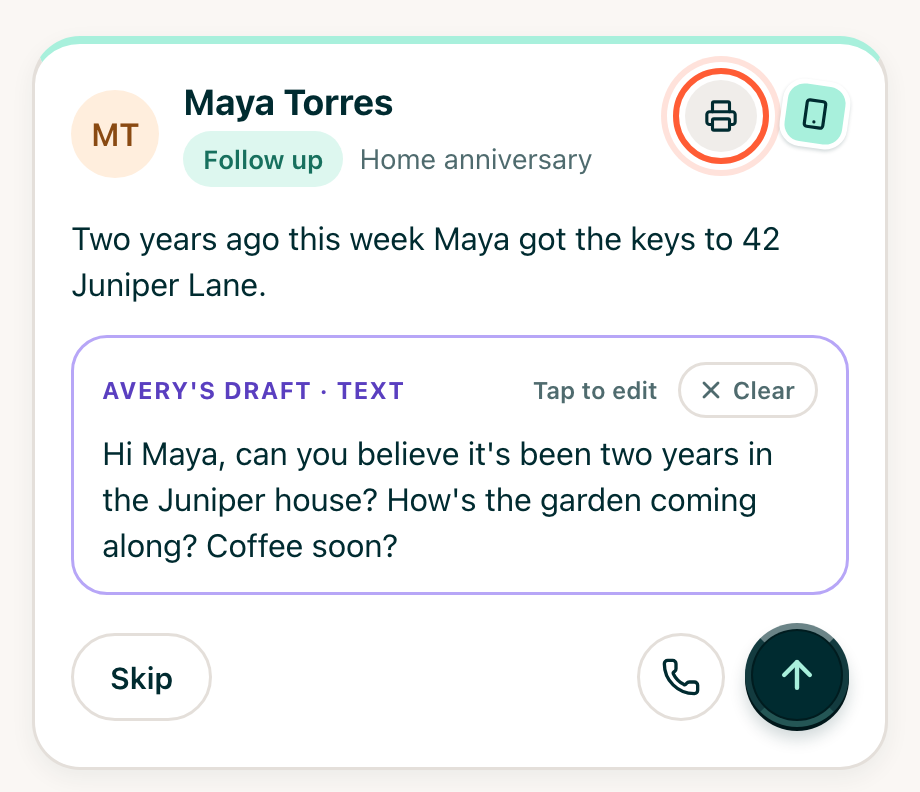
You can also print from View all: point at a row and the printer circle shows at its end. To-dos, calls, follow-ups and touches can print.
A to-do you said out loud prints the same way. See Tell Avery with Siri.
What's on the ticket
Each ticket shows, from the top:
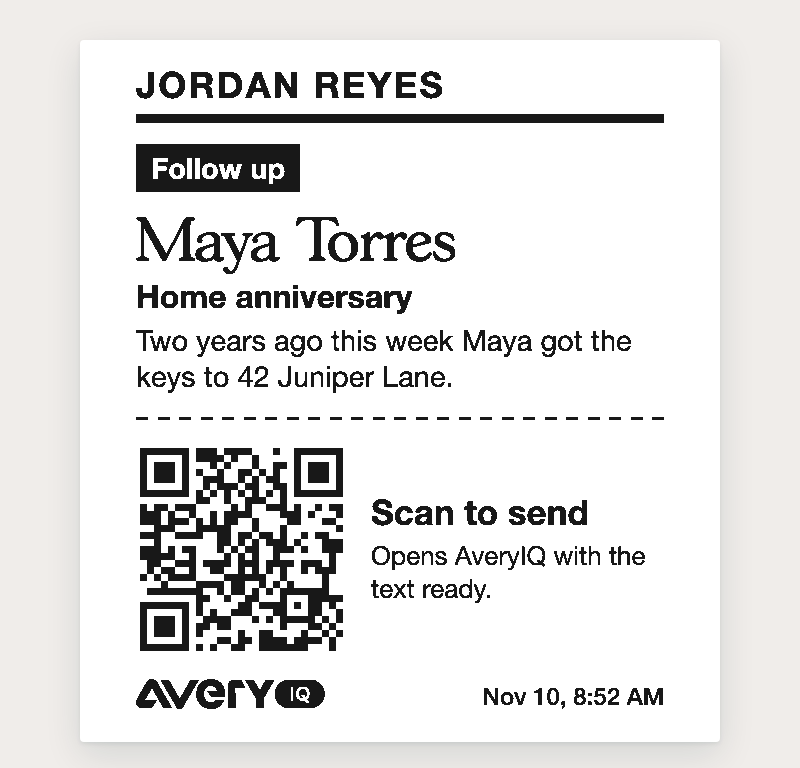
- Whose card it is, handy when an office shares one printer.
- What kind of card it is: To do, Call, Follow up or Touch.
- When it's due, if it has a deadline.
- Who or what it's about, and the one-line reason.
- The QR code, with what scanning it does.
Avery's draft never prints, so the words stay in the app where you can edit them.
Step 3Scan it to finish
Point your phone's camera at the QR code and open the link. It works on the phone of anyone on your team who uses AveryIQ. Logged out? AveryIQ has you log back in, then opens the card.
- A to-do is marked done right away. Tap Undo if you scanned the wrong one.
- A call, text or email opens the card ready to call or send, the way it does in your deck.
- A card that's already finished says so, and nothing changes.
You can hand a ticket to a teammate. Whoever scans it is the one who did it, and AveryIQ records it that way.
What it doesn't do
- It only works in Chrome or Edge on a computer. Safari and Firefox can't reach a USB printer, and neither can the phone app.
- The printer has to be on when you click. If it's off or unplugged, AveryIQ tells you to turn it on and try again. Nothing waits to print later.
- We've only tested it on a Mac. On Windows, the printer may need a different USB driver before Chrome can use it. If your printer won't link or print, email [email protected].