Run your first open house
Set up an open house from the MLS listing sheet, choose your sign-in questions, print the QR sign visitors scan to sign in, and follow up with every visitor the same day.
Visitors sign in on their own phones by scanning a QR sign, so every one of them lands in your database. When you're done hosting, Avery has a follow-up ready for each of them.
Step 1Start a new open house
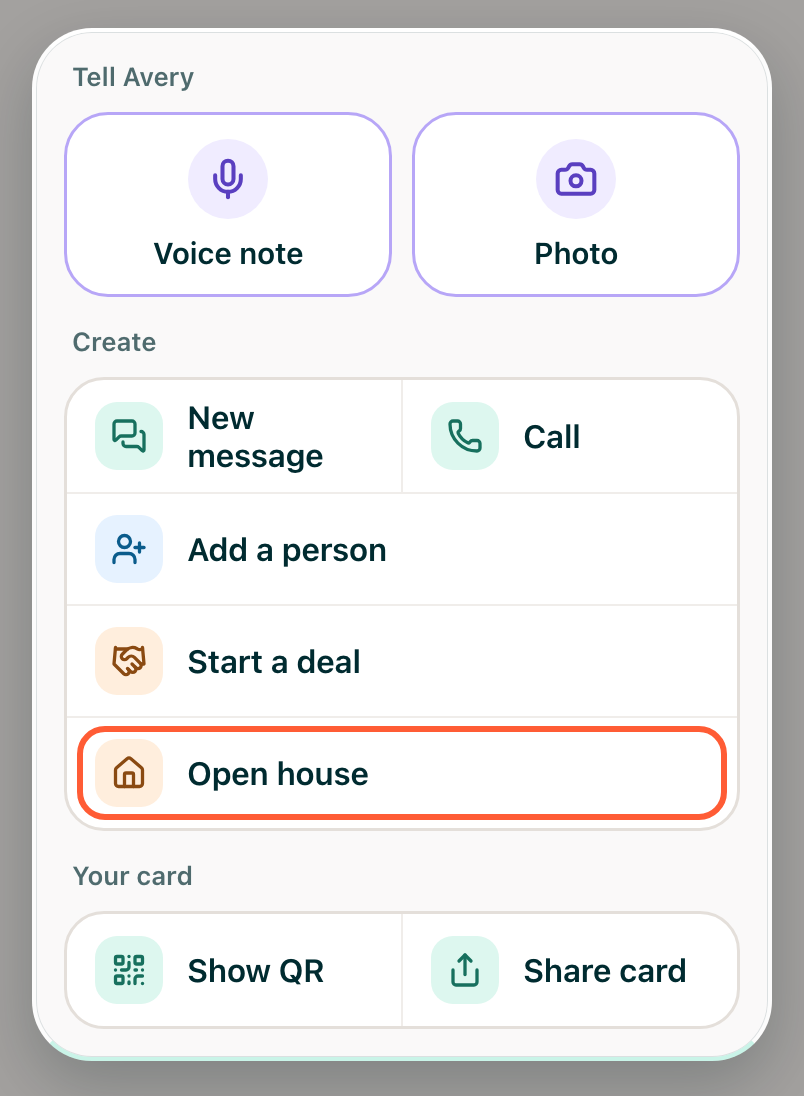
Tap +, then Open house. (You can also go to More, then Open houses.)
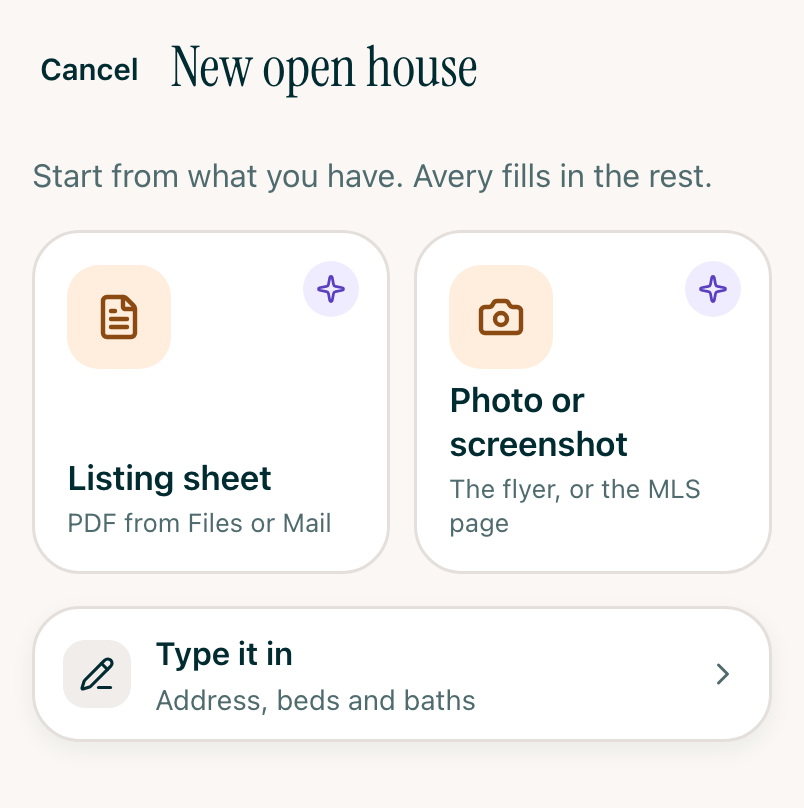
Choose how to give Avery the listing:
- Listing sheet: a PDF from Files or Mail.
- Photo or screenshot: take a photo of the flyer, or pick a screenshot of the MLS listing.
- Type it in: the address, beds and baths.
Step 2Check the details
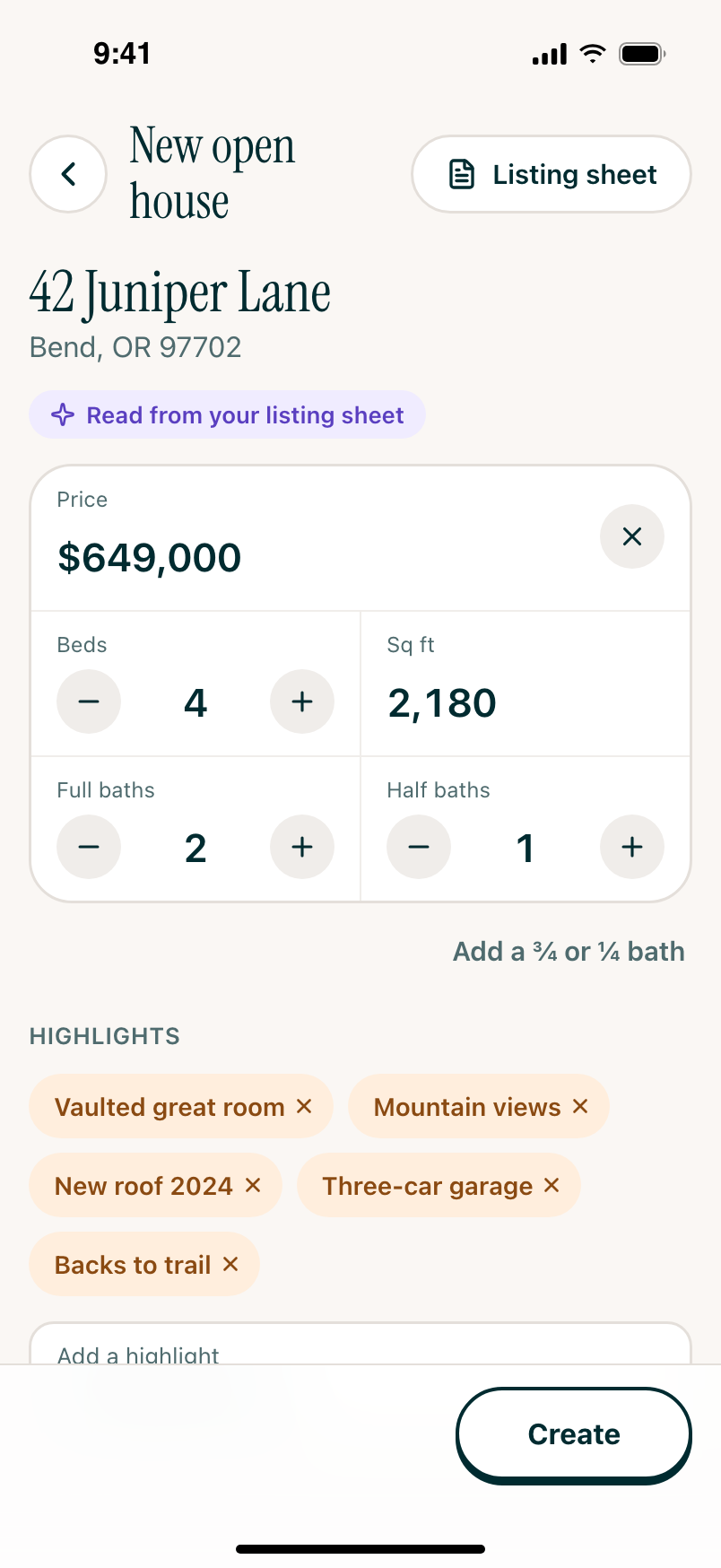
Avery reads the listing and fills in the address, price, beds, baths, square footage and the features that stand out. Fix anything that's off:
- Tap the address to change it.
- Use − and + for beds and baths. Add a ¾ or ¼ bath adds those counts.
- Price is optional. Remove it with ×, or add one with + Price.
- Tap a highlight to remove it, or type one in Add a highlight.
At the bottom, Anything else Avery should know? is for a note to her, like "Sellers are flexible on closing."
Avery works the highlights into her follow-ups with visitors, so remove any you wouldn't say out loud.
Step 3Choose your sign-in questions
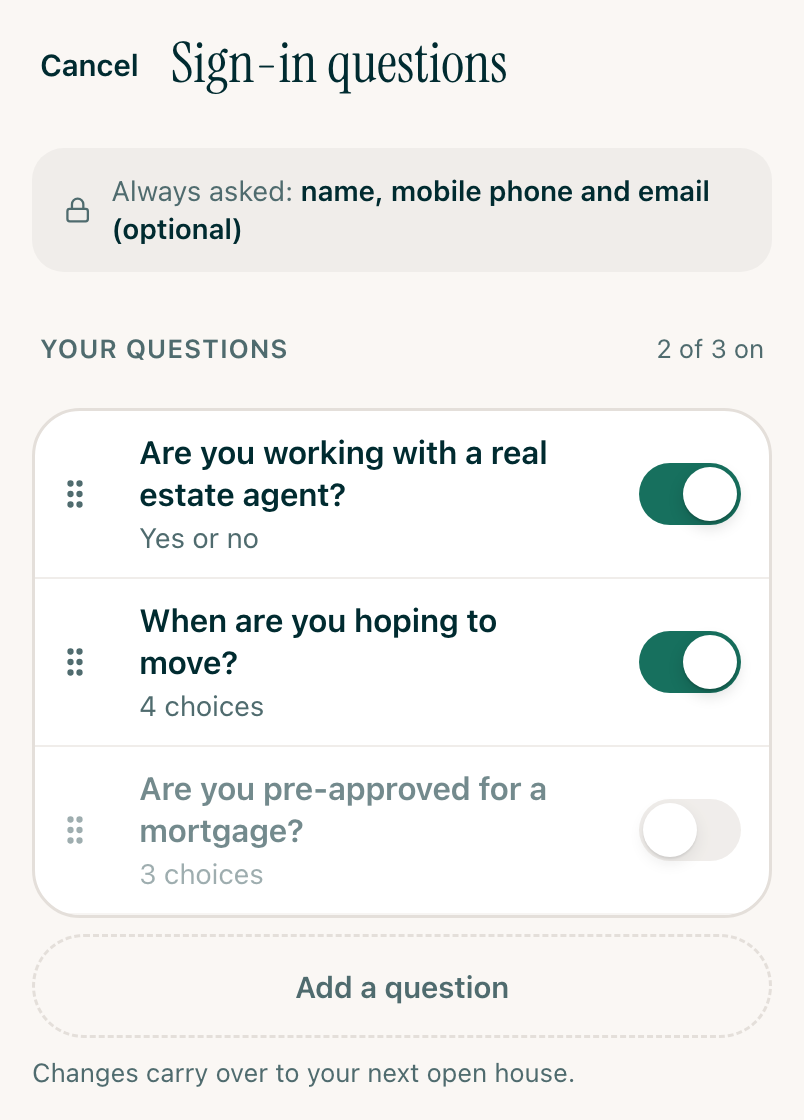
Tap Sign-in questions. Every visitor gives their name and mobile number, and can add their email. The rest of the questions are up to you:
- Tap a question to reword it.
- Drag it by its dots to change the order.
- Use its switch to turn it off.
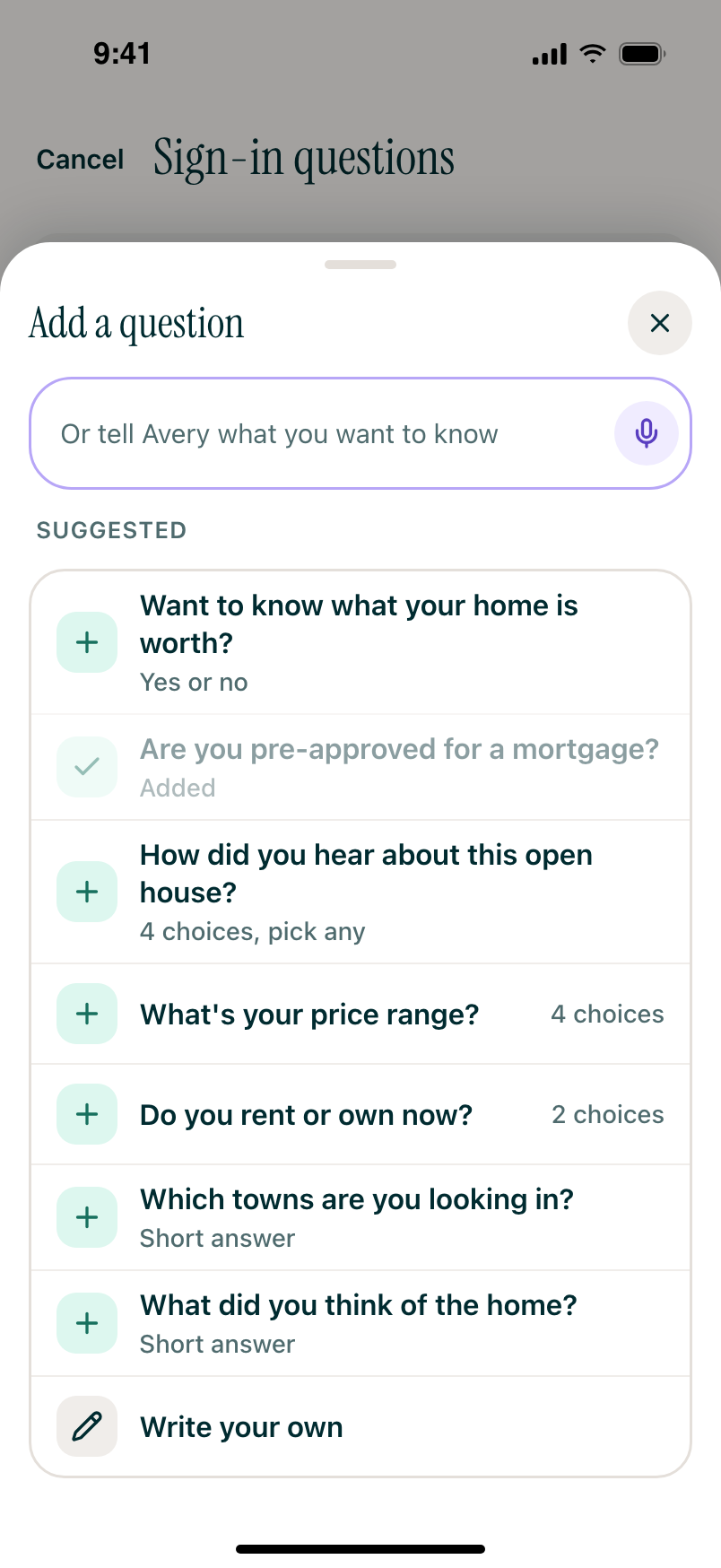
To ask something else, tap Add a question. Pick one of Avery's suggestions, tap Write your own, or type what you want to know in the box at the top and Avery writes the question for you.
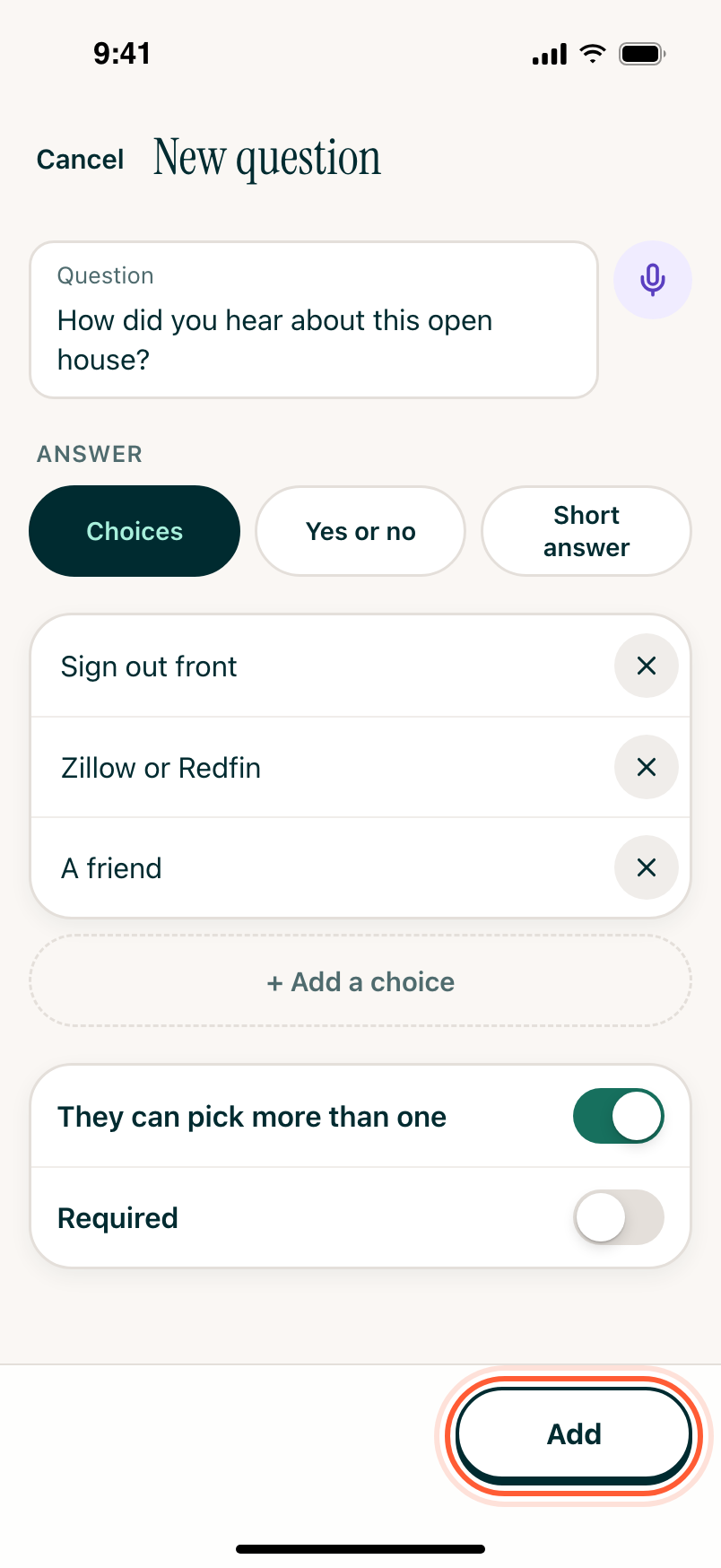
When you write your own, choose how visitors answer: Choices, Yes or no, or Short answer. For choices, turn on They can pick more than one if more than one answer can apply. Turn on Required if every visitor has to answer. Tap Add.
Tap Save when your questions look right. They carry over to your next open house.
If you turn off Are you working with a real estate agent?, Avery treats every visitor as a lead unless they tell you otherwise later.
Step 4Create it and print the sign
Tap Create. Visitors can sign in right away, and there's no start or end time to set, so you can set it up days ahead.
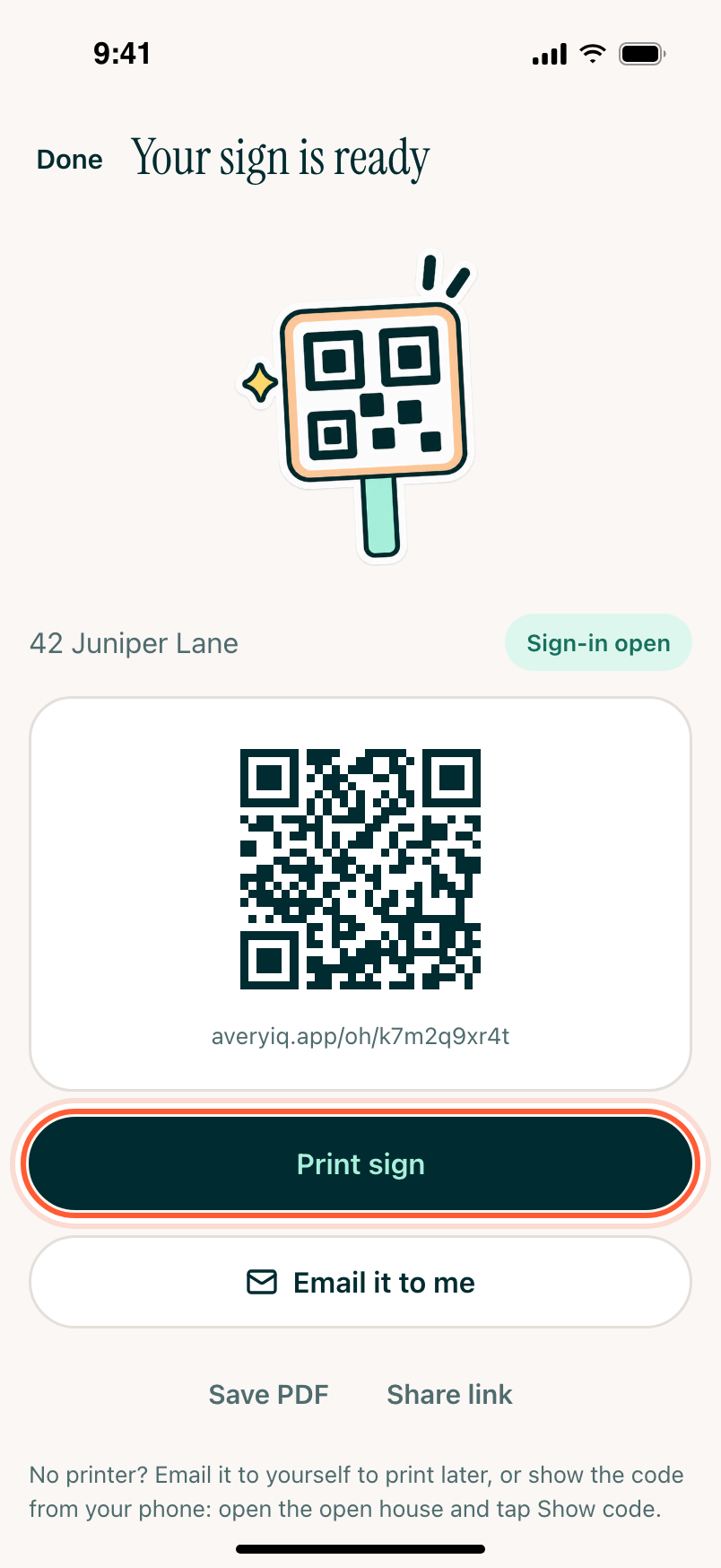
On Your sign is ready, tap Print sign. No printer handy? Tap Email it to me and print it later, or Save PDF to keep it on your phone. Share link sends the sign-in page itself, which is handy for a social post about the listing.
Step 5Try the sign yourself
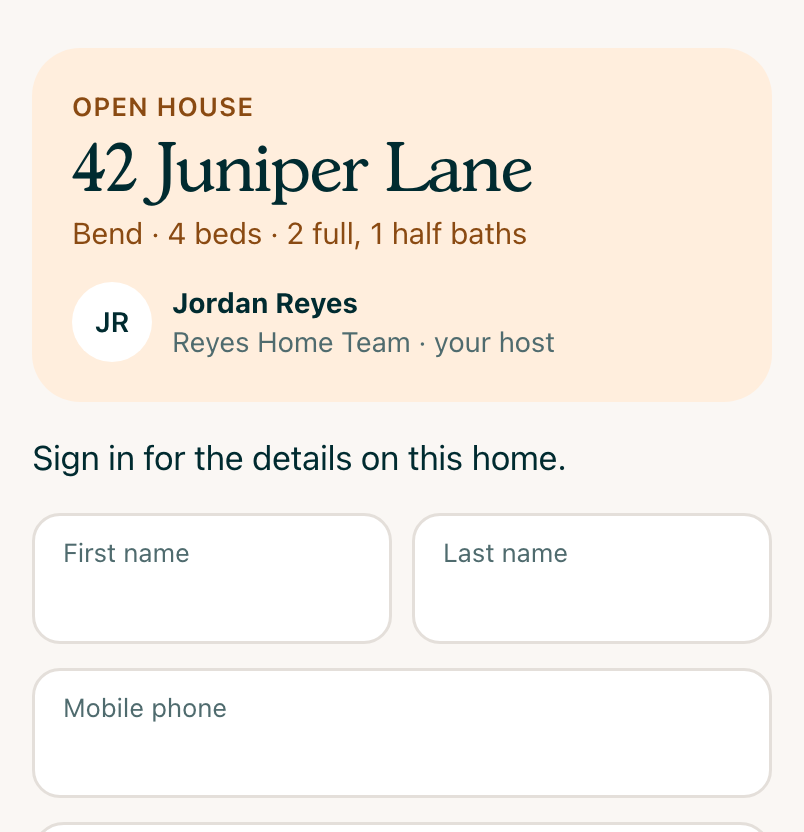
Scan the sign with your phone's camera and sign in, so you know it works. Visitors see the home, your name and a short form. AveryIQ knows it's you, so your test isn't saved.
Step 6Host
Put the sign where visitors see it as they walk in. Each person signs in on their own phone, and their name shows up on the open house as soon as they do.
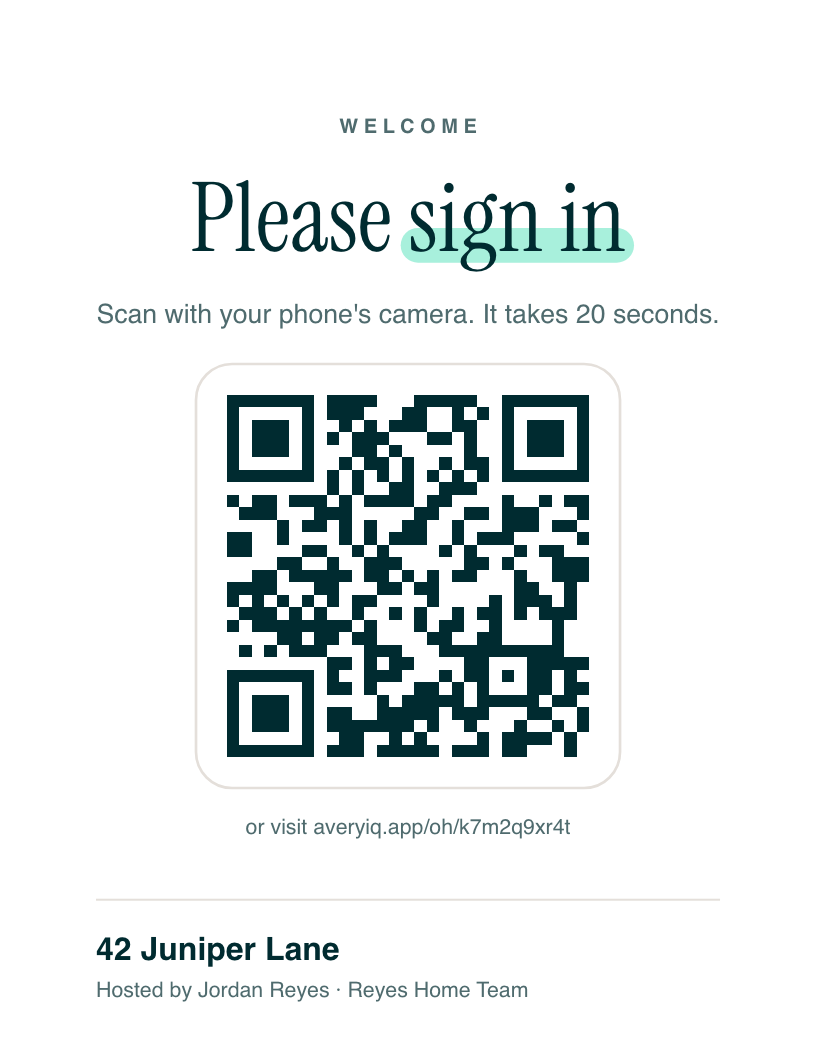
No printed sign? Open the open house and tap Show code. Your phone shows the QR code full screen for visitors to scan. Tap anywhere to close it.
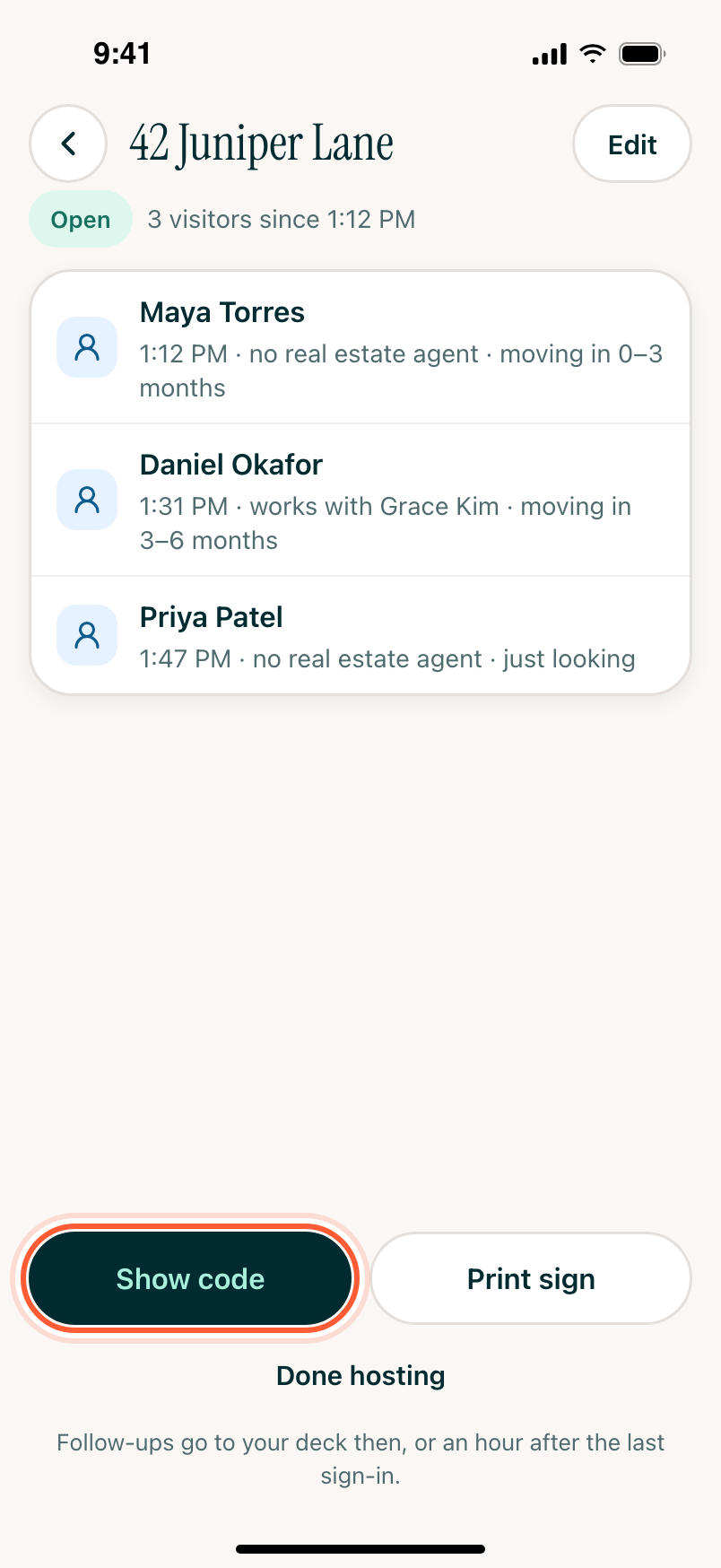
Step 7Tap Done hosting
When the last visitor leaves, open the open house and tap Done hosting, then Send follow-ups now. Avery puts a card for each visitor in your deck:
- A visitor who checked Text me what this home sells for gets a text, ready to send.
- A visitor who didn't check it gets a call card instead, since they didn't agree to texts.
- A visitor working with another real estate agent gets no card. If they gave that real estate agent's number, you get a text asking them for feedback instead.
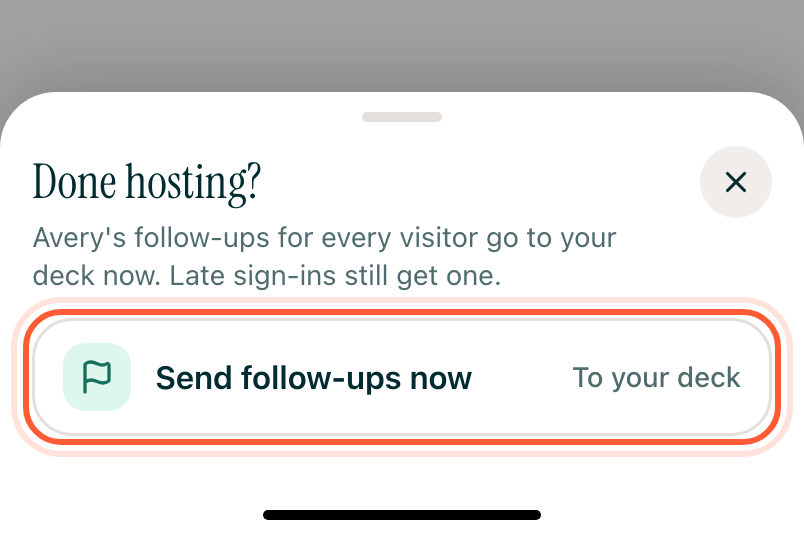
Anyone who signs in after that still gets a card, and it shows up in your deck right away.
Forgot to tap Done hosting? No problem. The cards show up on their own an hour after the last person signs in.
Step 8Send your follow-ups
Go to Tasks and tap Start today's deck. Read each text, tap it to tweak anything so it sounds like you, and tap the send arrow.
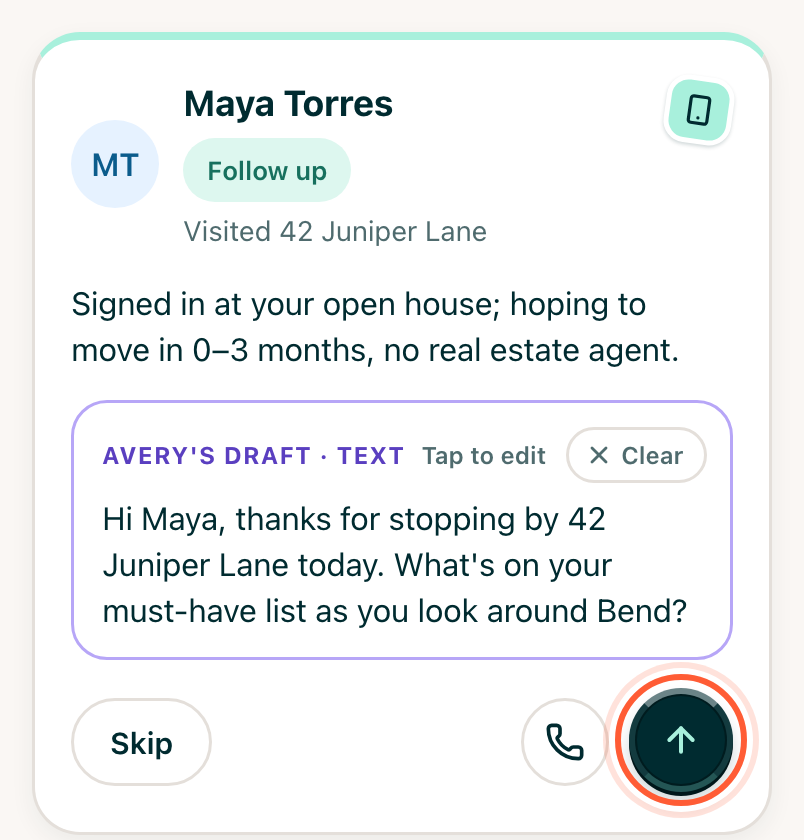
Visitors who checked Text me what this home sells for hear from you again. About 45 days after the open house, Avery asks you in Ask Avery what the home sold for (or skips the question when it's your team's listing and the closing is in AveryIQ). Then she drafts a text for each of them.