See who gets your email, name by name
Check every person an AveryIQ email blast will go to before you send it, search the list, take someone out and put them back, and see who each left-out reason covers.
Before you send, you can check every name on an email blast. Open the email's To and tap See all under Who gets it. The list is A to Z by last name, with a search box, and the × beside someone takes them out of this email.
When you'd use it
- Your "Past clients" search picked up the Okafors, who are mid-divorce. Take them out of the holiday card.
- You want to be sure Grace Kim, who asked about selling, is on the market update.
- Left out says "21 have group emails off" and you want to know who.
Step 1Open the list
Open the email's checklist, tap To, then See all under Who gets it. Each person shows their email address and where they came from, like "From Past clients".
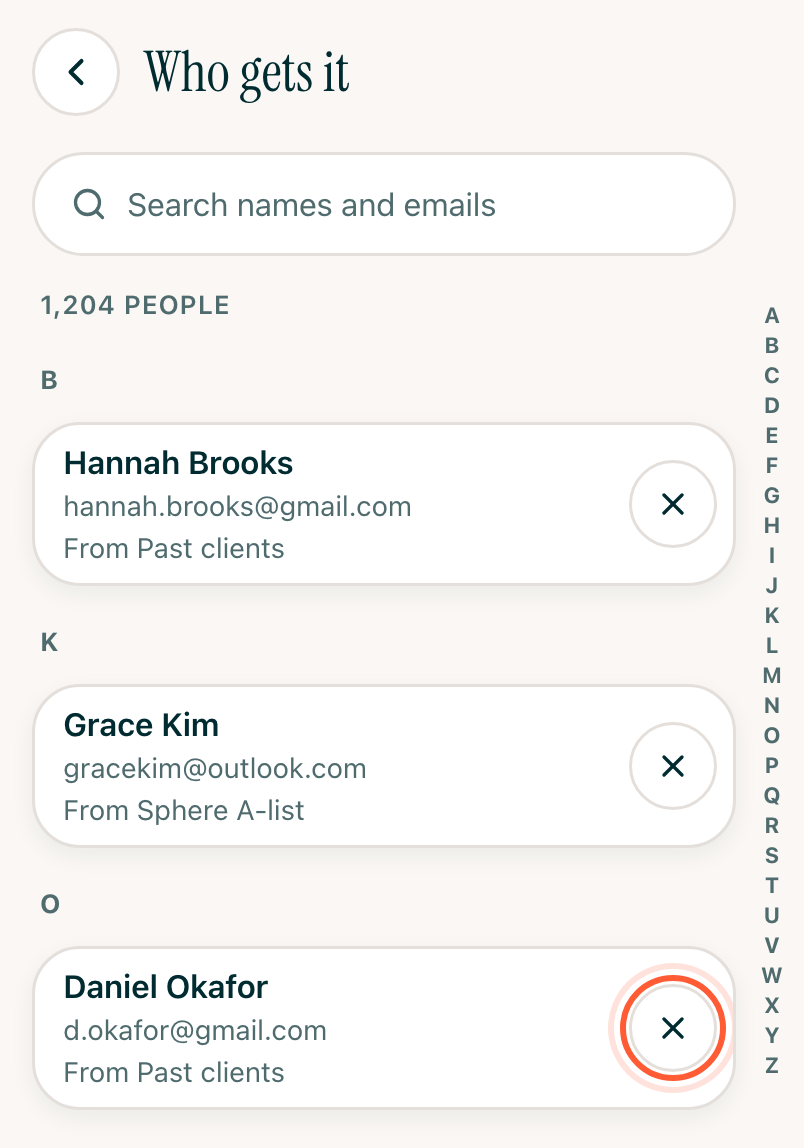
Type in Search names and emails to find someone, or tap a letter on the right to jump there.
Step 2Take someone out
Tap × beside their name. They leave the list, and the message says "Took Daniel out" with Undo. Only this email changes: they still get your next one, and your texts and calls go on as usual.
Step 3Put someone back
Back on To, people you took out are under Left out as You took out. Tap Put back on that row to put them all back, or tap the row and tap Put back beside one person.
See who a reason covers
Every row under Left out opens its own list: tap "40 with no contact yet" to see those 40, for example. Tap someone to open their page, where you can text them or fix their email.
Does taking someone out stop all my emails to them?
No. It's for this email only. To stop all your email blasts to someone, open their page and use Stop emailing them (Unsubscribes, bounces and spam reports).
To pick the people for an email, see Choose who gets your email.