Set up your Contact Card
Your AveryIQ Contact Card is a digital business card with your photo, team number, email, website and areas you serve. Edit what's on it and choose whether your cell shows.
Your Contact Card is a web page with your contact details that people can save to their phone in one tap, like a digital business card. Everyone on your team has one from the start, filled in from your account, so it works before you change anything. To edit it, tap More, tap your name, then tap Edit at the top right.
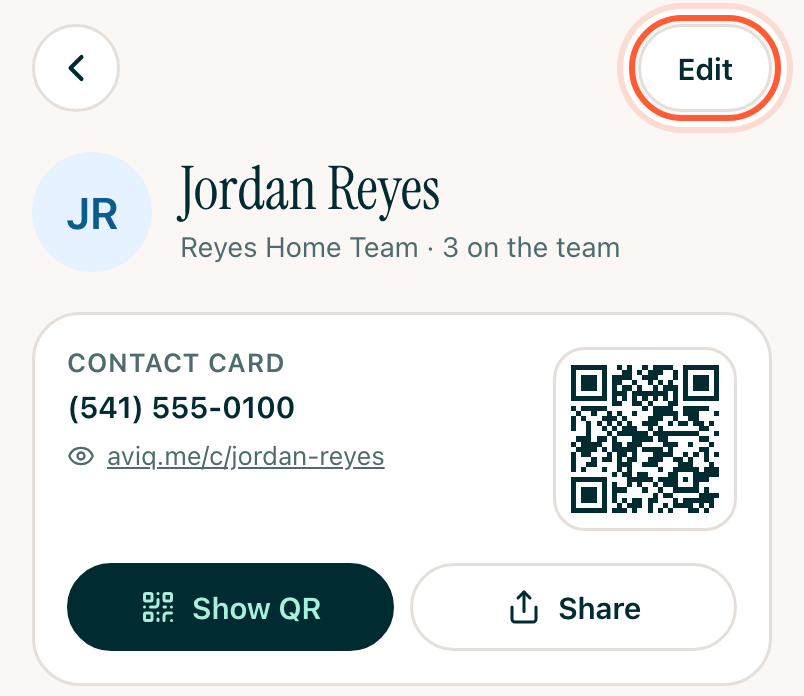
Step 1Add your photo and title
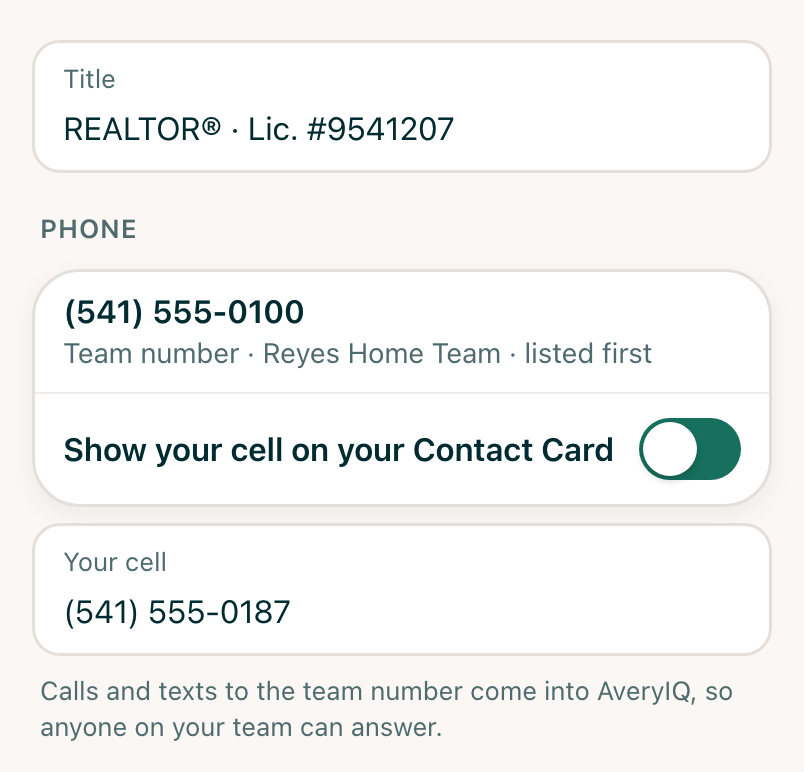
Tap the photo circle, then Take photo or Choose photo. Under your name, fill in Title, like "REALTOR® · Lic. #9541207".
Step 2Choose your phone numbers
If your team has a team number, it's listed first on your card, and calls and texts to it come into AveryIQ so anyone on your team can answer. You can't remove it.
To share only the team number, turn off Show your cell on your Contact Card. To change the cell itself, edit Your cell.
Step 3Add the rest
- Website: your own site or a profile page. Your email is the one you sign in with, so it can't be changed here.
- Birthday: tap Add. It goes in the contact people save, never on the page itself. Turn off Put your birthday on your Contact Card to leave it out.
- Areas you serve: type a town or neighborhood in Add an area and tap return. Tap one to remove it.
- About you: a few lines in your own words.
- Links: tap Add a link for your Instagram, Zillow reviews or anything else, up to eight.
- Your link: the end of your card's web address, like aviq.me/c/jordan-reyes. If you change it, the old link stops working.
Step 4Save
Tap Save. To check it first, tap Preview at the bottom left.
What people see
When someone opens your card, they see your photo, name, title, team and areas, then:
- Save contact, which adds you to their phone's contacts. Your team number is saved under your team's name, so your calls and texts show up as you.
- Call, Text and Email.
- Your numbers, email, website, About and links.
To see it the way they do, tap the web address under Contact Card on your profile.
Example uses
- You just got your license number renewed. Update Title so it's right everywhere you've shared your card.
- You only want leads calling the team line. Turn off Show your cell on your Contact Card.
- You farm two neighborhoods. Add both under Areas you serve so new contacts know where you work.
Why can't I save?
- Someone else has that link. Try another. Another card uses that address. Add a word or a number.
- A link needs at least three letters or numbers, and can use only letters, numbers and dashes.
Next: Share your Contact Card.