Share your Contact Card
Hand anyone your contact info with a QR code or a link, so they save your team number.
Your Contact Card is a page with everything someone needs to reach you: your team number, your cell, email, website, the areas you serve and a few words about you. Share it at a conference, after a showing or in your first text, and they can save you to their contacts in one tap.
Step 1Set up your Contact Card
Go to More, tap your name, then tap Edit.
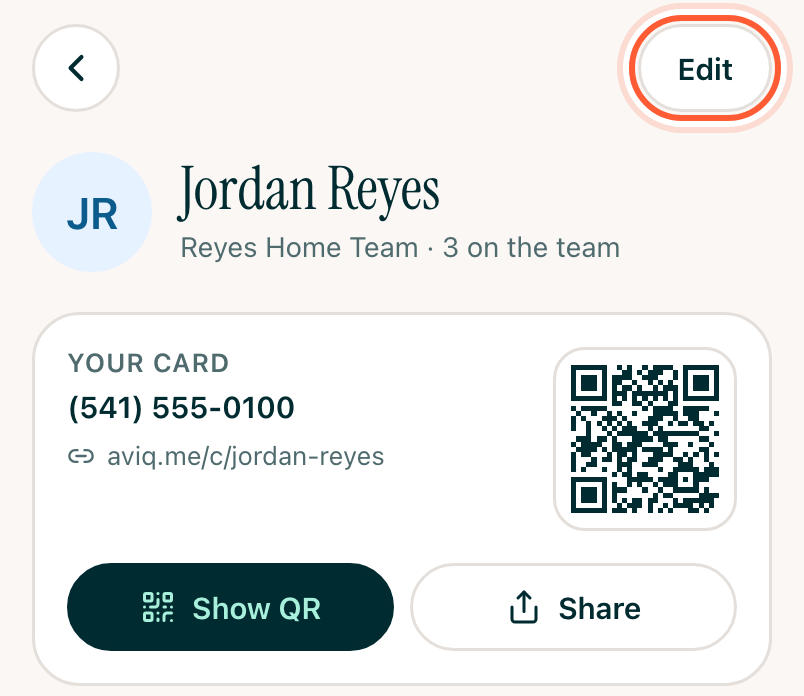
Add what you want people to see:
- Photo, your name and a Title (for example, "REALTOR® · Lic. #9541207").
- Your cell. To share only the team number, turn off Show your cell on your Contact Card.
- Website. Your email is the one you sign in with.
- Birthday: tap Add to put it in the contact people save. It never shows on your card's page. Turn off Put your birthday on your Contact Card to leave it out.
- Areas you serve, About you and Links to your Instagram, Zillow reviews or anything else.
- Your link: the end of your card's address, like aviq.me/c/jordan-reyes. If you change it, the old link stops working.
Tap Save. Preview shows your Contact Card first.
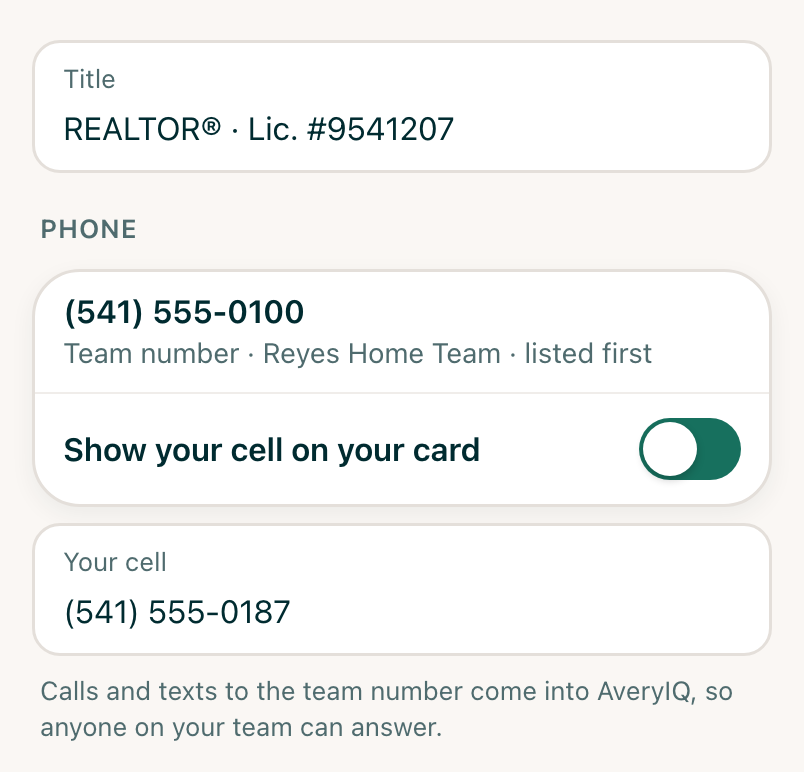
[!NOTE] If your team has a team number, it's always listed first on your card. Calls and texts to it come into AveryIQ, so anyone on your team can answer.
Step 2Show your QR code in person
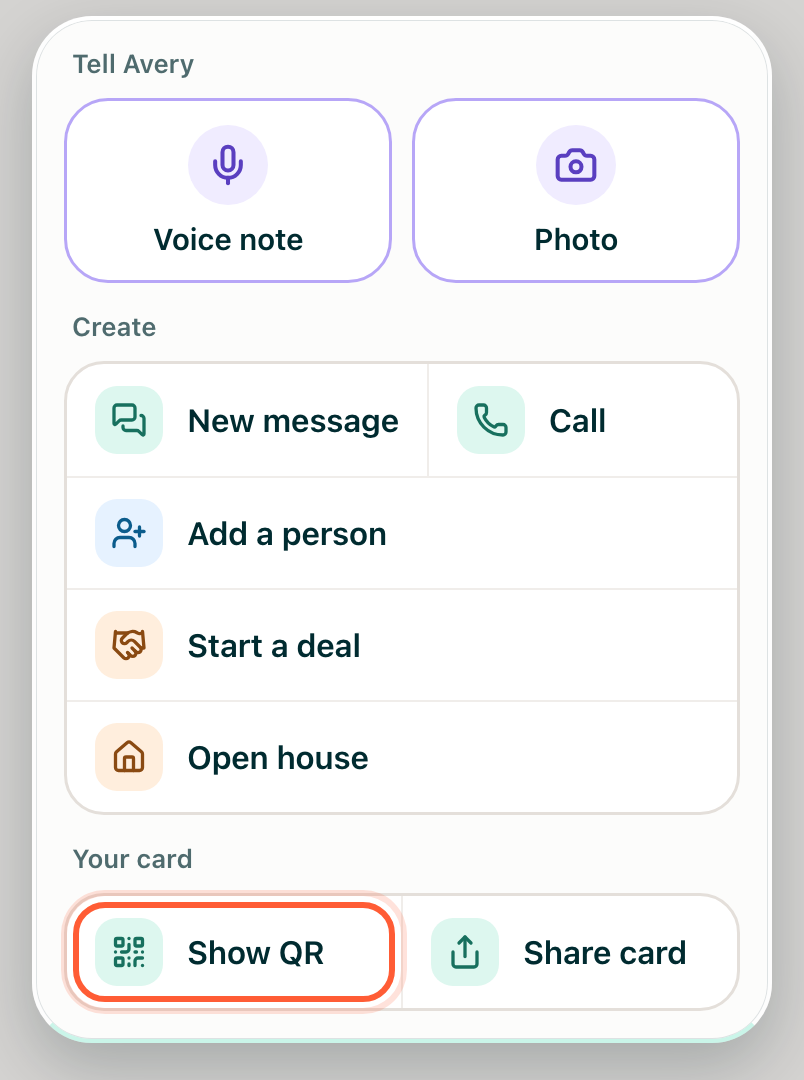
Tap +, then Show QR. (It's also under More, then Contact Card.)
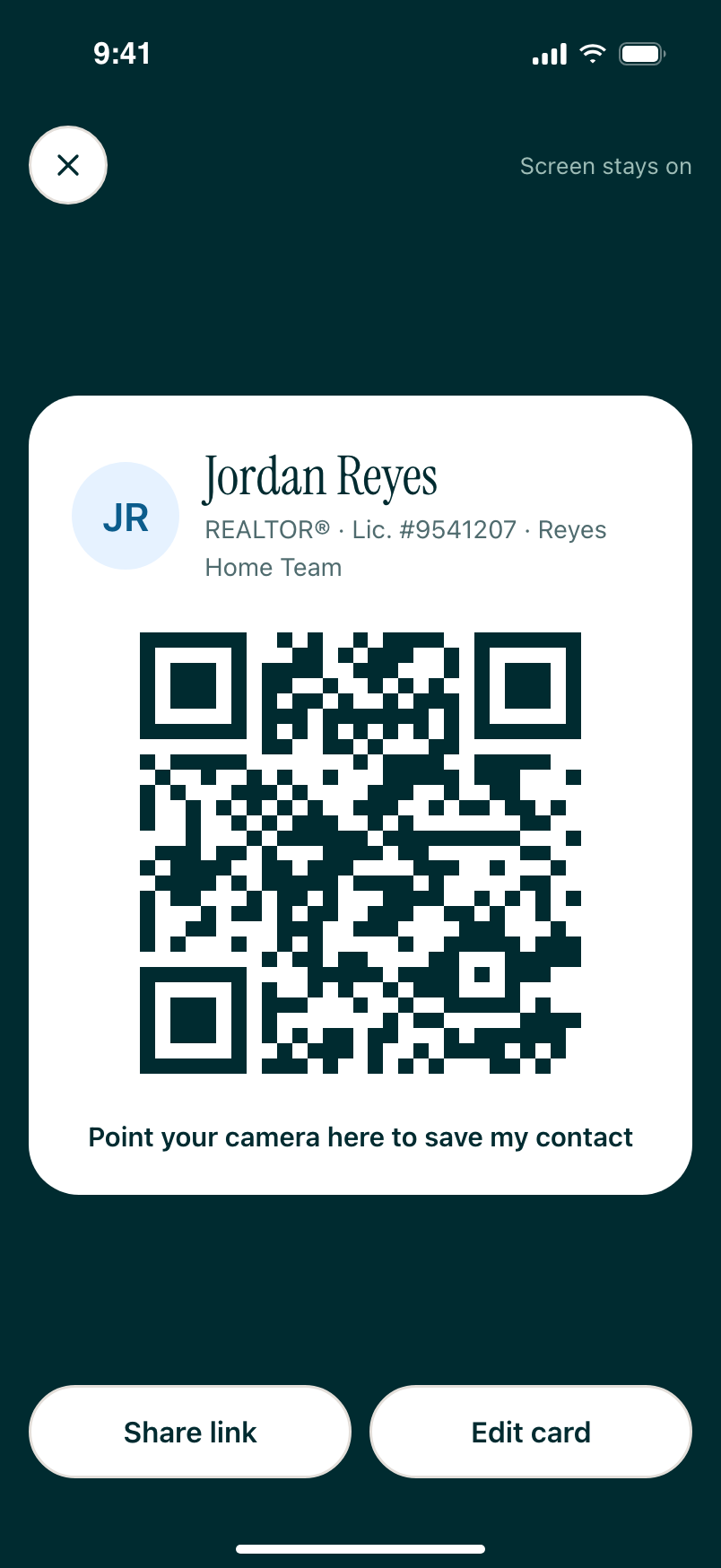
Your QR code fills the screen, and the screen stays on. The other person points their camera at it and opens your card.
To see your Contact Card the way other people do, tap Preview. It also shows under your name on your profile, and next to your Contact Card when you add it to a text.
Step 3Send your link
Tap +, then Share under Contact Card, to text, email or AirDrop your link, or copy it for your Instagram bio or email signature.
In your first text to someone
To add it to any text, tap + beside the message box, then Contact Card. It's attached in the message box, above your words.
When Avery drafts your first text to someone, she attaches your Contact Card for you. Tap × on it to take it off before you send.
Tap the attached Contact Card to see what's on it, Edit it, or Preview it the way the other person will. Your text keeps what you've written while you edit.
It goes at the end of your text as a link, after "Here's my contact card so you can save my number:", so they know what it is.
After a call with someone new
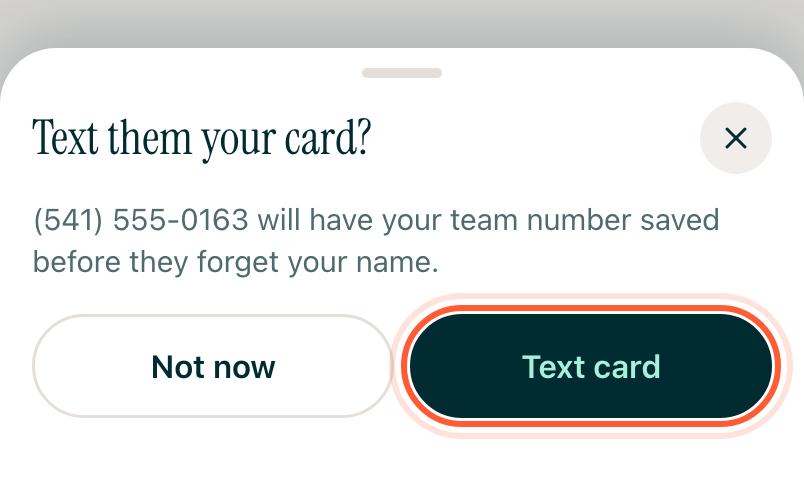
When you hang up a call through AveryIQ with a number that isn't in People yet, AveryIQ asks Text them your Contact Card? Tap Text Contact Card to open a text to them with your Contact Card in it, ready to send, or Not now to skip.
Step 4What the other person sees
Your Contact Card opens in their browser. They can:
- Tap Save contact to add you to their phone's contacts. Your team number is saved under your team's name, so your texts and calls show up as you, not an unknown number.
- Call, Text or Email you straight from the page.