Write your subject and preview text
Set the subject line and preview text of an AveryIQ email blast, add each person's first name, see how it looks in an inbox, and what AveryIQ checks before you send.
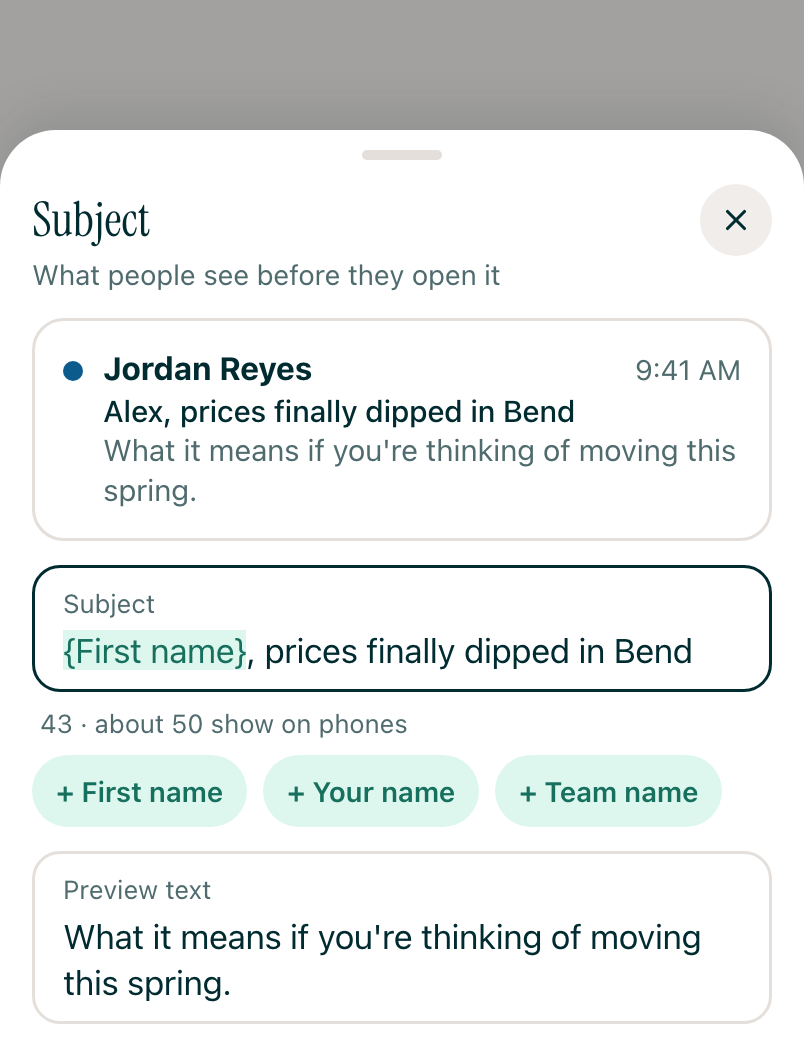
The subject and the preview text are what people see in their inbox before they open your email. Tap Subject on the email's checklist to change them. As you type, the sheet shows the email as an inbox row: your name, the subject and the preview text.
When you'd use it
- "Bend in November: what changed" from the template becomes "Prices finally dipped in Bend". Specific beats clever.
- Your just-listed email: "Just listed: 4 beds on Juniper Lane, $649K".
- Your holiday card: "{First name}, happy holidays from the Reyes Home Team".
Step 1Open Subject
On the email's checklist, tap Subject. In the design, tap the email's name at the top.
Step 2Write them
- Subject: keep it short. Under the field, "42 · about 50 show on phones" counts your characters against what a phone shows. Up to 200.
- Preview text: the line after the subject in most inboxes. Use it to add something, not to repeat the subject.
- + First name, + Your name and + Team name, under each field, fill in for each person. Someone with no first name sees the rest of the subject, so keep a few other words in it.
- Words in yellow, like {Area}, are the template's. Type over them.
Tap Save. Closing the sheet with the × leaves it as it was, and Undo on the message after saving puts back the old one.
What does AveryIQ check?
When you tap Review, an empty subject or words in yellow stop the email until you fix them. AveryIQ also suggests, without stopping you:
- writing in normal case, since all caps reads like spam;
- one exclamation mark at most;
- preview text that doesn't repeat the subject.
What does "From your Nov 3 email · check it" mean?
You copied this email from one you sent. Change the subject or tap Still right so it doesn't go out with last month's words (Send this month's newsletter).
A teammate changed it at the same time
The sheet asks you to pick Keep mine or Use theirs.