Choose who an email is from
Set who an AveryIQ email blast goes out under, the name people see, your email name, and footer. Make an email for a teammate and ask them to review and send it.
From on an email's checklist is whose name, address, signature and license the email goes out under, and replies come back to them. Tap From to choose the person and the name people see. Only the person an email is from can send it, so a teammate can make an email for you and you send it.
When you'd use it
- Your assistant builds the monthly newsletter and picks you under Who. You get a push, check it, and send it under your name.
- The team's holiday card should say "Reyes Home Team", not your name: pick the team name under Name.
- It's your first email and From says Pick the email name it comes from.
Step 1Open From
On the email's checklist, tap From.
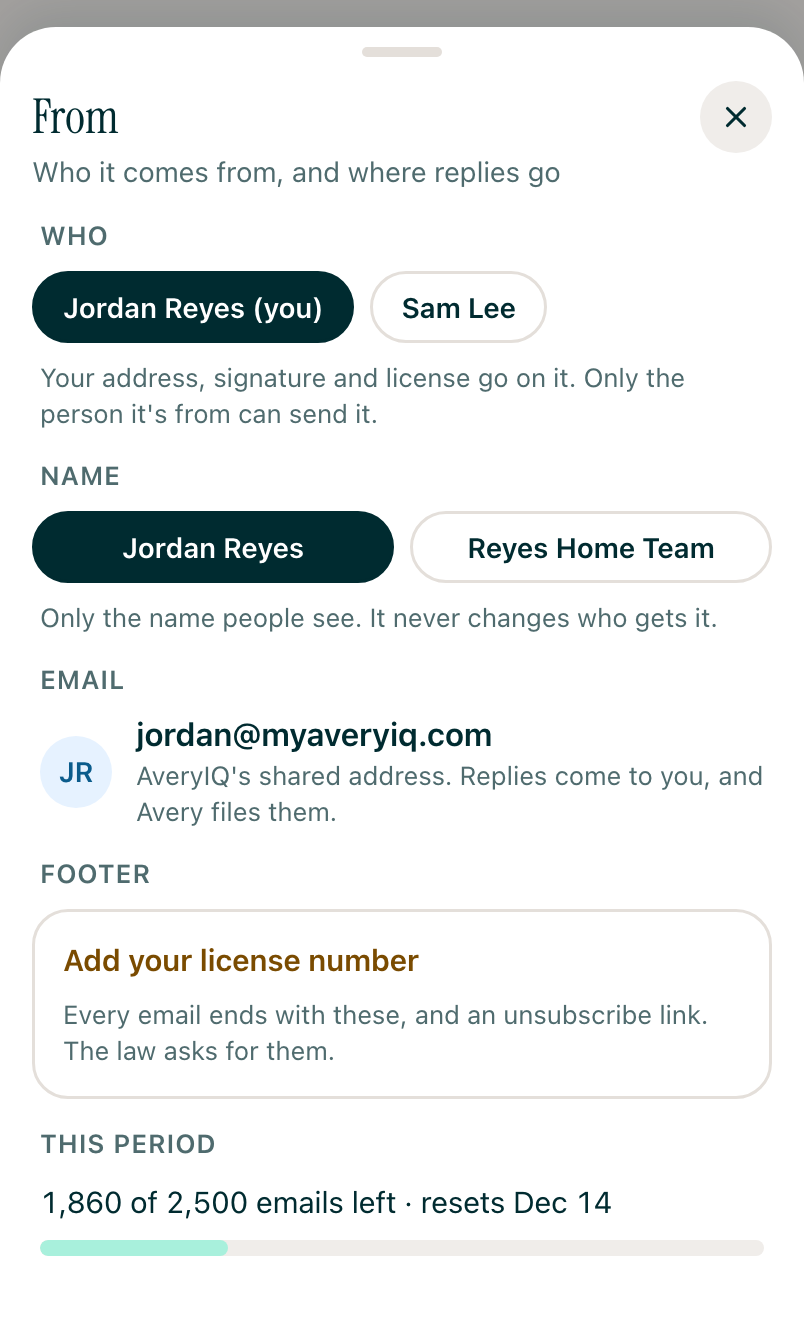
- Who: the person it goes out under. Their address, signature and license go on it.
- Name: what people see in their inbox, the person's name or your team name. It never changes who gets it.
- Email: the address it comes from and replies go to, like [email protected], or your own domain once it's set up (Send emails from your own domain).
- Footer: your brokerage, mailing address and license, which every email ends with.
- This period: how many emails you have left (How many emails you can send).
Picked the wrong person? Tap Undo at the top of the sheet.
Step 2Pick your email name, once
The first time, Email asks you to pick a name, like jordan, and tap Claim. Clients see it, and it can't change later. It's the same name as your Avery email.
If it's a teammate's email and they haven't picked one, it says so, with Ask Sam, which opens an email to them.
Step 3Fill in the footer, if it asks
If Footer says something like Add your license number, tap More, then Settings, then Footer under Email blasts (Set up your email footer). The sheet doesn't open it for you yet.
Make an email for a teammate
Pick them under Who. The bar at the bottom changes from Review to Ask Maya to review. Tap it: Maya gets a push, and the email waits at the top of her Email blasts under Waiting on you, with "Jordan made this for you". You can ask again after ten minutes. Anyone on the team can still edit it until she sends it.
Why can't I tap Review?
Review opens once To, From and Subject are done. If From is someone else, only they can review and send it.