Turn AveryIQ notifications on or off
Turn AveryIQ notifications on or off on your iPhone, mute one conversation, choose what a deal thread notifies you about, quiet Avery's reminders, and switch message sounds on a computer.
AveryIQ notifies you when your deck is ready, when a client texts or calls, when a teammate needs you, and when a lead is waiting. Turn all of them on or off in Settings, then Notifications. You can also quiet a single conversation, or Avery's reminders through the day, and keep the rest.
Turn notifications on or off
- Tap your initials at the top of Tasks (or More, then Settings).
- Look at Notifications under Your day. It says On or Off.
- Tap it. Your iPhone's Settings app opens to AveryIQ. Turn Allow Notifications on or off, then come back to AveryIQ.
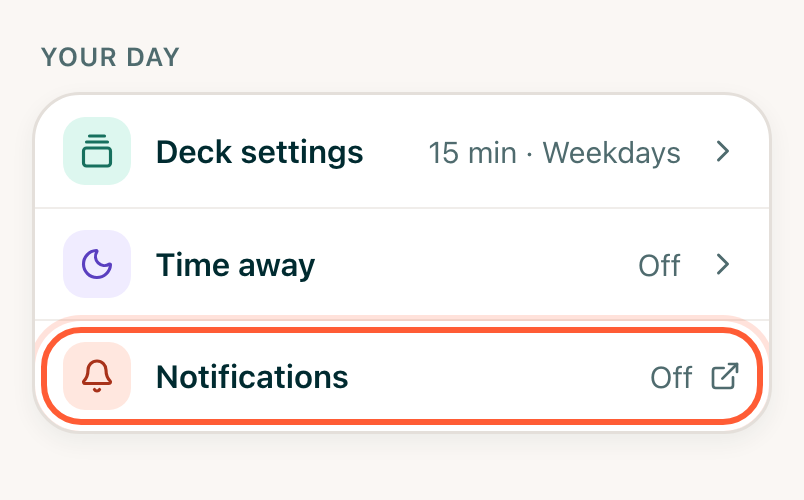
If you never answered the question when you first opened the app, tapping Notifications asks you right there instead. Tap Allow.
What does AveryIQ notify me about?
- Your deck is ready, each morning at the time in Deck settings.
- New texts and calls from clients, missed calls and voicemails.
- Your direct messages, and new messages in your deal threads.
- Leads: a new lead from a portal or your website, a lead nobody has texted back, and new people in the team pool.
- Your team: a teammate assigns you someone, asks you for something, sends a High five, or picks you to cover their time away.
- Replies to your email blasts, and texts or emails that didn't send.
Quiet one conversation
In Messages, touch and hold the conversation and tap Mute. Or open it, tap the (i) at the top, and under Notify me about pick:
- Everything: every new message.
- Mentions: only when someone @mentions you or replies to you.
- Nothing: no notifications from here.
Changed your mind? Pick Everything again, or tap Unmute.
Fewer reminders through the day
Avery sends a few nudges a day to help you finish your deck, plus news like a teammate clearing theirs. To stop those only, open Deck settings and turn off Reminders and team news. Your deck, client messages and team requests still notify you.
Message sounds on a computer
In AveryIQ in your browser, open Settings. Under Your day, turn Message sounds off to stop the sound when a text comes in while AveryIQ is open. It only changes that browser.
Examples
- You're showing homes all afternoon and don't want your phone buzzing about a busy deal thread. Set it to Mentions.
- You turned notifications off at signup and now miss new leads. Tap Notifications and turn them on in your iPhone's settings.
- A closed deal's thread keeps buzzing with thank-yous. Mute it.
Does muting a client stop their texts?
No. Their texts still arrive in Messages. You just don't get a notification.
Do notifications work on Android?
Not yet. On Android, check Messages and Tasks in the app.