Change your quick times for Snooze and Schedule send
Pick the times AveryIQ offers at the top of the Snooze and Schedule send sheets, like In 30 minutes or Monday at 8 AM, so you can snooze a task or schedule a text in one tap.
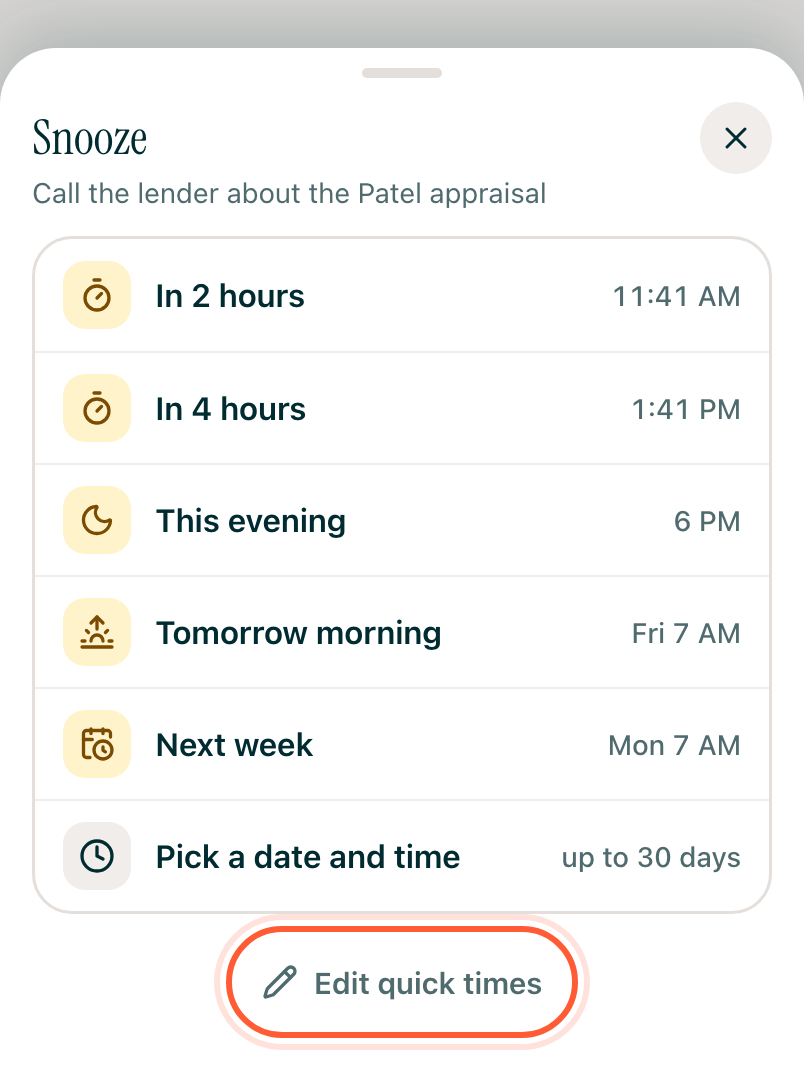
Quick times are the one-tap choices at the top of the Snooze and Schedule send sheets, like In 2 hours or Tomorrow morning. You can change them to the times you really use, like "In 30 minutes" or "Monday at 8 AM." Open either sheet and tap Edit quick times at the bottom. Each sheet has its own list, and your list is yours alone.
Step 1Open the sheet
- Snooze: on Tasks, swipe a task left, or open it and tap Snooze.
- Schedule send: on the team line, touch and hold the send button, then tap Schedule send. See Schedule a text.
Step 2Tap Edit quick times
It's under the choices. The sheet turns into Quick times, your list.
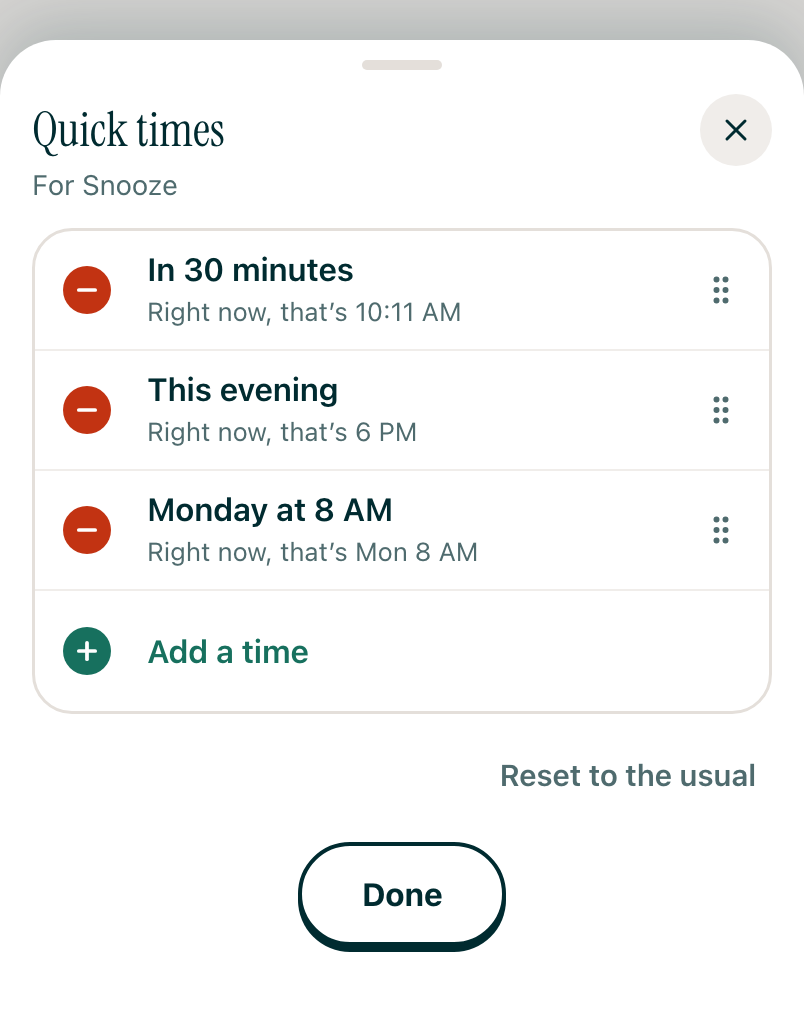
Step 3Change the list
- Remove one: tap the red − beside it.
- Reorder: drag the grip on the right up or down.
- Add one: tap Add a time.
- Reset to the usual puts back the times you started with.
Each change saves right away. Tap Done when you're finished.
Step 4Add a time
Pick one of two kinds:
- In a while: a number and Minutes, Hours, Days or Weeks, like "In 30 minutes."
- At a set time: a time and a day: Today or tomorrow (whichever comes next), Tomorrow, or A day of the week, like "Monday at 8 AM."
How it will look shows the row as it will appear. Tap Add. A sheet holds up to six quick times.
Save one while you pick
Tap Pick a date and time, choose it, and turn on Save as a quick time before you tap Snooze or Schedule. This also works on your deck's Skip sheet.
Why is one of my times missing?
Times that would land in the middle of the night aren't offered, so "In 4 hours" disappears late in the evening and comes back in the morning. In the list, a hidden one says why, like Hidden when it would land at night. On Snooze, Tomorrow morning means the time your deck is ready.
Removed one by mistake?
Tap Undo right under the list. Or tap Add a time and add it back.
When you'd use it
- You snooze calls to "after lunch" every day: add At 1 PM.
- You batch texts to send Sunday night for Monday morning: add Monday at 8 AM to Schedule send.
- You never use In 4 hours: remove it so the sheet is shorter.
You can also ask in Ask Avery: "Add 30 minutes to my snooze times."