Schedule a text to send later
Write a text now and have AveryIQ send it from your team number at the time you pick, even with your phone off. Change it, send it now or cancel it any time before it goes.
Schedule send lets you write a text now and have it go out later, at a time you pick. AveryIQ sends it from your team number at that time, even if your phone is off. In a conversation, type your text, then touch and hold the send arrow and tap Schedule send. It works only on the team line: a text from your own phone has to be sent by you in Messages.
Step 1Write the text
Open the conversation and type your text. Check that From above the message box says Team line.
Step 2Pick a time
Touch and hold the send arrow, then tap Schedule send.
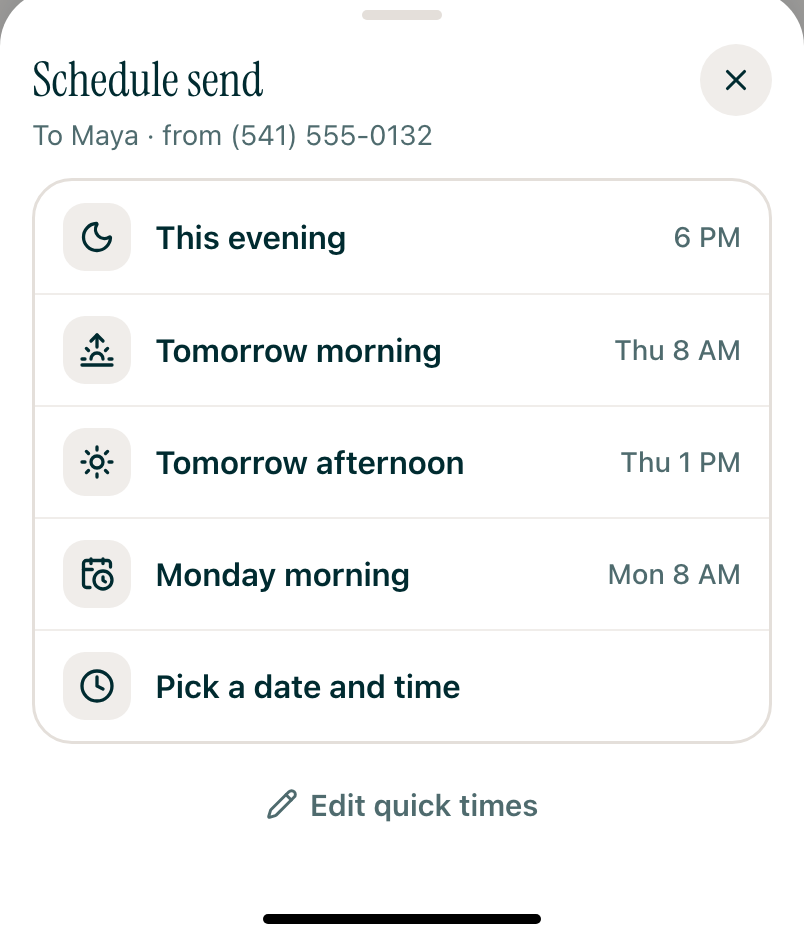
Tap a quick time, like Tomorrow morning, or tap Pick a date and time, choose one and tap Schedule. You can schedule up to a year ahead. To keep a time you picked for next time, turn on Save as a quick time. To change the list, tap Edit quick times (see Quick times).
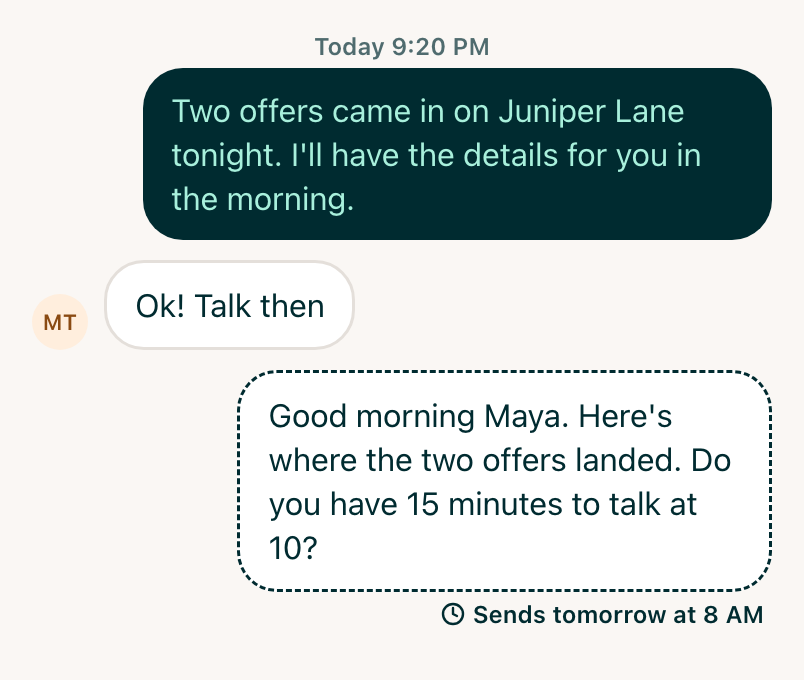
The box empties and the text waits under the newest message, in a dashed bubble that says when it sends.
Change it or cancel it
Tap the dashed bubble:
- Send now: it goes right away.
- Change time: pick a new one.
- Edit: change the words, then tap Save.
- Don't send: it's cancelled and your words come back to the message box. If it came from a task in your deck, the task comes back too.
If the sheet says That text has already gone, it was sent before your change reached it.
From your deck
On a task where From says Team line, touch and hold the send button and tap Schedule send. The task is done once the text is scheduled, and the text waits in their conversation like any other.
Example uses
- It's 10:40 PM and you just remembered to wish Grace luck on her closing. Schedule it for Tomorrow morning so it doesn't wake her.
- Before your vacation, you write the market update you promised Luis and set it for the Monday you're away.
- A buyer asked you to check in after their lender call at 2 PM. Pick 3 PM and move on with your day.
Why is Schedule send grayed out?
It says why under it:
- From your team line only: switch From to Team line first.
- Your team number can't text yet: carriers are still approving it. See Register for team texting.
Without a team number, Schedule send doesn't show.
What if they text STOP before it goes?
It doesn't send. AveryIQ checks right before sending. You get a notification, A text didn't send, and the text shows Didn't send in the conversation with the reason under it. If it came from a task, the task goes back in your deck.