Add a lead to Avery from your iPhone's share sheet
Share a screenshot or photo to AveryIQ from any iPhone app with Add to Avery in the share sheet. A screenshot of a lead becomes a new person in your real estate CRM, without opening the app.
Add to Avery sends a screenshot or photo to Avery from any iPhone app, without opening AveryIQ. Tap the Share button in Photos (or wherever the picture is), pick Add to Avery, add a few words if you like, and tap Add. It lands in your private Ask Avery thread, and a screenshot of a lead becomes a new person.
When you'd use it
- A Zillow or Realtor.com lead comes in. Screenshot it, share it, and Avery adds the person with their phone, email and what they asked about.
- A past client texts you a friend's contact. Screenshot the text and share it with "Add her, she's thinking about selling in spring".
- You snap a business card at a coffee shop. Share the photo and Avery saves the name and number.
- A neighbor posts about a new bakery opening. Share the photo with "Save this for my clients in Juniper" and Avery keeps it as a talking point.
Step 1Share the picture
Open the screenshot or photo, in Photos or right after you take it, and tap the Share button. In the row of apps, tap Add to Avery.
Don't see it? Scroll to the end of the row of apps, tap More, and turn on Add to Avery.
Step 2Tell Avery what to do, then tap Add
Type in Tell Avery what to do (optional), or leave it empty. Then tap Add.
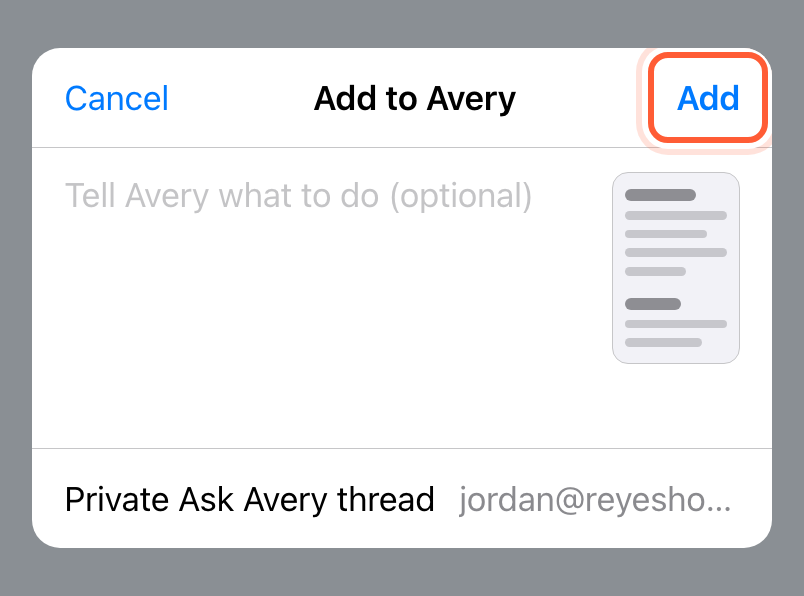
You see Added to Avery. Tap Done and you're back where you were.
Step 3See what Avery did
Open Messages and tap Avery, pinned at the top. Your picture is there, with her answer under it, like who she added and what she saved.
- No words: a screenshot of a lead or a contact means "add this person". Any other photo she won't turn into a person: add a few words next time to say what you want.
- With words: she does what you asked.
Wrong person or wrong details? Reply in the thread ("That's Maya's husband, not Maya"), or undo the change from History on their page.
What can I share?
One screenshot or photo at a time: PNG, JPEG, HEIC or WebP, up to 25 MB. Text, links, contacts and files can't be shared to Add to Avery. For those, paste or attach them in Ask Avery instead, or forward your texts.
It says "Couldn't add to Avery"
- Open AveryIQ and sign in to your team, then share this image again. Open the app once and sign in. Add to Avery uses the same sign-in.
- Choose one screenshot or photo to add to Avery. You picked more than one, or something that isn't a picture.
- Choose a photo smaller than 25 MB. Share a screenshot of it instead.
- Couldn't confirm the upload. Check Ask Avery before sharing again: it may have gone through.
Does it work on Android?
Not yet. Add to Avery is on iPhone only. On Android, send the photo from the camera or + in Ask Avery.
Does anyone else see what I share?
No. It goes to your private Ask Avery thread. Only the people and notes Avery saves from it are shared with your team, like anything else in your database.