Send the texts you get to AveryIQ
Set up your iPhone so your clients' texts reach AveryIQ, even without a team number. Texts from numbers not in your database wait for you to decide.
When you text from your own cell, Avery can't see the replies. Text forwarding fixes that: your iPhone sends each text you receive to AveryIQ.
- A text from someone in your AveryIQ contacts lands in their thread. Avery reads it and can draft your reply.
- A group text lands in the group's thread when everyone in it is already in AveryIQ. Avery's reply goes to the whole group.
- Everything else is held for review: a text from any other number, or a group text that includes someone new. Avery doesn't read it. You decide whether to add it or ignore it.
You set it up once, in the Shortcuts app on your iPhone. It takes about two minutes.
Before you start: add your mobile number
AveryIQ needs your own number to tell a group text apart from one sent just to you. Tap More, then Settings, then Text forwarding. Tap Your mobile number, type it and tap Save.
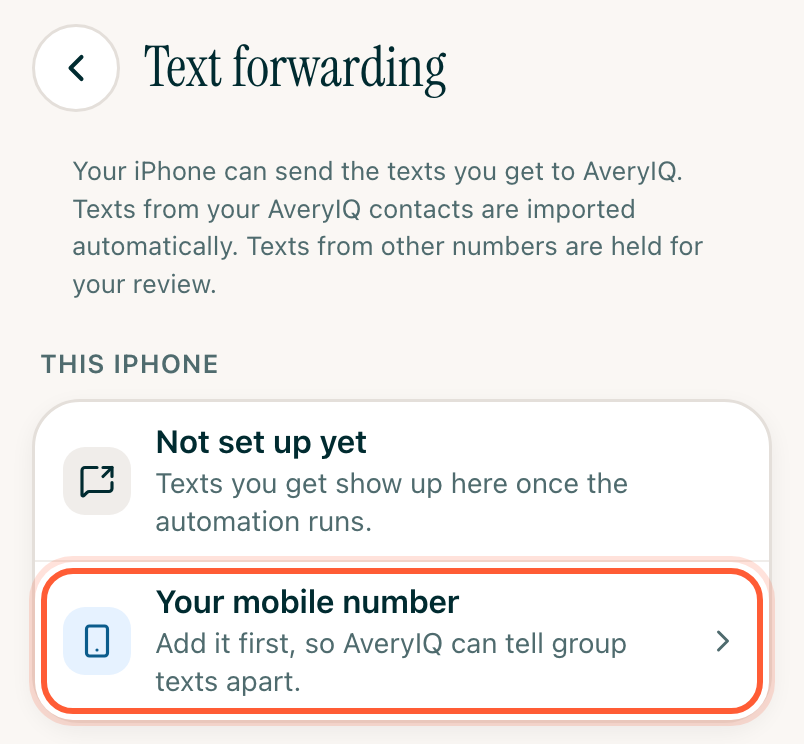
If your mobile number is ever removed, forwarding pauses. Your texts wait on your iPhone for up to a week and come through once you add it back.
Step 1Make the automation
- Open the Shortcuts app and tap Automation. Tap New Automation, or + if you already have one.
- Choose Message.
- Tap Message Contains and type a single space. Nearly every text contains a space, so the automation runs for nearly every text.
- Choose Run Immediately so it runs without asking you first. Then tap Next.
- Tap New Blank Automation. Search for Send Text to AveryIQ and tap it.
Step 2Fill in the action
The action has three rows: Content, Sender and Recipients. Each row gets the item with the same name.
- Tap Content. Tap Shortcut Input above the keyboard.
- Tap Shortcut Input in the row and choose Content.
- Do the same for Sender, choosing Sender.
- Do the same for Recipients, choosing Recipients. This is how AveryIQ knows a text came from a group, like a couple texting you together.
- Tap ✓ to save.
The same steps are in the app, under How to set up in Text forwarding. It appears once your mobile number is saved.
Your iPhone may show a small banner each time the automation runs. That's normal.
Step 3Check that it works
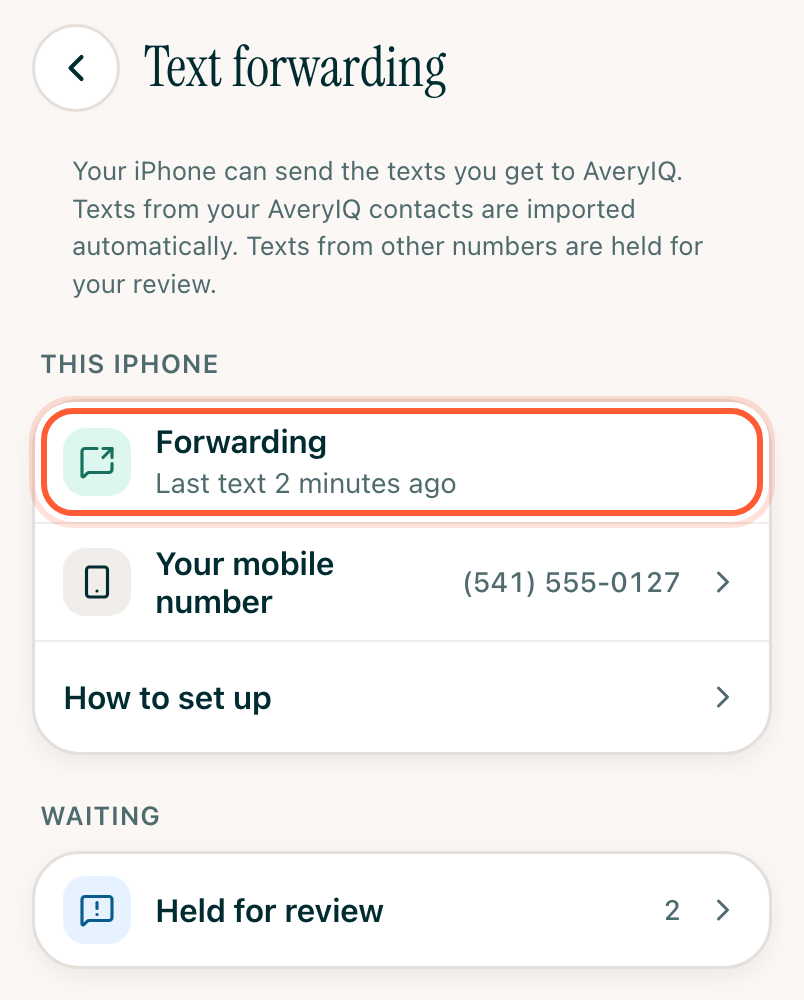
Ask a friend to text you a full sentence. Then open Text forwarding in Settings. The top row says Forwarding and when the last text came in.
Texts held for review
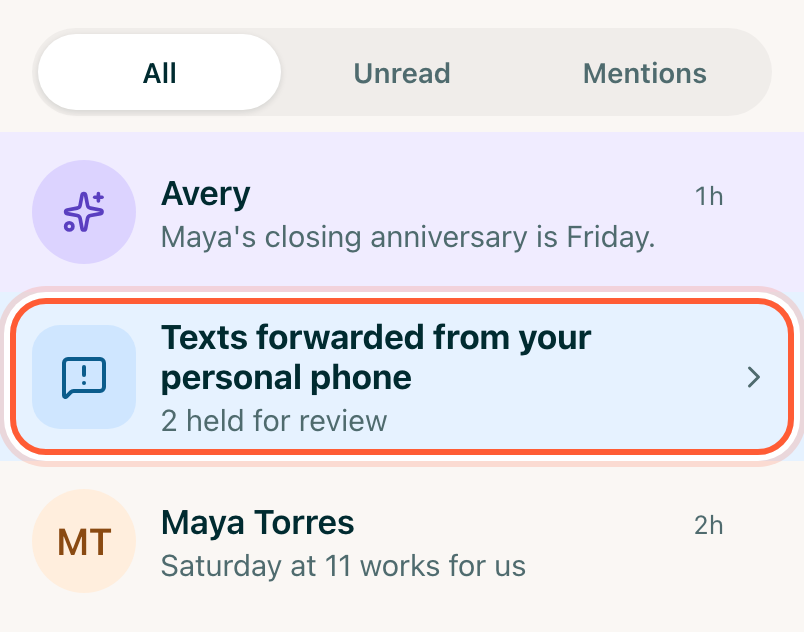
When a text is held, Texts forwarded from your personal phone appears near the top of your Inbox, under Avery. Tap it to see each number or group and what they said.
For each one, choose:
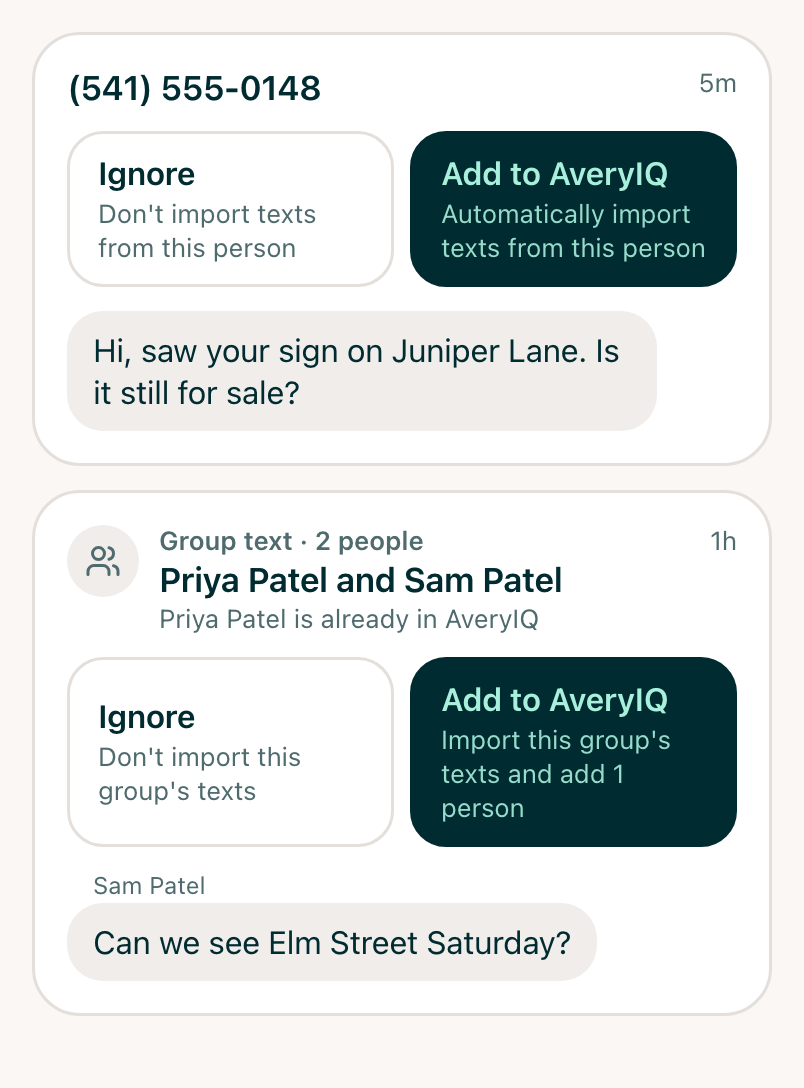
- Add to AveryIQ. For a number, type their name (it's filled in when they're saved in your phone), or tap Add to an existing contact to give the number to someone you already have. For a group, the new people are added with their names from your phone's contacts, or with no name if they aren't saved. The held texts move into the thread, and new ones go there too.
- Ignore. The texts aren't imported, now or later. Tap Undo right away if you change your mind.
A group is separate from the people in it. Ignore your family group text, and texts from your dad still come through when he texts you on his own.
Change your mind later? Open Text forwarding in Settings. Your ignored numbers and groups are listed under Ignored, each with Add to AveryIQ.
Texts you don't add or ignore are deleted after 30 days.
Texts that include your teammates
When a client texts you and a teammate together, the text goes into the client's thread, or the group's thread when there's more than one client. Your teammate is never added as a contact. If your teammate also forwards their texts, the same text comes in once, not twice. A teammate's reply shows up as theirs, because your iPhone received it too.
For this to work, each teammate adds their number under More, then Settings, then Account, then Mobile number.
Texts between just you and your teammates aren't imported.
What it doesn't do
- Texts you send aren't included. Send from a card or a contact's thread, and AveryIQ keeps a copy. In a group with a teammate who forwards texts, your texts come in through their iPhone.
- One-word texts may not come through. A text like "Yes" or "Thanks" has no space. Avery still checks in with you before following up.
- Photos don't come through. Only the words of a text do.
- It's iPhone only.
A team number gets every text, both ways, without any of these limits.