Import contacts from a spreadsheet or CSV
Bring a CSV or Excel list of contacts into AveryIQ, the real estate CRM, by sending it to Avery or sharing it with Claude or ChatGPT. Duplicates are matched, and every add can be undone.
AveryIQ has no upload-a-file importer. Instead, you hand the spreadsheet to Avery, or to Claude or ChatGPT with AveryIQ connected, and say "add these people". Each row is checked against your database: new people are added, people you already have get the new phone numbers, emails and notes, and anyone who might be a match is asked about before anything is saved.
Which way fits your list?
| Your list | Use |
|---|---|
| Up to 150 people, saved as a CSV | Ask Avery, on your phone or computer |
| More than 150 people, or an Excel file | Claude or ChatGPT, on your computer |
| From KW Command | The Command import |
| Your phone's contacts | Import from Contacts |
Avery reads CSV files only. If your file is Excel (.xlsx), open it and save a copy as CSV first: in Excel, File, then Save As, then CSV. In Google Sheets, File, then Download, then Comma-separated values.
Up to 150 people: send it to Avery
- Open Messages and tap Avery at the top.
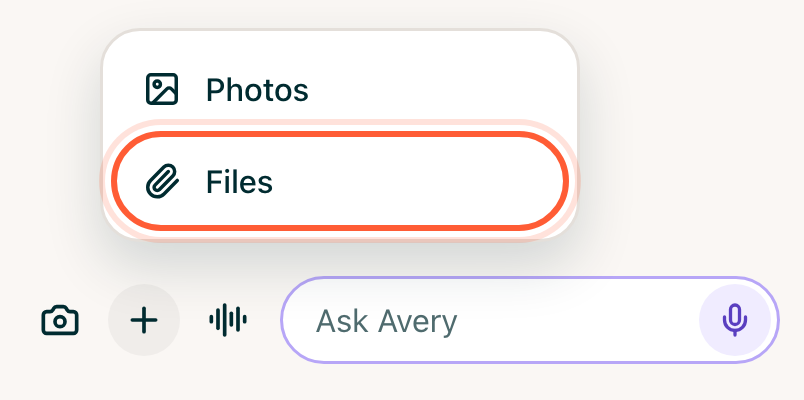
- Tap +, then Files, and pick the CSV. On a computer, click the paperclip (Files) under the message box, or drag the file in.
- Type what you want, like "These are my past clients from Follow Up Boss. Add them all." Then send it.
Avery saves each row and says how many she added and how many she updated. If someone might already be in AveryIQ, she asks you about them in the thread first. Answer, and she saves the rest.
You can also email the CSV to Avery's email from your own email address, with nobody else on it. It lands in the same thread.
Too much in each row? A full CRM export can have 90 columns. If Avery says the file is too big to read, delete the columns you don't need (keep names, phones, emails, address, tags and notes) or split it into smaller files.
More than 150 people: use Claude or ChatGPT
- Connect Claude or connect ChatGPT to AveryIQ, on your computer.
- Start a new chat and attach the file. Excel files work here.
- Say what the list is and what to do, for example:
- "This is my Lofty export. Add everyone to AveryIQ. Keep each person's tags and notes."
- "Before you add anything, check which of these people are already in AveryIQ and tell me how many are new."
- Claude or ChatGPT saves 100 people at a time, so a list of 2,000 takes a while. If it stops partway, say "keep going from where you stopped". Saving the same row twice adds nothing.
When some rows could be people you already have, it asks in the chat, or shows a review card where you pick Same as the person you have, or Someone new, for each one, then save.
What comes over
- Names, phones, emails, home address and birthday.
- Past clients: a closed sale with its date and price, when the file has it.
- Buyers and sellers: what they want, budget, areas and timing, when the file says so.
- Tags, notes and stages are saved as notes on each person, word for word. Avery reads them into their details, like kids, pets and work.
AveryIQ has no tags. To keep a tag as a list, ask: "Make a group called Spring sellers with everyone tagged Spring sellers." See Follow up without tags.
People from a spreadsheet start with no contact yet, so they're left out of email blasts until you text, call or email them, or tap Include.
Can I undo an import?
Yes. Ask in the same chat: "Undo the people you just added." Claude, ChatGPT or Avery takes back what that save did. A person someone has changed since stays as they are, and you're told who.
To take back one change on one person, open their page, tap History and settings, then History, and tap Undo beside it.
Will it make duplicates?
No. Each row is matched by phone, email and name. A clear match gets the new details added to the person you have. A maybe gets a question. To check first, ask "Which of these are already in AveryIQ?" and it looks up every phone and email in the file.
Coming from another CRM? See Switch to AveryIQ from another CRM.