Connect AveryIQ to ChatGPT
Add AveryIQ to the ChatGPT app once, then ask it about your people and open houses, or tell it what to save, right from a chat.
Updated
Only works in the ChatGPT app on your computer. You can't set this up on your phone or on chatgpt.com. Get the app at chatgpt.com/download.
Once AveryIQ is connected, you can talk to ChatGPT about your business. It can look up people and open houses, add contacts, save what you tell it about them, and set up open houses. It can't send texts or emails. Setup takes about 2 minutes.
You need the email you use for AveryIQ.
1. Open Plugins
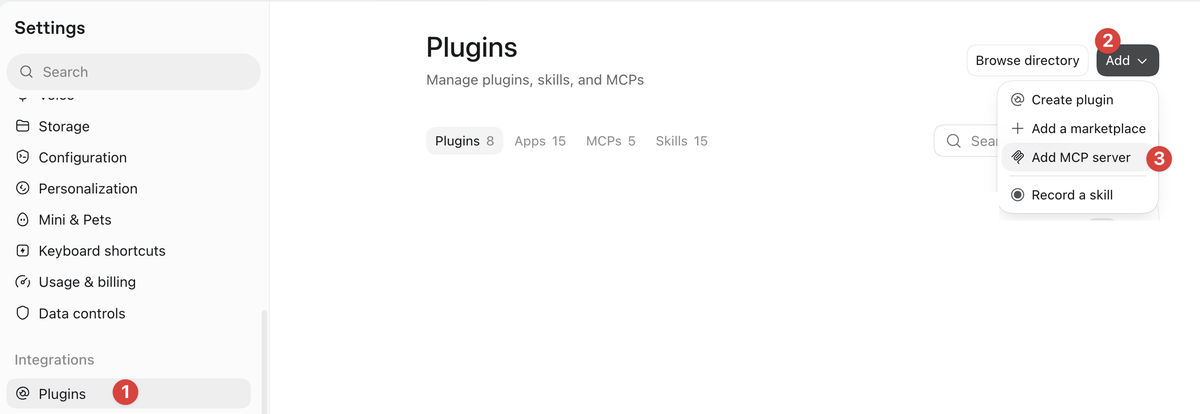
In the app, open Settings. Click Plugins (1). Click Add (2), then Add MCP server (3).
2. Add AveryIQ
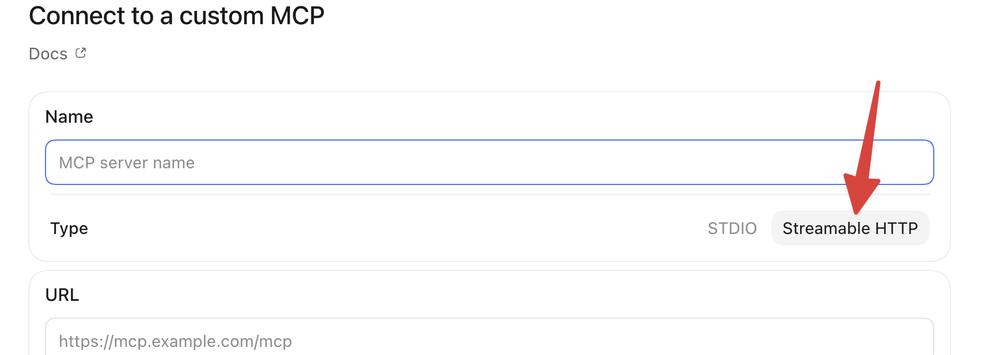
For Type, click Streamable HTTP.
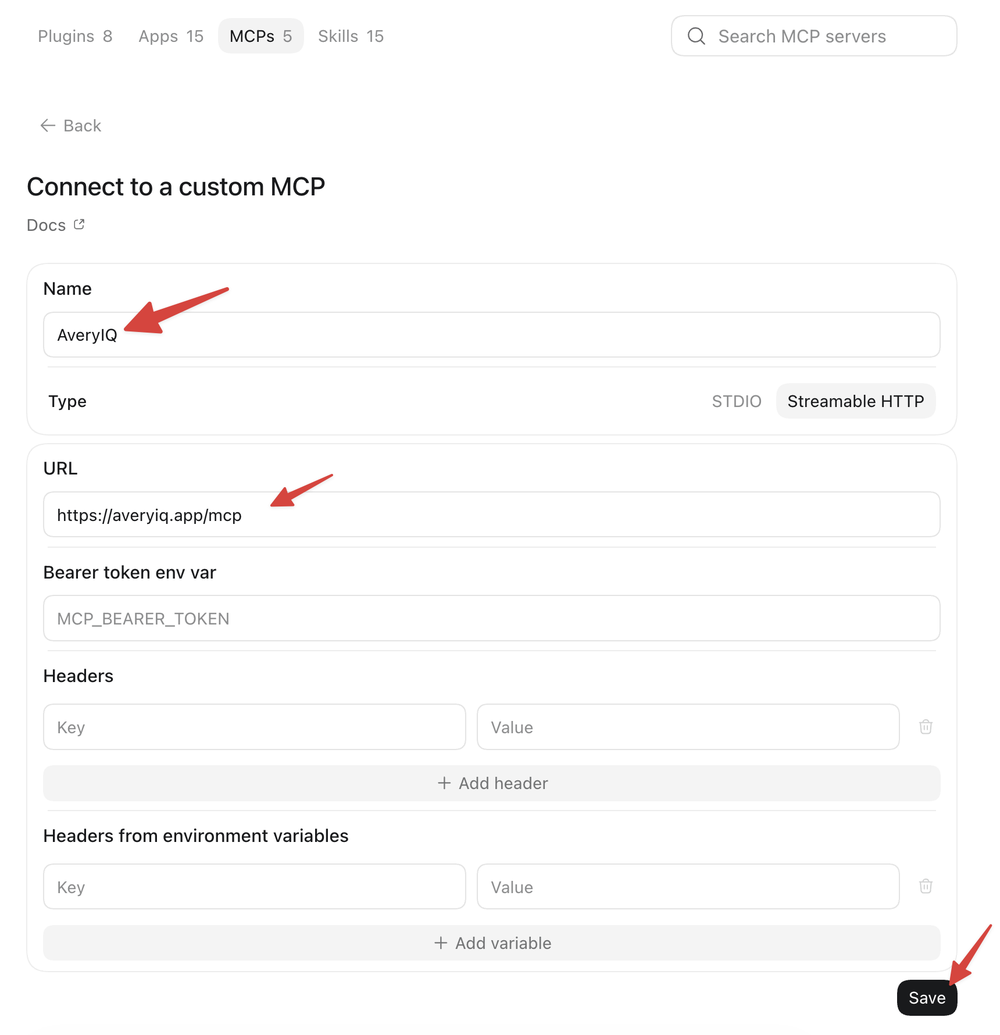
Type AveryIQ for the name. Paste this address for the URL:
https://averyiq.app/mcp
Leave the other boxes empty and click Save.
3. Sign in to AveryIQ
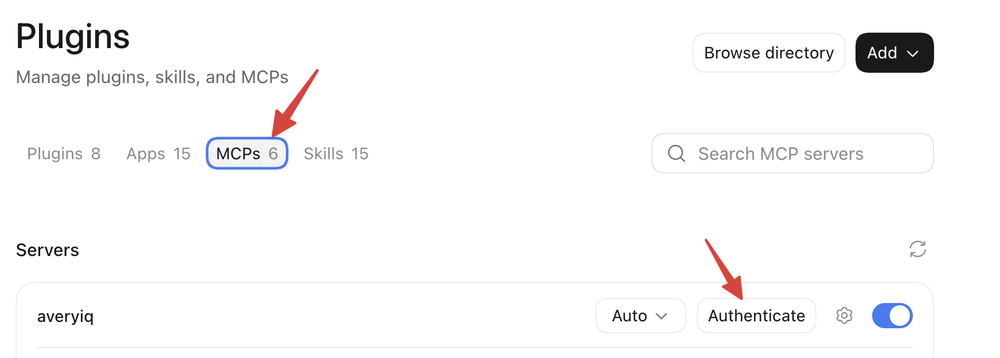
Click MCPs. Next to averyiq, click Authenticate.
Your web browser opens. Sign in to AveryIQ if it asks. The page may say Codex instead of ChatGPT. That's fine. Check that the email is yours, then click Connect. Wrong email? Click Use a different email.
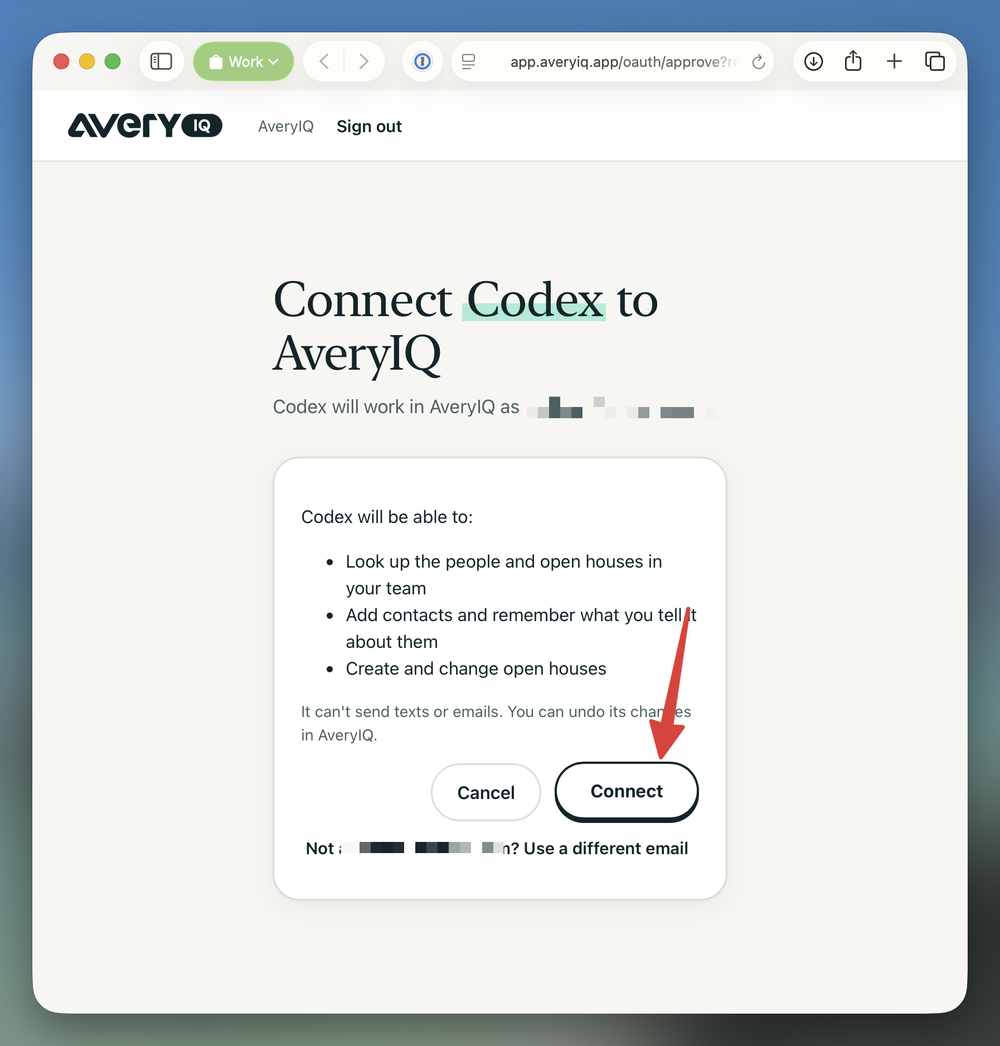
Go back to the app. AveryIQ is connected.
4. Try it
Start a new chat and ask in your own words. For example:
- "Who signed in at my open house on Elm Street last Sunday?"
- "Add Maya Torres, 555-0142. She wants a 3-bedroom near Lincoln School."
- "Add everyone in this spreadsheet to AveryIQ." Attach the file to the chat.
- "Set up an open house at 12 Oak Lane."
Avery reads what ChatGPT saves, the same as when you tell her yourself. Changed your mind? Ask it to undo it.
If something goes wrong
- It says it can't reach AveryIQ. Open Settings, then Plugins, then MCPs. Click Authenticate next to averyiq and sign in again.
- Still stuck? Email [email protected].