See your tasks in AveryIQ
Open the Tasks tab to see everything you have to do, grouped by day, start today's deck, reorder tasks by dragging, and open any task to change it.
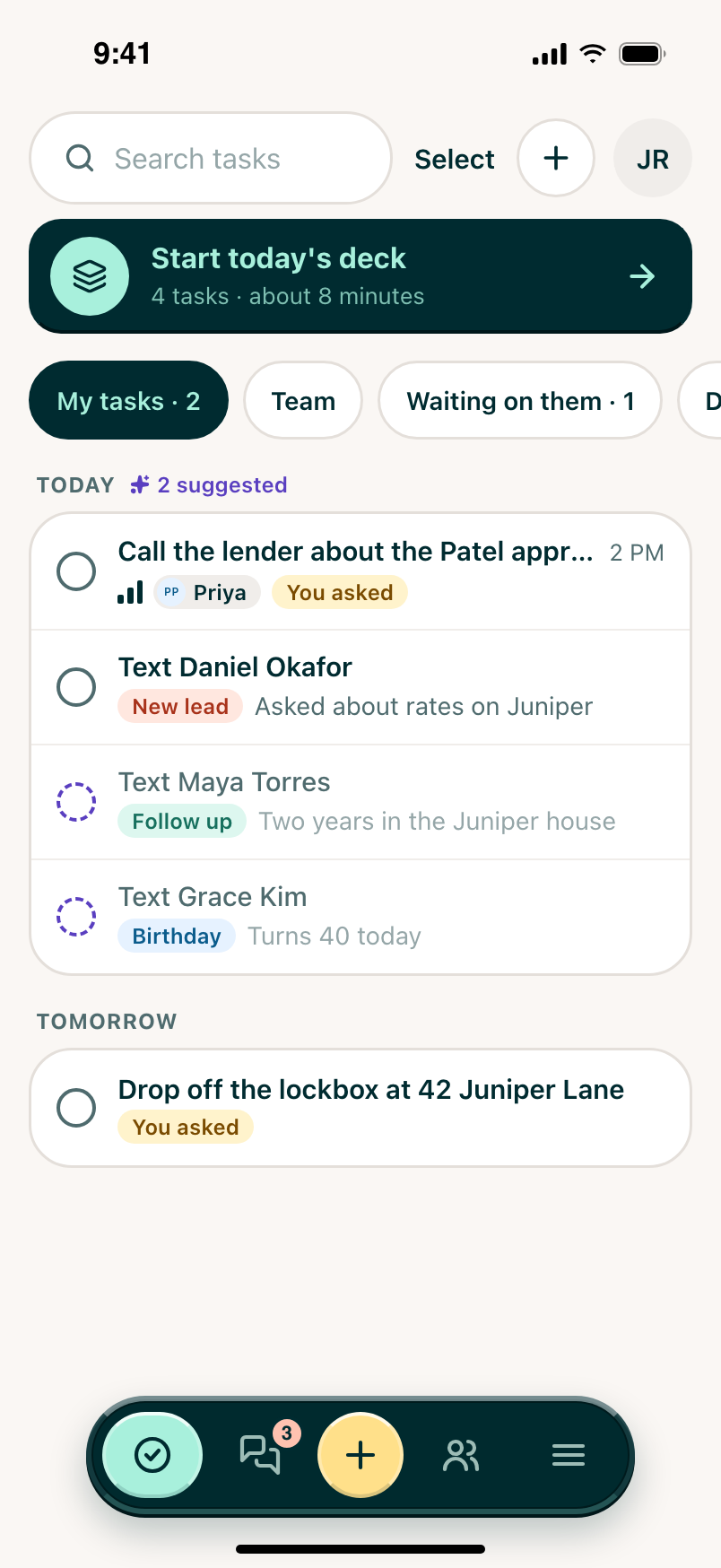
All your tasks live on the Tasks tab, the first button in the bar at the bottom of the app. The list shows what's due Today, then Tomorrow, the rest of the week, Next week and Later. At the top, Start today's deck walks you through today's tasks one card at a time.
Step 1Open Tasks
Tap Tasks in the bar at the bottom. From top to bottom you see:
- Search tasks, Select, + for a new task, and your initials, which open Settings.
- Anything Avery needs from you, like Avery has a question.
- Start today's deck, with how many tasks and about how many minutes.
- The views: My tasks, Team (when you have teammates), Waiting on them and Done.
- Your tasks, grouped by day.
How Avery chose today's people is in How Avery picks your deck.
Step 2Read a row
Each row shows what to do, who it's about and where it came from, like Follow up, New lead, Birthday or You asked. Overdue in red means a deadline has passed.
Rows that look faded, with a dashed circle, are Avery's suggestions. A day's heading counts them, like ✦ 3 suggested. They're not on your list until you act on one or tap Add to my tasks on its page.
Next in line, at the bottom, is who Avery brings up next when there's room in your deck.
Step 3Finish, snooze or move a task
- Done: tap the circle at the left of the row, or swipe right.
- Snooze: swipe left. Pick a time and it comes back then. See Skip or snooze a task.
- Reorder: touch and hold a row, then drag it up or down. Your deck deals today's tasks in this order.
- Move to another day: drag it under another day's heading.
- Change many at once: tap Select, tick the tasks, then pick Mark done, Snooze, Skip, Priority, Assign or Due.
Each change shows Undo at the bottom for a few seconds.
Step 4Open a task
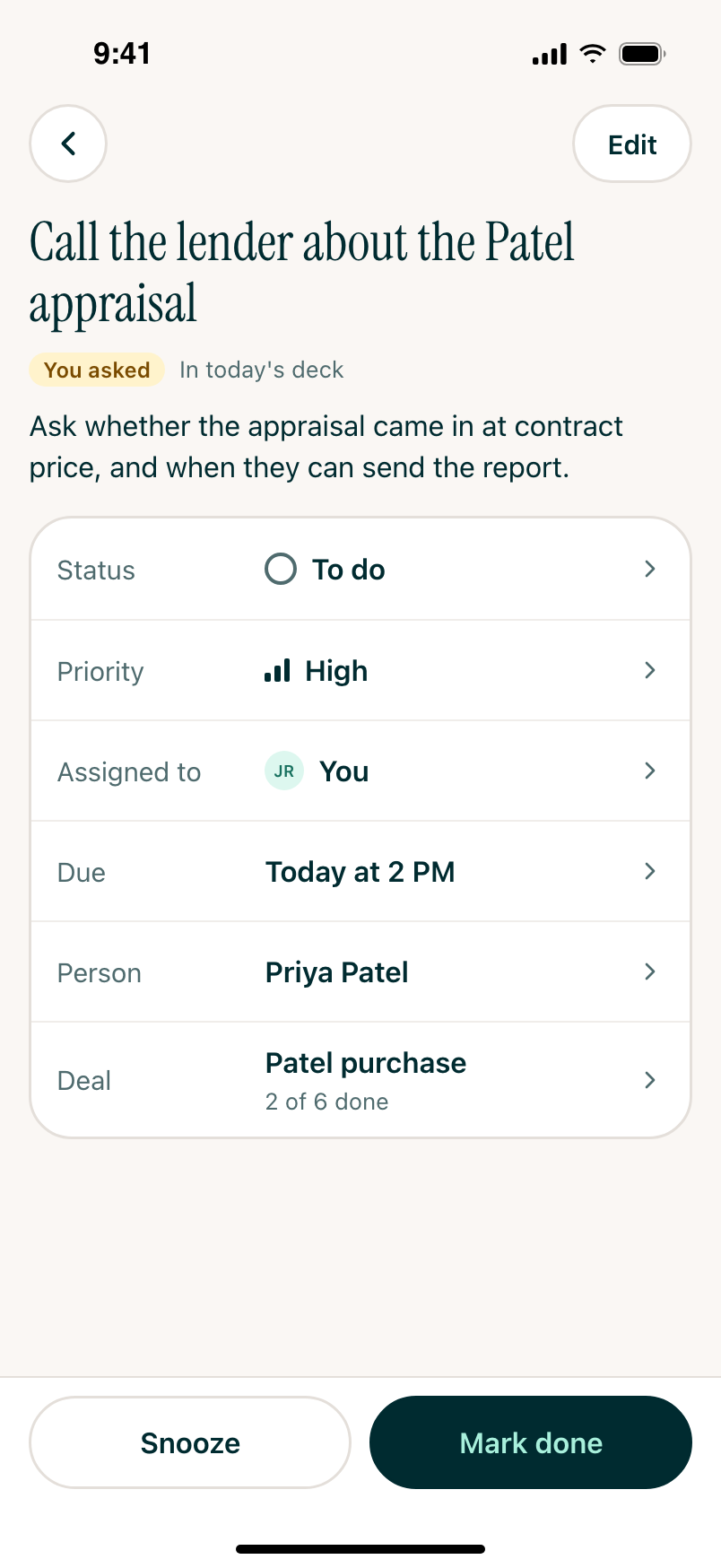
Tap a row to open it. You can change its Status, Priority, Assigned to, Due, Person and Deal, and see its History. Tap Edit for the title and notes. At the bottom, Snooze and Mark done. A text or call task shows its card, ready to send, like the deck.
A birthday or deadline that's days away opens with Do it now, to reach out early.
Other views
- Waiting on them (guide): tasks where someone else has the next move, like a lender sending numbers. Each comes back to your list on its follow-up day.
- Done: what you finished or skipped in the last week.
- Team: each teammate's open and overdue counts. Tap a name to see their list.
On a computer, the same list sits beside the task you open. Drag rows, or press ⌥↑ and ⌥↓ to move one. Work through today walks today's tasks like the deck.
When you'd use it
- Monday morning: drag Thursday's inspection call onto Today because the inspector moved it up.
- Your assistant asks what's left on the Patel deal: open Team, tap their name, and look.
- A seller promised documents by Friday: set the task to Waiting on them so it stops nagging you until then.
Where did my task go?
Check Done for finished or skipped ones. Snoozed tasks sit under the day they come back. A task a teammate finished says so in its History.