Send a text from AveryIQ
Text a client, lead or anyone in your sphere from their conversation in AveryIQ, from your own phone or your team number, with photos, your Contact Card and an Undo.
You text someone from their conversation in AveryIQ, so the text is saved with everything else about them and Avery can follow up later. Open Messages and tap their name, or open their page and tap Open Texts. Type in Write a text and tap the send arrow. Nothing ever goes out until you tap send.
Step 1Open the conversation
Any of these opens the same conversation:
- Messages: tap the person's row.
- Their page: tap Open Texts.
- Tap +, then New message, and pick someone. If you've texted them before, it opens that conversation.
The line under their name shows the number you're texting, like "Mobile · (541) 555-0148". If they have more than one, tap it to pick another.
Step 2Check which line it goes from
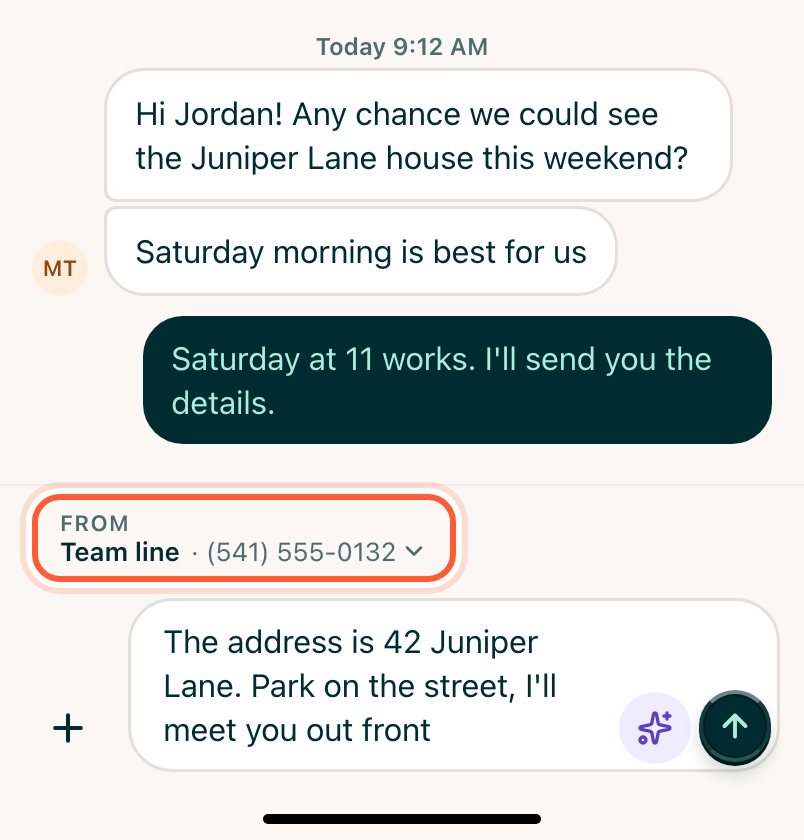
Above the message box, From says which line the text goes from: Your phone or Team line. Tap it to switch.
| Your phone | Team line | |
|---|---|---|
| How it sends | Opens Messages with your words filled in. You tap send there. | Sends from AveryIQ, with a few seconds to Undo |
| Their replies | Stay in your phone's Messages app | Come into Messages in AveryIQ |
| Photos | Go as links | Go as photos; other files as links |
| Schedule send | No | Yes |
| On a computer | Not available | Yes |
Your choice sticks to that conversation, and calls to them use the same line. Without a team number, every text goes from your phone. Where a conversation switches lines, a divider says so.
Step 3Write it and send
Type your text and tap the send arrow.
- Your phone: Messages opens with the text ready. Tap send in Messages. If you cancel, your words stay in AveryIQ.
- Team line: the text goes after a few seconds. Tap Undo to stop it and keep your words.
To add a photo, a file or your Contact Card, tap + beside the message box. You can attach up to five at once.
Typed it in a hurry? Tap the ✦ button in the box (Polish and send). Avery fixes spelling and unclear wording in your voice, without adding anything you didn't say, then it sends: on the team line after 10 seconds you can Undo or Edit, and from your phone you see it in Messages first. Touching and holding the send arrow offers Polish and send too.
Example uses
- You're leaving a showing and want to thank Daniel for his time before you start the car.
- Maya texted your team number at 9 PM. You reply from the couch, from the same number she texted.
- You want to send Priya and Sam the photos you took of the backyard. On the team line they arrive as photos.
Can I write a note only my team sees?
Yes. Touch and hold a message and tap Reply to team. It's an internal reply under that message, and it's never texted.
Why can't I text this person?
- They replied STOP to your team number. AveryIQ won't text them from it. Switch From to Your phone, or wait for them to text START.
- It's a landline. The box says to call instead.
- Your team number can't text yet. Carriers have to approve it first. See Register for team texting.
Does Avery text people without asking me?
No. Avery drafts texts for you, in your deck and in the message box, but only you can send them.
Rather talk than type? See Send a voice note in AveryIQ.