Rent & Payments
Use AveryIQ to review your balance, add a bank account, make one-time payments, set up autopay, and check your payment history.
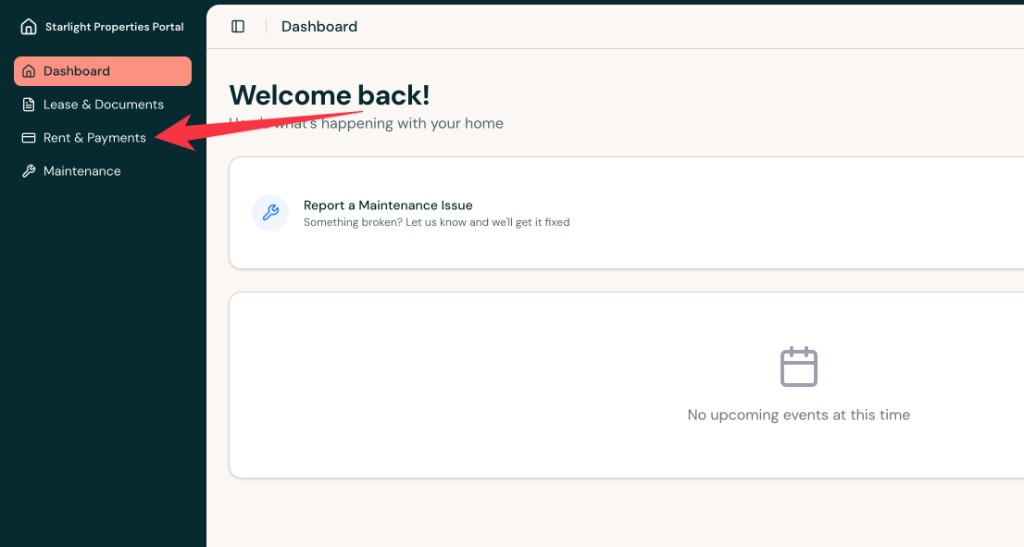
Open Rent & Payments
- Sign in to AveryIQ and select Rent & Payments from the left navigation.
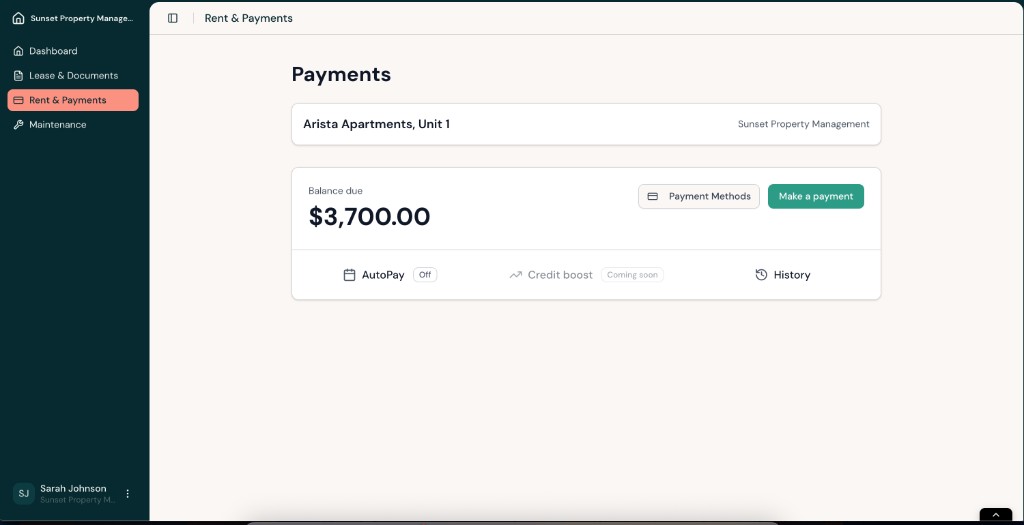
- Review your current balance, then choose Payment Methods to add or manage a bank account or Make a payment to start a one-time payment.
Add a Bank Account
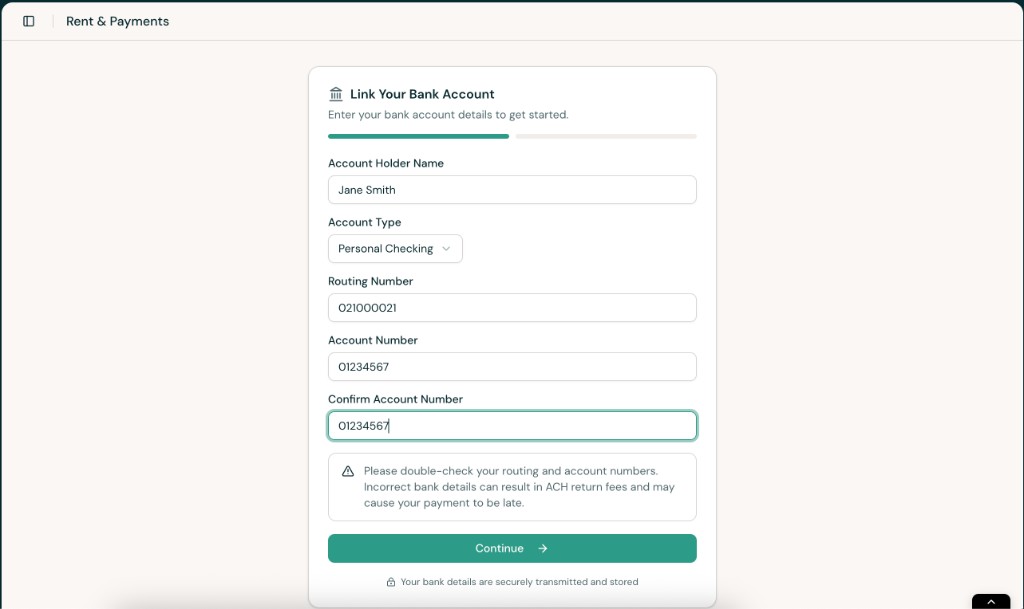
- Open Payment Methods and enter your account holder name, account type, routing number, and account number.
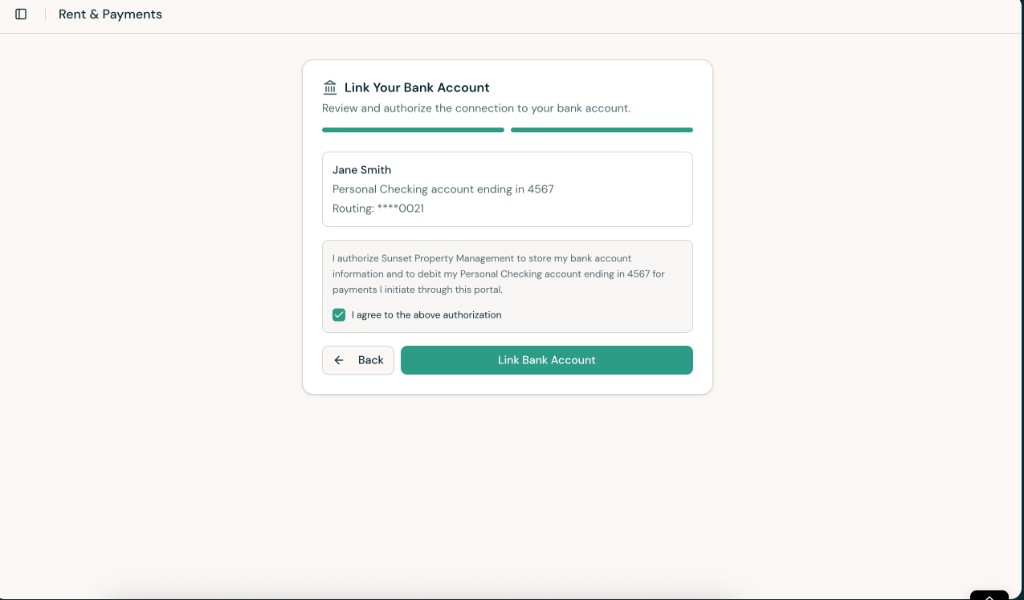
- Review the account summary, check the authorization box, and select Link Bank Account.
Make a One-Time Payment
- Select Make a payment, enter the amount you want to pay, and continue.
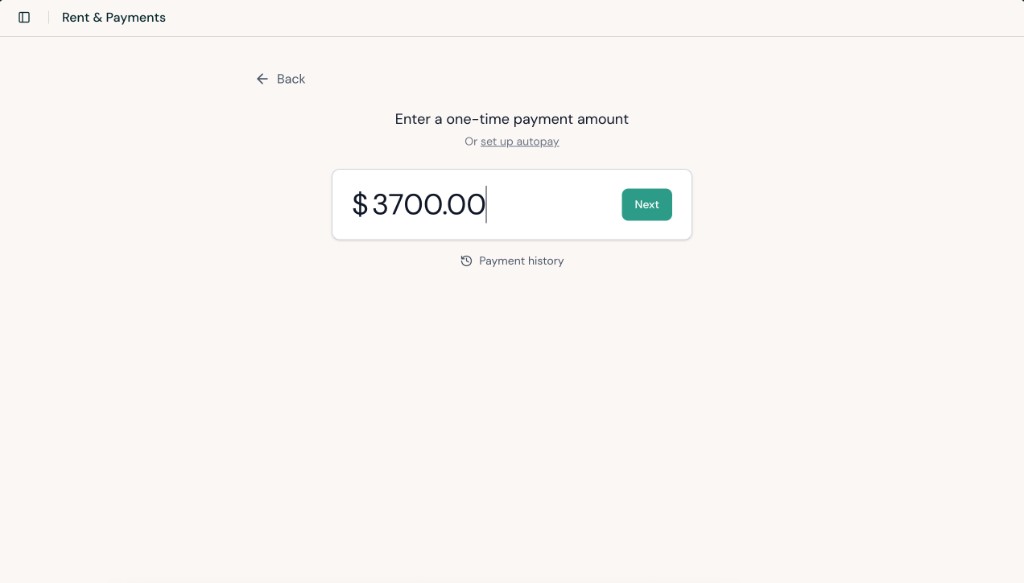
- Confirm the payment method and amount, agree to the authorization, and select Pay.
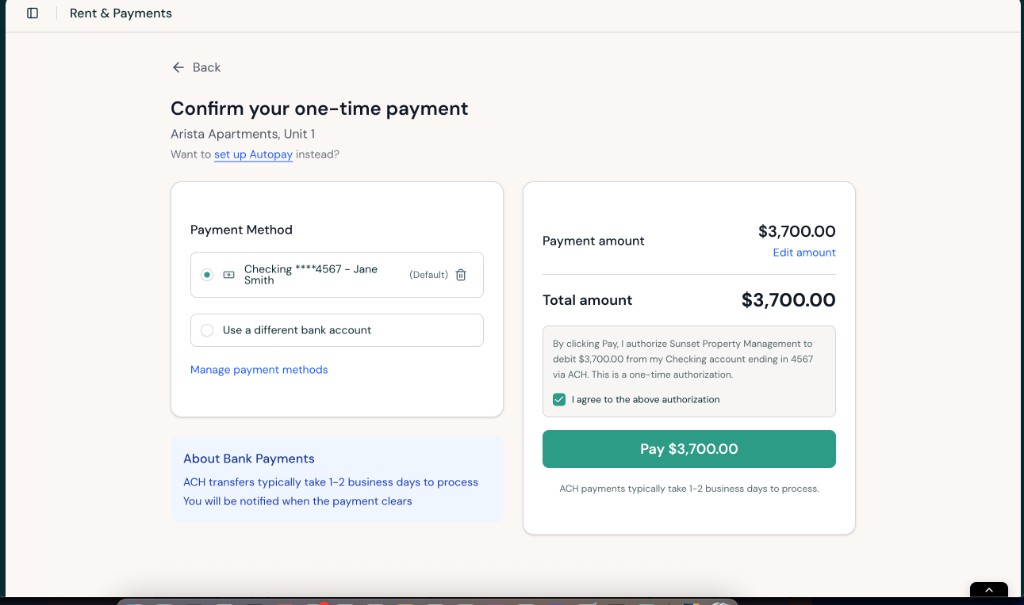
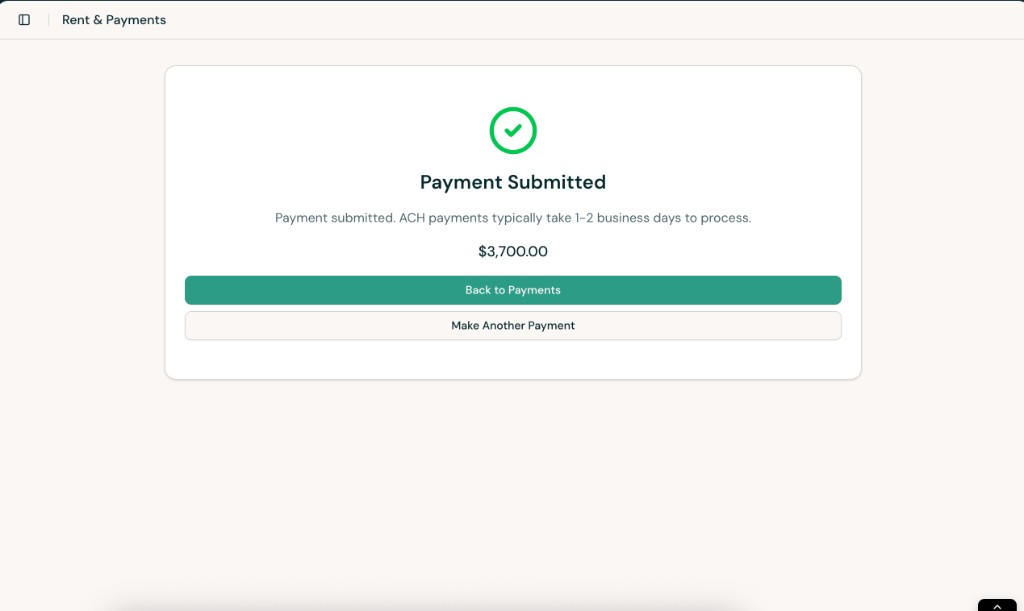
- After you submit the payment, wait for the confirmation message. ACH payments typically take 1 to 2 business days to process.
Set Up Autopay
- From the payment flow, choose set up autopay or use the AutoPay option on the main payments page.
- Select the bank account you want to use, choose whether to pay the full balance or a fixed amount, and set when the payment should be sent.
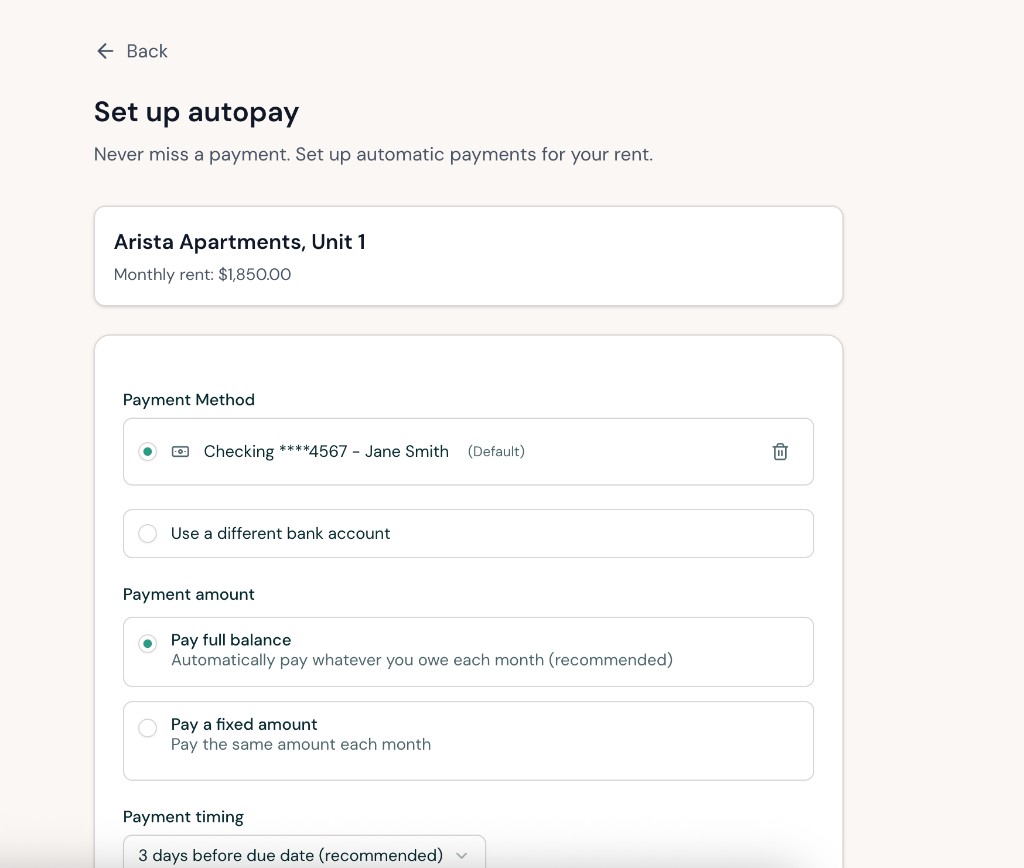
- Save the autopay settings and double-check the amount and timing before you leave the page.
Check Payment History
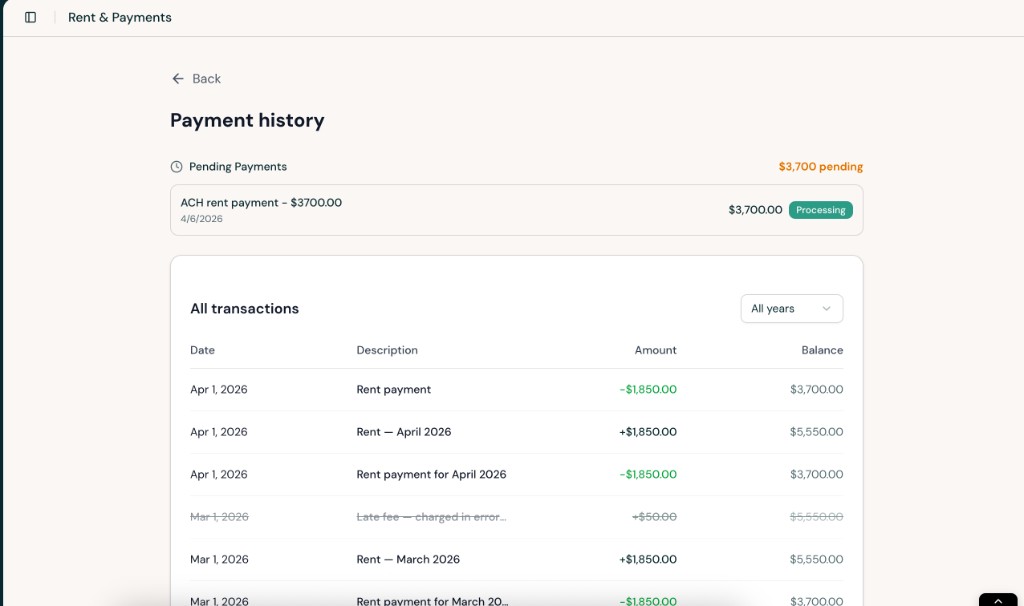
Open History in the Rent & Payments section to review pending payments and past transactions.
Common Questions
I do not see a payment option
Some communities may collect rent outside AveryIQ. If you do not see Payment Methods, Make a payment, or AutoPay, contact your property team for the correct payment instructions.
My balance does not look right
Pending ACH payments can take 1 to 2 business days to process and may still appear while they are clearing. If your balance still looks incorrect after that, contact your property team and include the payment date and amount you expected to see.