Open a New Maintenance Request
Use AveryIQ to report maintenance issues, share helpful details, and send your request to the property team from one place.
Before You Start
Gather the details that will make your request easier to understand:
- A short description of the problem
- The room, appliance, or area affected
- Anything you have already checked or tried
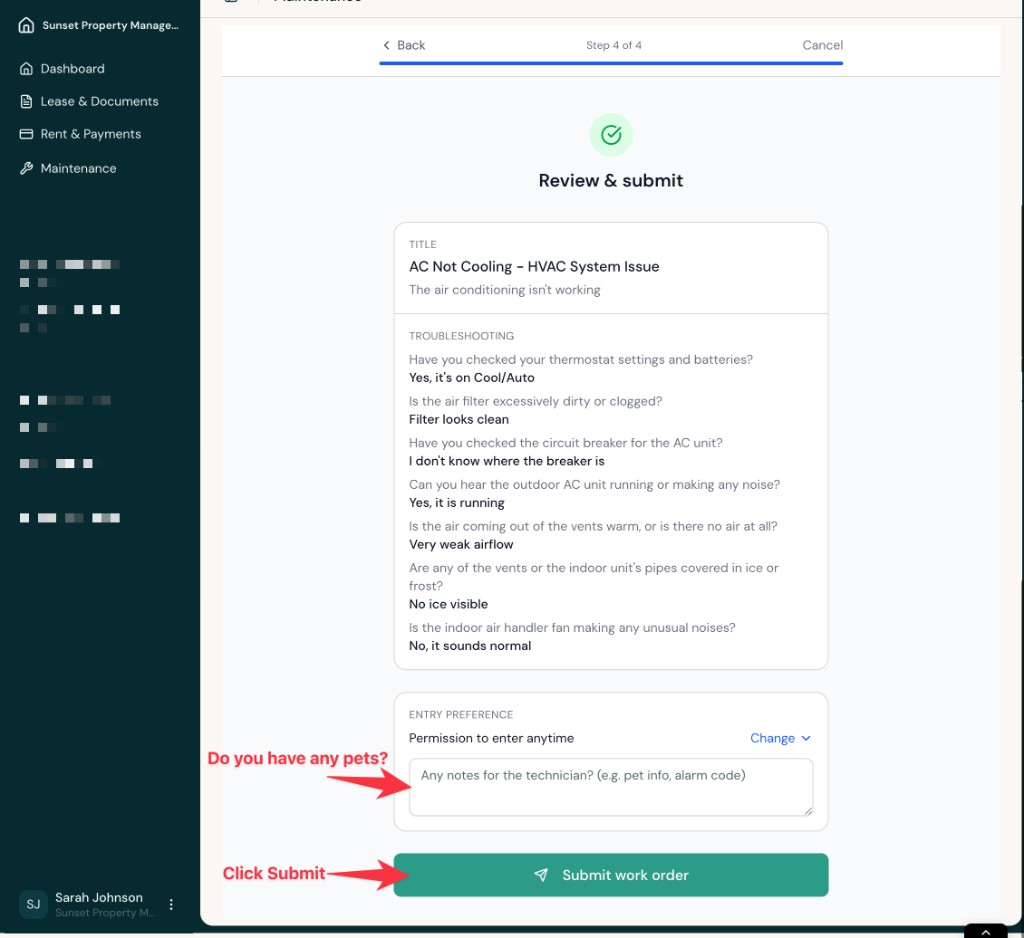
- Access notes for the technician, such as pets, gate codes, or alarm instructions
Submit a Request
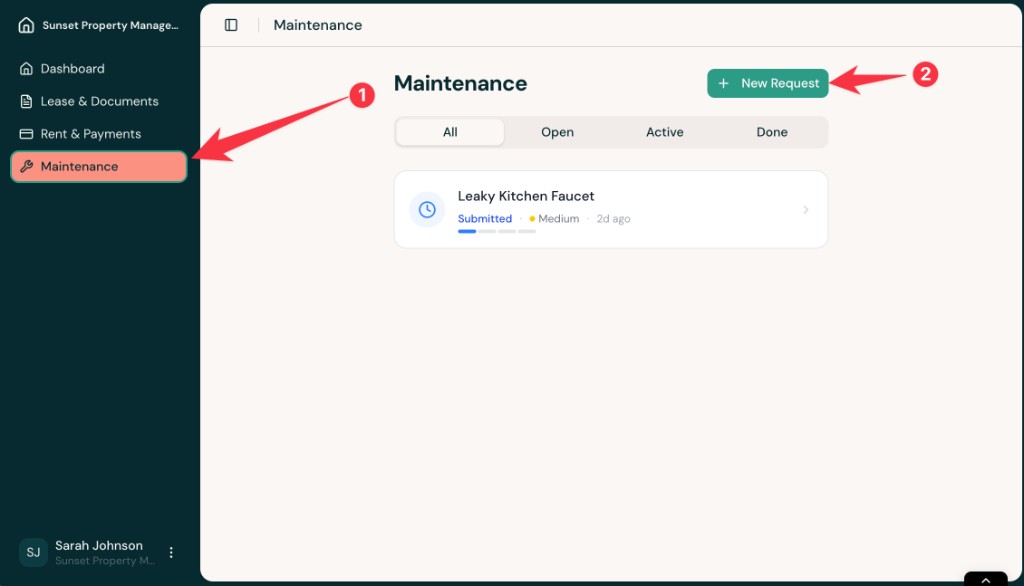
- Sign in to AveryIQ, open Maintenance from the left navigation, and select New Request.
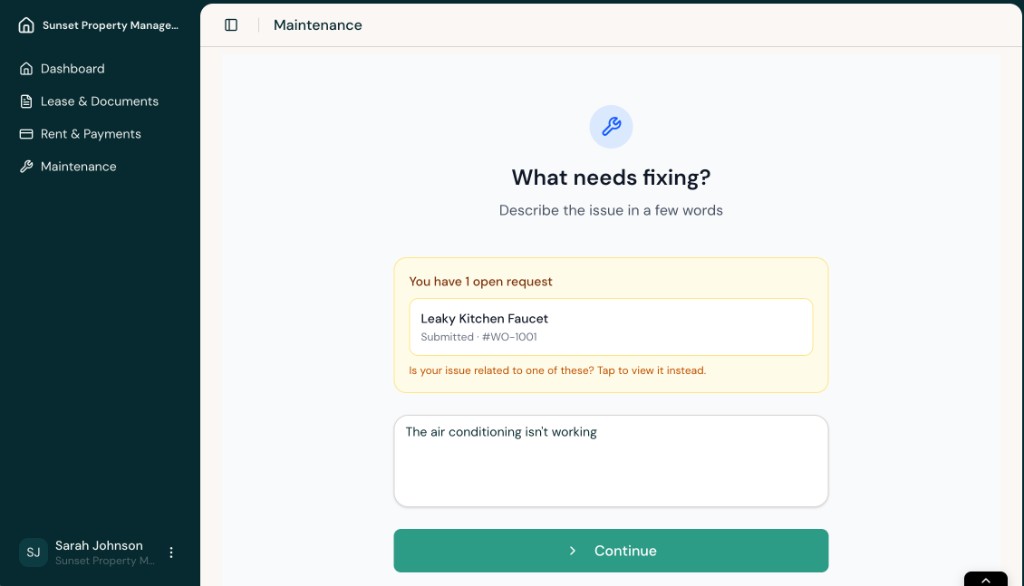
- Enter a short description of the issue. If AveryIQ shows a related open request, open that item instead of creating a duplicate request.
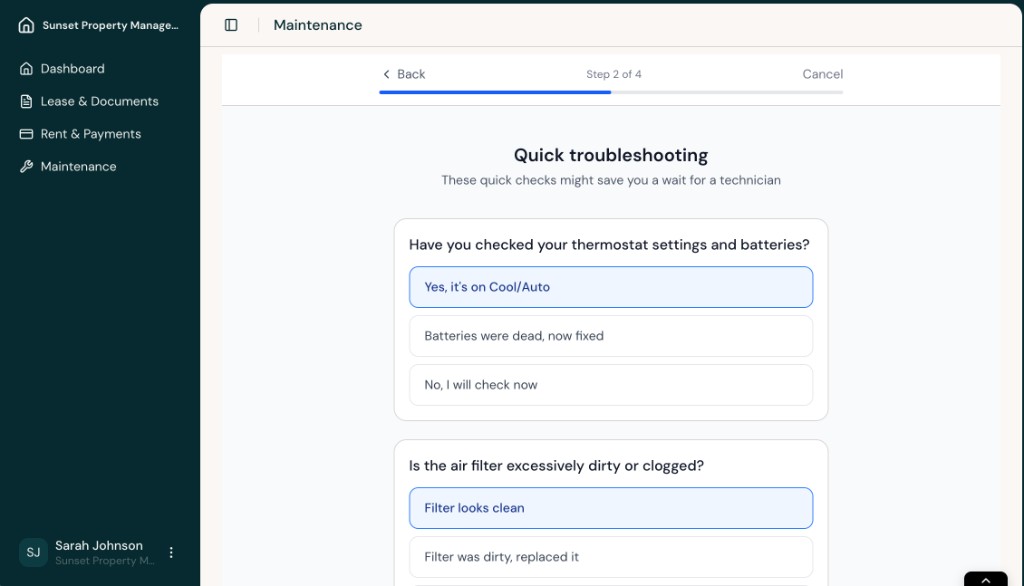
- Answer the troubleshooting questions as accurately as you can, then continue to the next step.
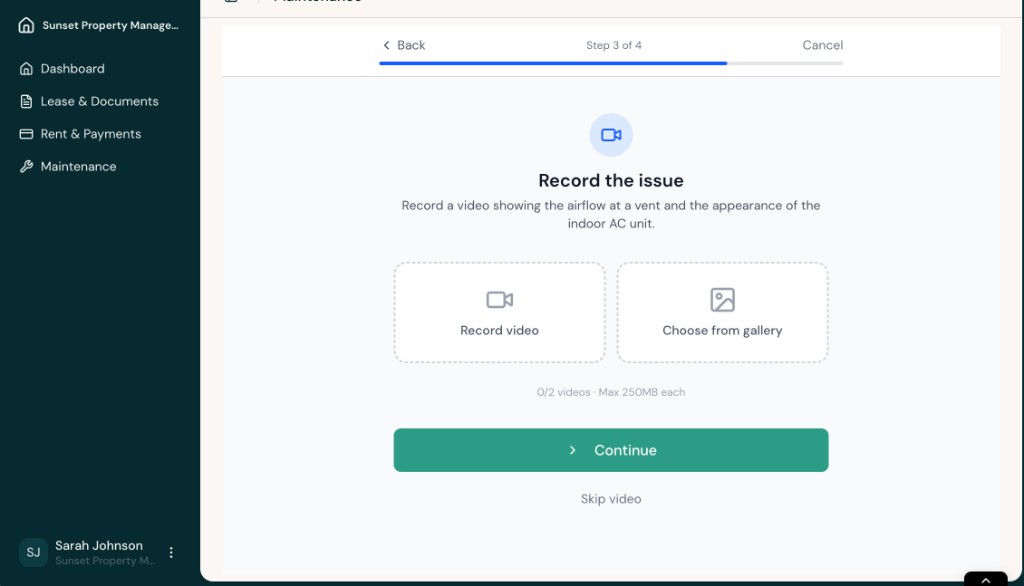
- Record a short video or choose one from your gallery if it helps show the issue. If video is optional for your request, continue without adding one.
- Review the request details, add any notes the technician should know, and select Submit work order.
After You Submit
Once you submit the request, it will appear in Maintenance with its current status. You can return there to follow updates from your property team.
Emergency Issues
If the issue is an emergency or there is an immediate threat to safety or major property damage, follow your community’s emergency procedures and contact the appropriate emergency services when necessary.