Host a client event in AveryIQ
Plan a client appreciation party, pie pickup or holiday social in AveryIQ. Create the event, make the invitation, invite your sphere, track RSVPs and let Avery help with the thank-yous.
A client event is a party, pie pickup or social you host for your sphere. In AveryIQ you create the event, invite people from your database, send each of them an invitation with their own RSVP link, and see who's coming. After the event, you mark who came and Avery writes a thank-you for each of them. Events live under More, then Client events.
When you'd use it
- A client appreciation party in December, with a cocoa bar and a photo booth, for every past client and their kids.
- A Thanksgiving pie pickup: past clients pick a pie on the RSVP page and swing by your office the day before.
- A spring shred day or summer block party that you post on Facebook, so new neighbors can sign up too.
- A raffle at the party, with a QR sign for tickets (Run a giveaway).
Step 1Create the event
Go to More, then Client events. Tap New event (on your first event, the button sits in the middle of the screen).
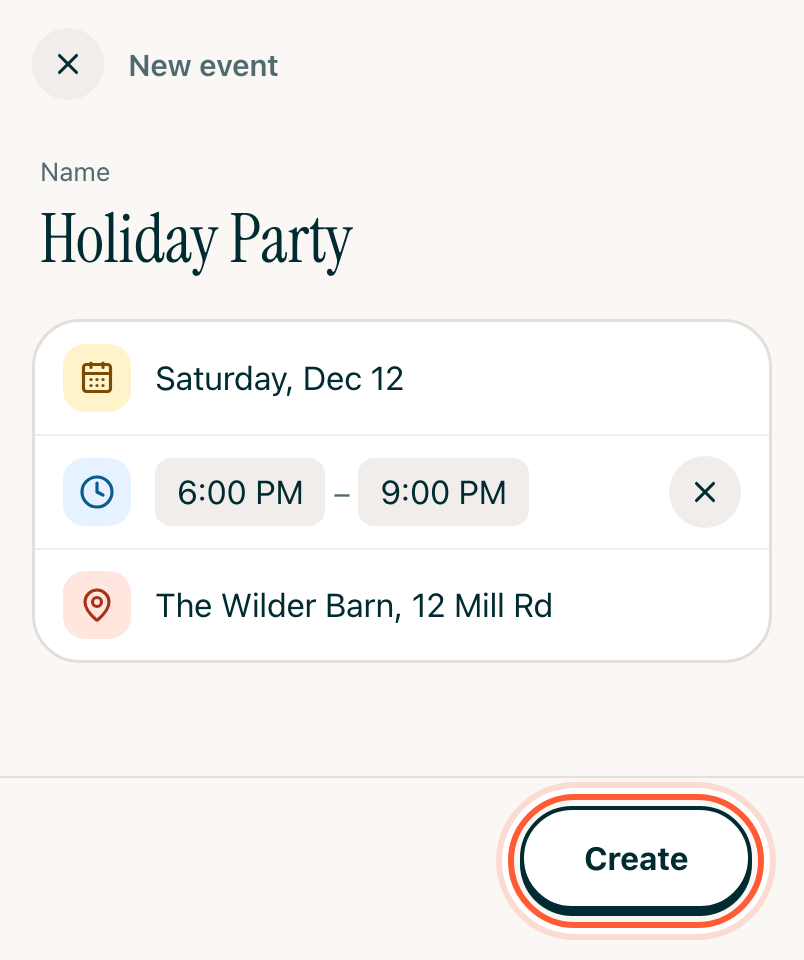
- Type a name, like "Holiday Party".
- Tap the date to pick the day.
- Tap Add a time if it has one. It starts at 6 to 9 PM; tap either time to change it. Without a time, the event is all day.
- Tap Add a place and type where it is.
- Tap Create.
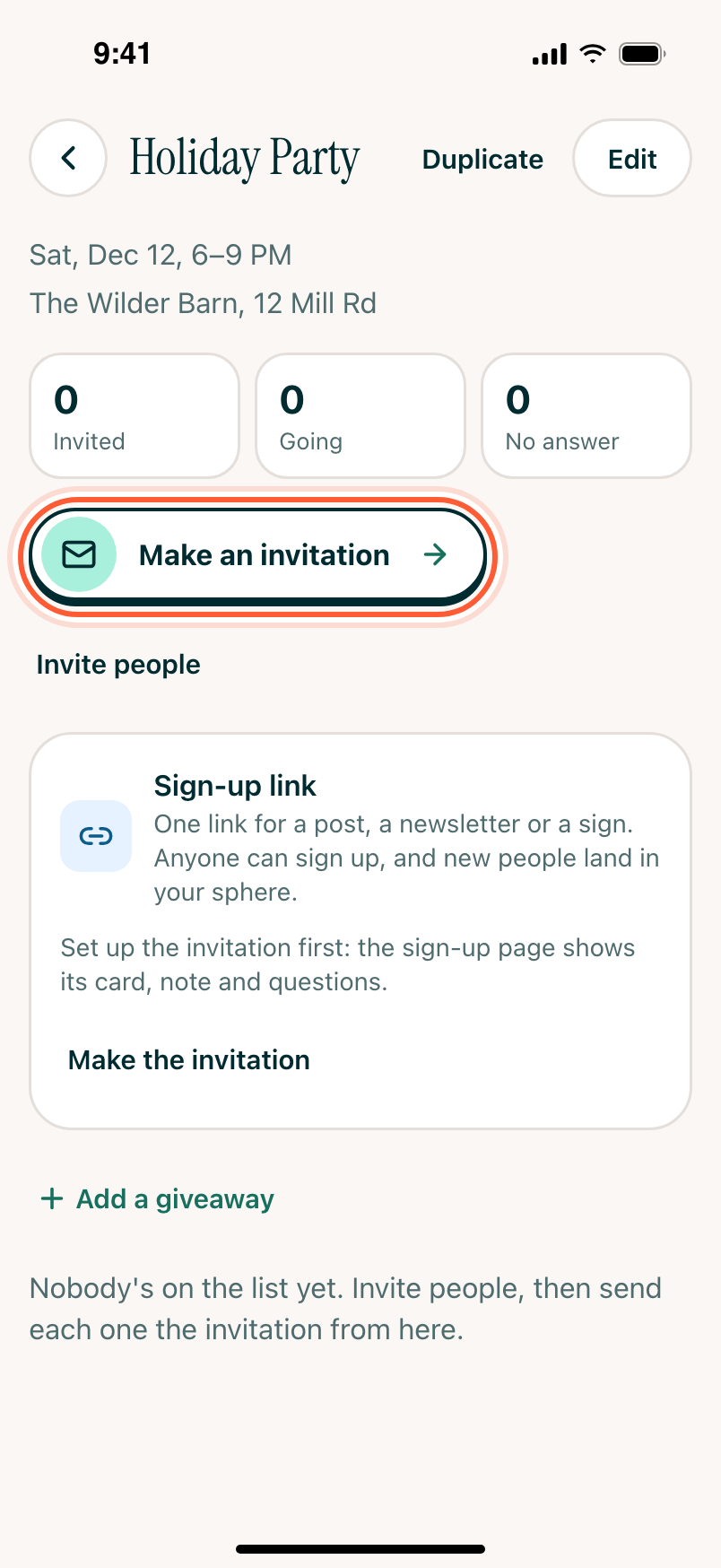
The event opens on its own page.
Step 2Make the invitation
On the event's page, tap Make an invitation. You pick a design, write your words, and choose any questions guests answer when they say yes. See Design your event invitation and Ask your guests questions.
Step 3Invite people
Tap Invite people, then pick who to invite. You can:
- Tap a suggestion at the top, like Past clients, Referred someone or Came to Holiday Party 2025.
- Tap Choose a group to pick from one of your groups.
- Type a name, or ask in your own words, like "past clients in Maplewood", and tap search on the keyboard.
Check the people you want, or tap Select all above the list, then tap Invite. Inviting only adds them to the guest list. Nothing is sent yet.
You can also invite from the People tab: after you search, tap Invite and pick the event. Or open a group and tap Invite to event.
Step 4Send the invitations
Tap the Invitations row on the event's page. Text each guest their invitation, or email everyone at once. See Text your event invitations and Email your event invitation.
Step 5During and after
Guests answer on their RSVP page, and the event's page sorts them into Going, No answer and Can't make it. After it starts, tap Who came?. When it's over, tap Tell Avery how it went and she writes your thank-yous. See Track RSVPs and who came and Follow up after your client event.
Change, copy or delete an event
- Edit at the top of the event's page changes the name, date, time and place. It also has What it cost, so you can keep track of what each party cost.
- Duplicate copies the name, time and place into a new event, like next year's party. Pick the new date, then tap Create. The guest list isn't copied, but Invite people suggests everyone who came last time.
- To delete one, tap Edit, then Delete event. Its guest list goes with it and this can't be undone. Notes and follow-ups stay on each person. If an email for the event is scheduled or going out, stop it first.
Can I host an event on my computer?
Yes. Open AveryIQ on your computer and go to More, then Client events. The event's page shows the guest list as a table you can filter, with the invitation and sign-up link beside it. See Share a sign-up link for your client event.
Does AveryIQ send the invitations on its own?
No. Inviting someone only puts them on the guest list. Each invitation goes out when you tap send on it, or when you send the invitation email.