Add someone to AveryIQ
Add a contact to your real estate CRM by hand, from your iPhone's contacts, or by telling Avery who you met. If they're already in AveryIQ, it opens them instead of making a copy.
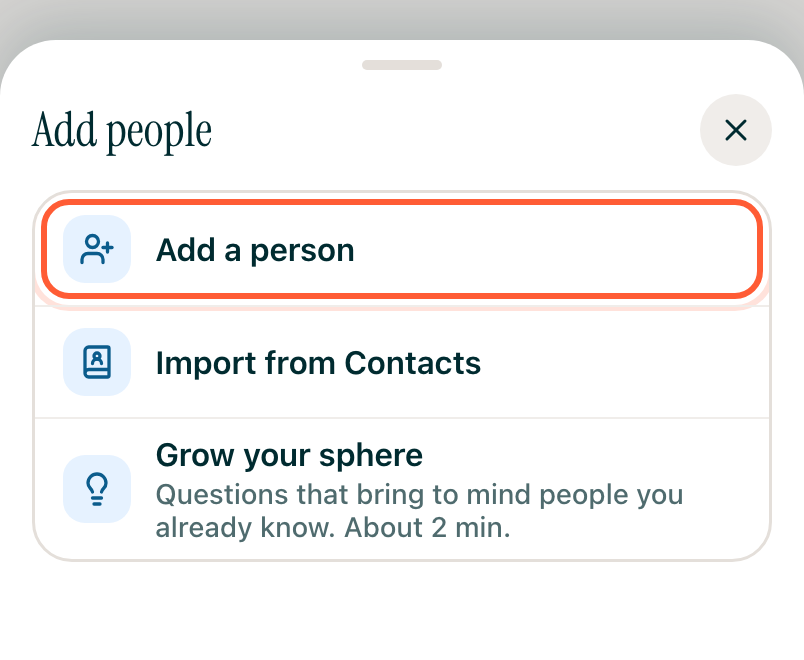
To add one person, open People, tap the add button beside the title, then Add a person. Type their name and mobile number and tap Add. Their page opens, ready for a note. If they're already in AveryIQ with that phone or email, it opens their page instead of making a second copy.
Step 1Add a person by hand
- Open People and tap the add button (the person with a +) at the top right. Or tap + in the dock, then Add a person.
- Tap Add a person.
- Type their first and last name, Mobile phone, and Email (optional).
- Tap Add.
Only a first name is required, but a phone number lets you call and text them from AveryIQ.
Next, tell Avery how you know them. Type it in Add a note about them on their page, like "Met at the school fundraiser, renting now, lease ends in June." Avery fills in their profile from it. See Add a note about someone.
Step 2Other ways to add people
- Import from Contacts: pick people from your iPhone's contacts. See Import your phone contacts.
- Grow your sphere: Avery asks questions like "Who cuts your hair?" to bring people to mind. See Grow your sphere.
- Tell Avery: tap +, then Voice note, and say who you met, how to reach them and what they're looking for.
- A screenshot: in Ask Avery, send a screenshot of a lead's contact info. She adds the person and tells you what she saved.
- They come to you: people who sign in at your open house, and new leads from Zillow and other sites when you forward lead emails, are added on their own.
Example uses
- You meet a couple at a coffee shop who are thinking about selling. Add them on the spot, then say a quick voice note on their page.
- A friend texts you a referral's number. Add the person, and put "referred by Grace Kim" in a note so Avery links the two.
If something goes wrong
- "That phone number doesn't look right." Phones need to be US numbers. Check the digits, or leave it blank and add it later from Edit on their page.
- You added the same person twice. If the phone or email matches someone you have and the names agree, AveryIQ opens that person. If only the name matches, or a shared number has a different name (couples often share one), Avery asks you under People whether they're the same person. See Merge duplicate contacts.
- You added the wrong person. Open their page, tap Edit, then Delete. See Delete someone.