Install AveryIQ on your iPhone
Get the AveryIQ iPhone app from TestFlight, sign in with the QR code from signup or a code we email you, and turn on notifications.
AveryIQ runs on your iPhone. Sign in with the email you used when you started your trial.
Step 1Get the app
On your iPhone, get the free TestFlight app from the App Store. Then open the AveryIQ TestFlight invitation on your iPhone and tap Accept, then Install.
On Android, get AveryIQ on Google Play.
Step 2Sign in
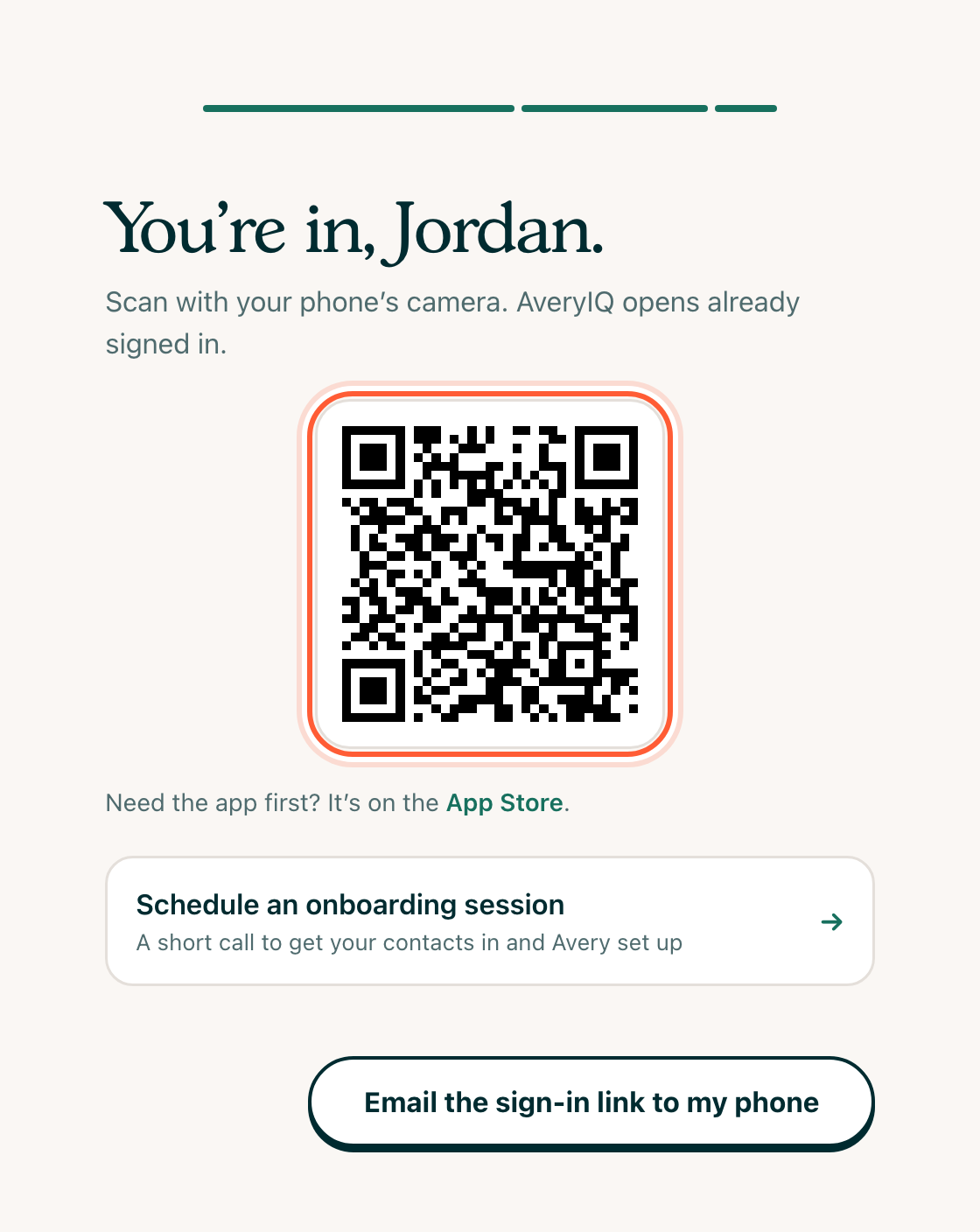
Signed up on a computer? The last page of signup shows a QR code. Scan it with your iPhone's camera and AveryIQ opens already signed in. Or click Email the sign-in link to my phone and open that email on your iPhone.
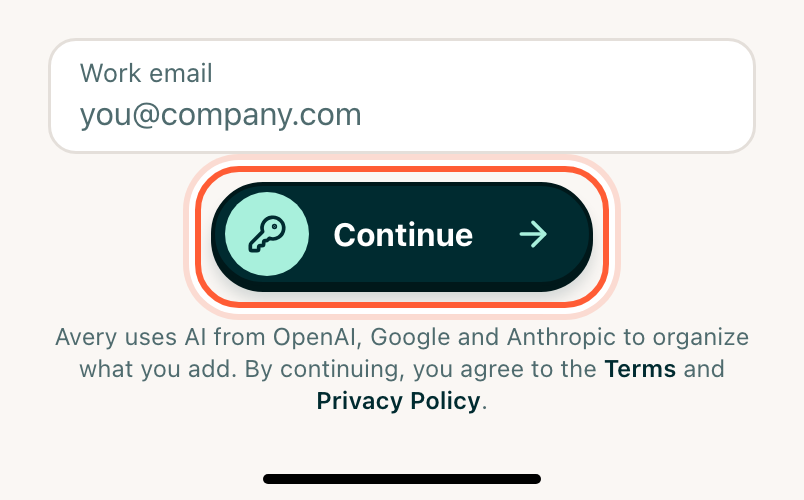
Otherwise, open AveryIQ, enter your work email and tap Continue.
Type the 6-digit code from the email. Can't find it? Check your spam folder, or tap Send a new code.
No account yet? Do the same. After the code, AveryIQ opens signup so you can start your free trial.
Step 3Turn on notifications
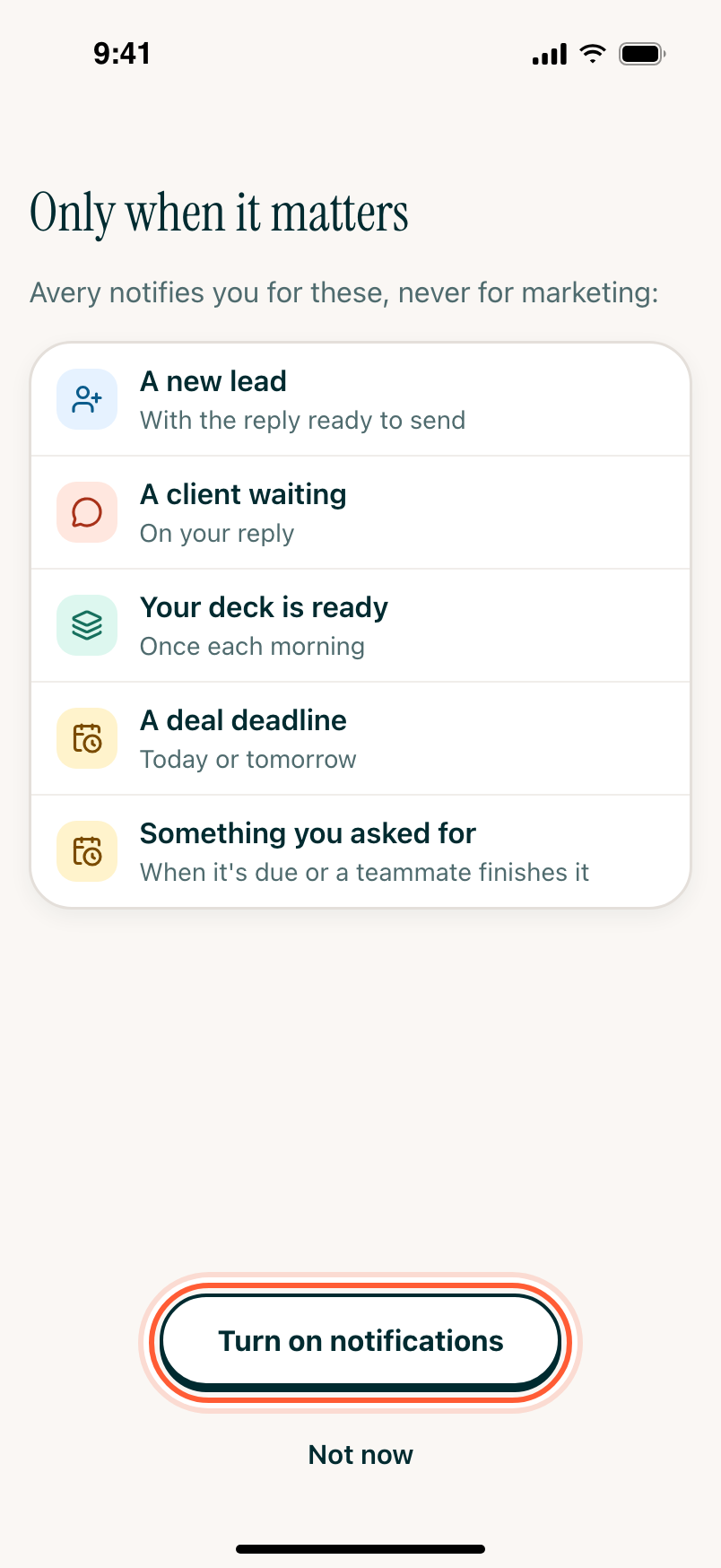
AveryIQ asks once. Tap Turn on notifications, then Allow, so you hear about new leads and clients waiting on your reply right away.
Step 4Work through your first deck
Your first deck opens on a Grow your sphere card that asks who you're helping buy or sell right now. Tap Add someone and add a real person you know. Behind it are a few setup cards, like forwarding a lead email and starting a deal. Tap one to see how it works. Each one clears itself once you've done it.
New to AveryIQ? Start with Get started with AveryIQ in 20 minutes.