Use your deck
Each morning Avery lines up a few people from your sphere who are due for a touch, with the reason and a draft ready. Send it, edit it, snooze it or skip it.
Transcript
- Last time, you told Avery about Maya: the lease, the wedding, Biscuit the golden retriever. So what does it do with all that?
- Every morning, Avery picks a few people you need to reach out to, and puts them on the Today screen. Not a to-do list. Just who needs you, and why.
- Avery helps you stay disciplined with your follow-up. Just have a few real conversations every day, and you'll turn more of them into closings by the end of the year.
- Instead of blasting out canned messages to your valuable sphere, Avery tees up a strategic text to send, or a call to make. It writes from what it knows about Maya, not an automated "just checking in" that gets ignored.
- Nothing goes out until you say so. Tap Send, it opens in your Messages, and the conversation's started.
- Not quite right? Tap the draft to make it yours, or tap Nope and tell Avery why. Like a good assistant, it learns your style and gets better every day.
- You remember the people. Avery remembers the details. Next, see how Avery learns from all those phone calls you make.
Your deck is where your day starts. Avery picks a few people from your database who are due for a follow-up, tells you why, and preps a text to send or a call to make. Nothing goes out until you say so. Open Tasks and tap Start today's deck.
Your deck deals today's tasks in the order your list shows them. To change it, touch and hold a task in the list and drag it up or down, or onto another day. On a computer, drag the row, or press ⌥↑ or ⌥↓.
Step 1Read the card
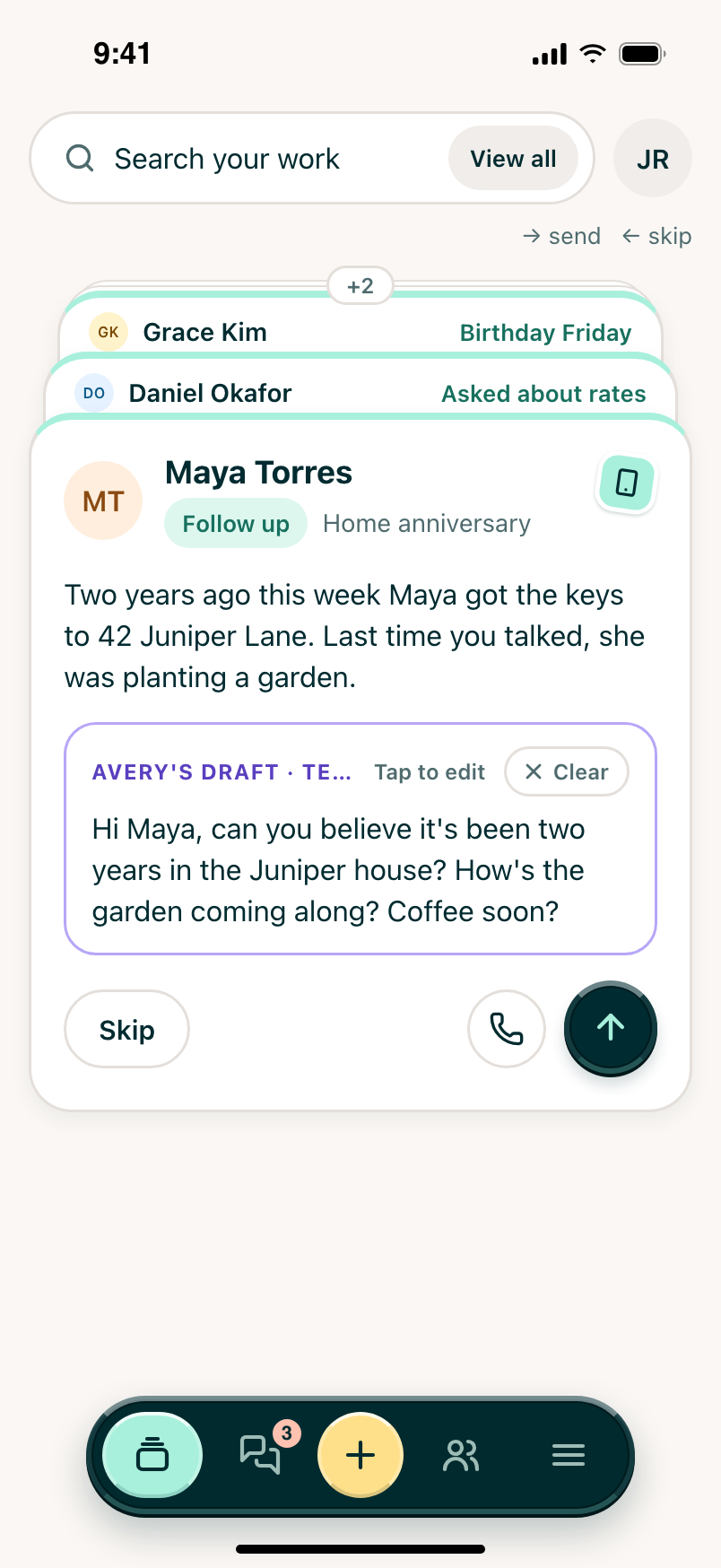
Each card tells you who, why now, and what Avery drafted. New leads and deadlines come first. The cards fanned behind are next: tap one to bring it to the front, or tap the count on the pile to see all of today's cards. On quiet days you may only get one or two cards, and that's by design.
About once a week, a Grow your sphere card asks a question like "Who cuts your hair?" to jog your memory. Tap Add someone, then Pick from contacts or Tell Avery about them. Move on to the next question, or tap Done.
Step 2Send it
Tap the round send button, or swipe the card right. The draft opens in Messages, ready to go, and you send it from there.
With a team number, From beside the send button shows which line the text goes from. Tap it to switch. Team line sends straight from the app, with a few seconds to Undo.
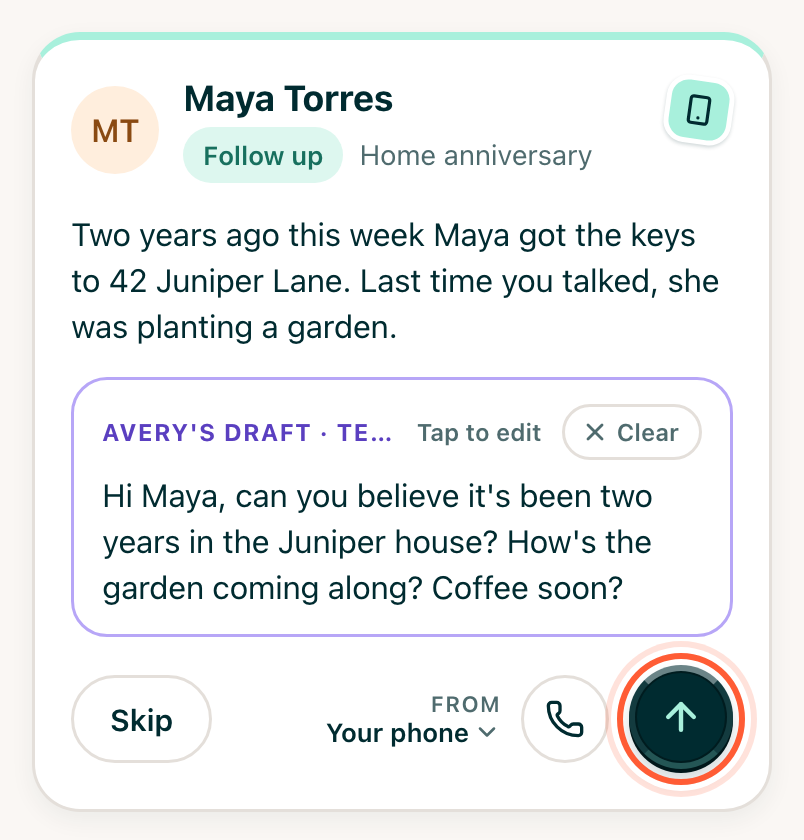
Touch and hold the send button to Polish and send, or, on the team line, Schedule send. The phone button beside it calls them instead.
Step 3Make it yours
Tap the draft to change the wording, then tap Save. Rather write it yourself? Tap Clear for an empty box. Avery learns your style from what you send.
Step 4Not now, or not at all
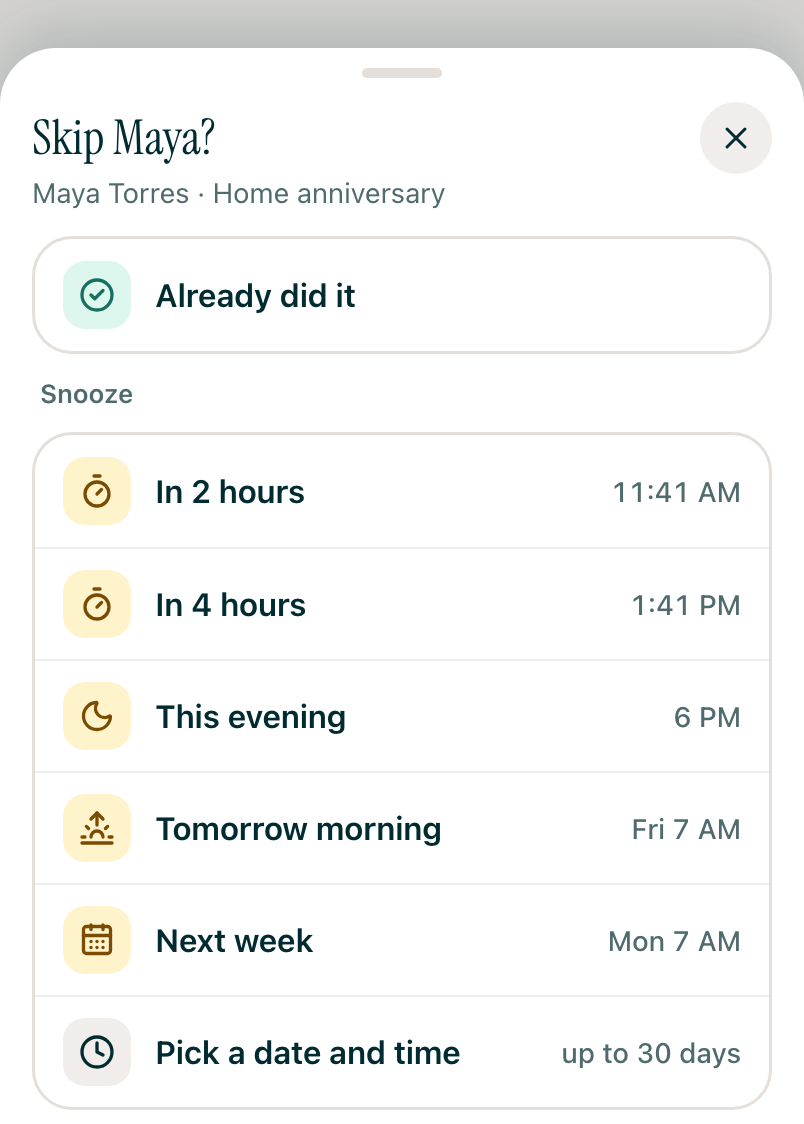
Tap Skip, or swipe the card left, and pick what happened:
- Already did it: you reached out some other way.
- Later: the card comes back at the time you pick.
- Stop suggesting them: turns off Nurture for that person.
- Something's wrong: Avery asks you in her thread what she got wrong.
- Just skip: clears the card.
Change when your deck is ready
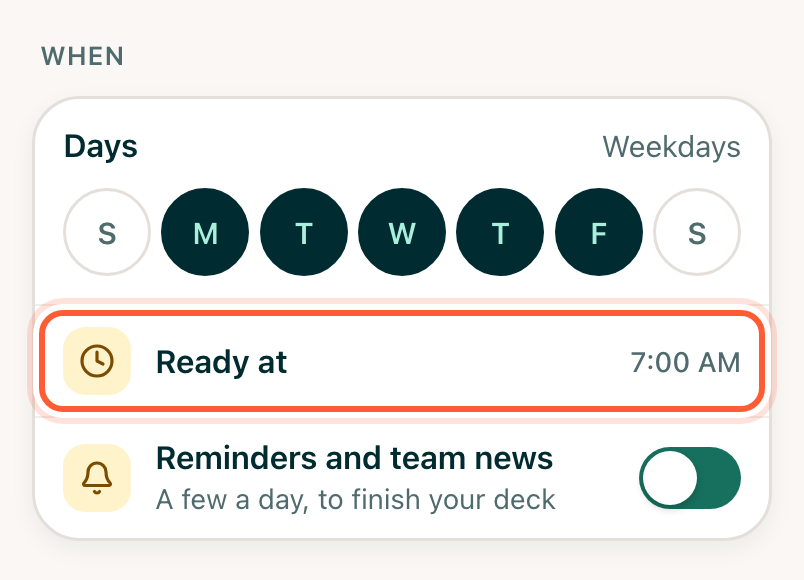
Tap your initials at the top of Tasks (or More, then Settings), then Deck settings, then Ready at. The same screen sets which days you get a deck and how many minutes it takes each morning.