What's on the More tab in AveryIQ
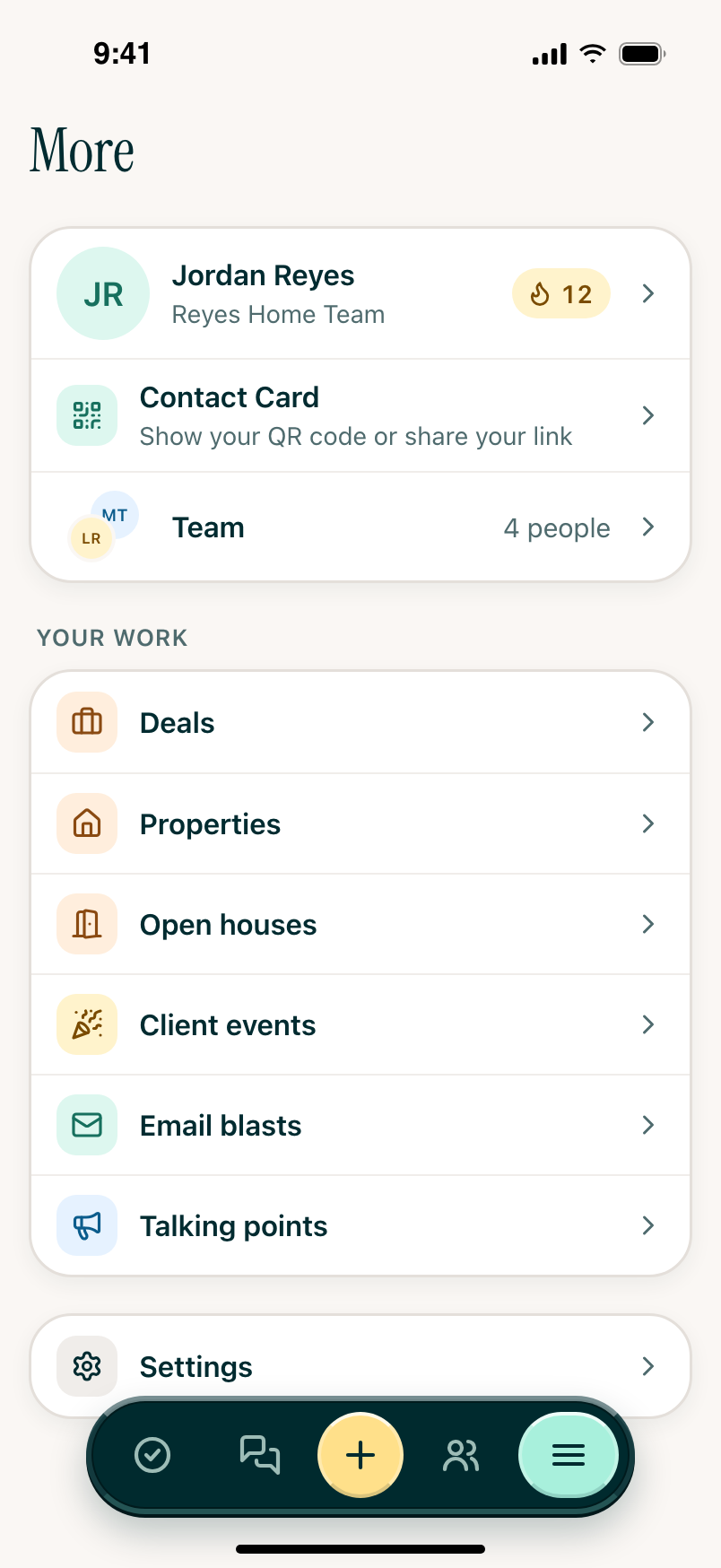
Every row on the More tab, from your profile and Contact Card to Team, Deals, Properties, Open houses, Client events, Email blasts, Talking points and Settings, with what each one is for.
More is the last tab in the bar at the bottom of the app. It holds the places you visit now and then rather than every hour: you and your team at the top, your work in the middle (deals, homes, open houses, events, email blasts, talking points), and Settings at the bottom. Day-to-day texting and deal chat happen in Messages.
If you have Email, Email takes More's place in the bar, and you open More by tapping your initials at the top of any tab.
You and your team
- Your name, at the very top, with your team's name under it and your streak if you have one. It opens your profile: your streak, your badges, the last 12 months of decks, and your Contact Card. See Your profile.
- Contact Card: your QR code, big enough to scan across a table, and a link to share your details. Use it at open houses, showings and anywhere you meet people. See Share your Contact Card.
- Team: everyone on your team with this week's numbers, their streaks and a High five button, plus your team's name, logo and file storage. Team owners invite people from here. See Your team and Invite your team.
Your work
- Deals: every deal, open, closed and lost. Sort them By stage, Recent or Closing. Active deals also have a thread in Messages. See Track a deal.
- Properties: the homes Avery knows about, with the next open house on each. Search by street, city or ZIP. See Add a property.
- Open houses: your open houses, the ones still running first, then the ones you're done hosting. Open one to see who signed in. See Run an open house.
- Client events: client parties, pie pickups and socials, coming up first, and your giveaways. See Host a client event and Run a giveaway.
- Email blasts: newsletters, market updates and invitations, grouped under Waiting on you, Drafts, Scheduled and Sent. You approve every one. See Send your first email.
- Talking points: events and news worth passing along, like a town fair or a new park opening. Avery suggests each one in your deck to the people who'd enjoy it. See Talking points.
Settings
Settings holds your deck, time away, notifications, Avery's memory and Avery's email, your team number, your email blast footer and domain, and your account. See Everything in Settings. You can also open it from your initials at the top of Tasks.
Examples
- Saturday morning before your open house, tap More, then Open houses, to check the sign-in page is ready.
- A teammate cleared their deck seven days running. Tap More, then Team, and send a High five.
- It's the first of the month. Tap More, then Email blasts, to check the newsletter Avery drafted for you.
- The town's holiday parade is next week. Tap More, then Talking points, and add it so Avery mentions it to families with kids.
I can't find something that used to be on More
Time away, Avery's memory and Avery's email are in Settings (the last row on More). Leave team is at the bottom of Team.