Find your way around AveryIQ
The four tabs at the bottom of the AveryIQ app (Tasks, Messages, People and More), the + button in the middle and what's on it, and where your initials lead.
AveryIQ has four tabs in the bar at the bottom of the screen: Tasks, Messages, People and More. The yellow + in the middle starts something new from anywhere: a voice note for Avery, a task, a text, a call, a person, a deal or an open house. Your initials at the top of Tasks open Settings.
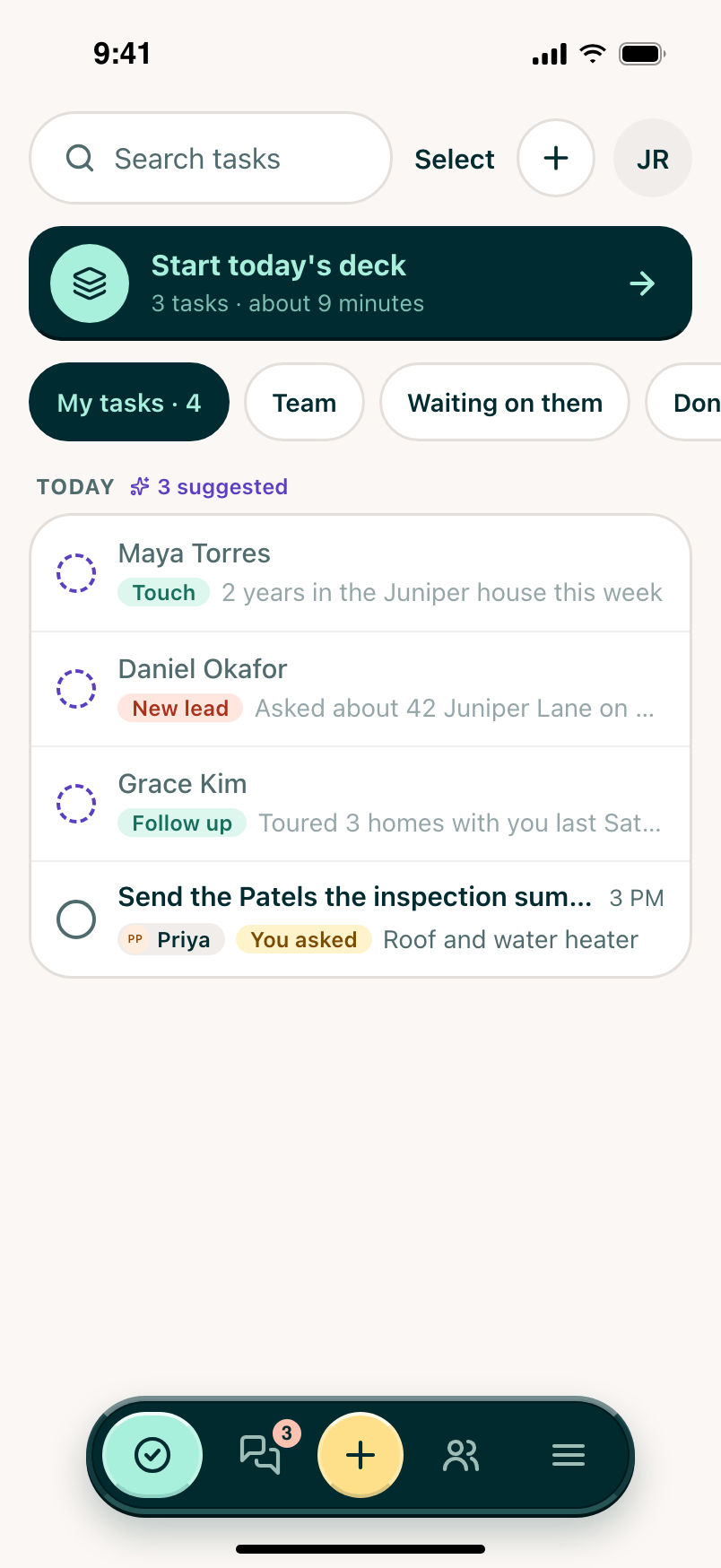
The four tabs
| Tab | What it's for |
|---|---|
| Tasks | Your to-do list and your morning deck. Tap Start today's deck to go through the people Avery lined up, one at a time. See Use your deck and See your tasks. |
| Messages | Every text, call and email thread with your clients, your deal threads, your direct messages with teammates, and your thread with Avery at the top. A red number on the tab is how many are unread. See Use Messages. |
| People | Your whole database: search anyone, add someone, and see new leads waiting. See Find someone. |
| More | Your profile, your Contact Card, your team, deals, properties, open houses, client events, email blasts, talking points and Settings. See What's on the More tab. |
If you have Email, the bar is Tasks, Messages, +, Email and People, and More moves to your initials at the top of any tab.
The tab you're on is the one in the light green pill. Tap Tasks again while you're in the deck to go back to your list.
What's on the + button?
Tap the yellow +. A panel rises above the bar, and the + turns into an ×. Tap the × or anywhere outside the panel to close it.
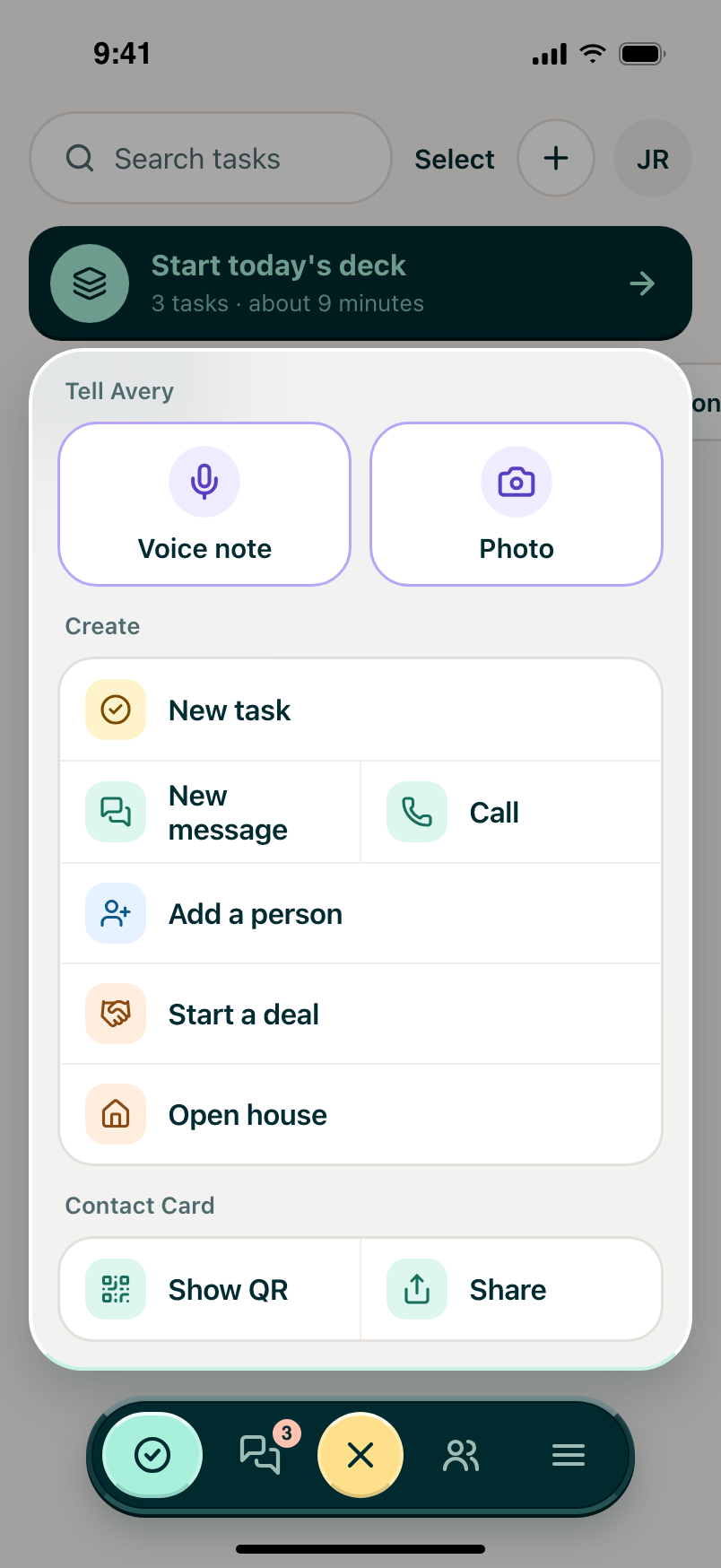
- Tell Avery
- Voice note: talk about anything (a showing, a call, a name you just heard) and Avery saves it. It goes to your thread with Avery. See Tell Avery about someone.
- Photo: take a picture (a business card, a flyer, a note), add a note if you like, and tap Send to Avery. It goes to your thread with Avery too.
- Create
- New task: a to-do for you or a teammate. See Add a task.
- New message: start a text. See Send a text.
- Call: open the dialer. See Call from AveryIQ.
- Add a person: put someone new in your database. See Add someone.
- Start a deal: a purchase, a listing or a rental. See Track a deal.
- Open house: set up sign-in for an open house. See Run an open house.
- Contact Card
- Show QR: show your QR code so someone can scan it and save your details. See Share your Contact Card.
- Share: send your Contact Card link by text, email or AirDrop.
Where do my initials go?
The round button with your initials at the top right of Tasks opens Settings: your deck, time away, notifications, Avery's memory and Avery's email, your phone and email setup, and your account. You can also get there from More, then Settings. See Everything in Settings.
Your own profile (your streak, badges and Contact Card) is on More: tap your name at the top. See Your profile.
Examples
- You're walking out of a showing and want to remember what the buyers said. Tap +, then Voice note, and talk.
- A neighbor at the coffee shop asks for your info. Tap +, then Show QR, and let them scan it.
- Your buyer's lender just called. Tap +, then Start a deal, before you forget the details.
- You want to change what time your deck is ready. Tap your initials on Tasks, then Deck settings.
Is AveryIQ the same on a computer?
The same four places and the same + are on the left side of the window instead of the bottom. See Use AveryIQ on your computer.
During a call, where did my tabs go?
If you leave the call screen during a call, a green timer sits at the start of the bar. Tap it to go back to the call.