Set Up Online Rent Collection
Set up payment processing so residents can pay rent and other charges online. After your application is approved, choose which payment methods residents can use and who pays each processing fee.
Before You Start
The payment-processing application verifies your organization and the people authorized to act for it. Have the following information available:
- Your organization’s legal and operating names
- Business registration and tax information
- Information about owners and authorized signers
- The bank account where resident payments should be deposited
- Supporting business and banking documents
Only enter sensitive business and banking information in the secure application opened from AveryIQ. Do not send it through email or a Help Center form.
Open Payment Settings
- Sign in to the AveryIQ Team Portal.
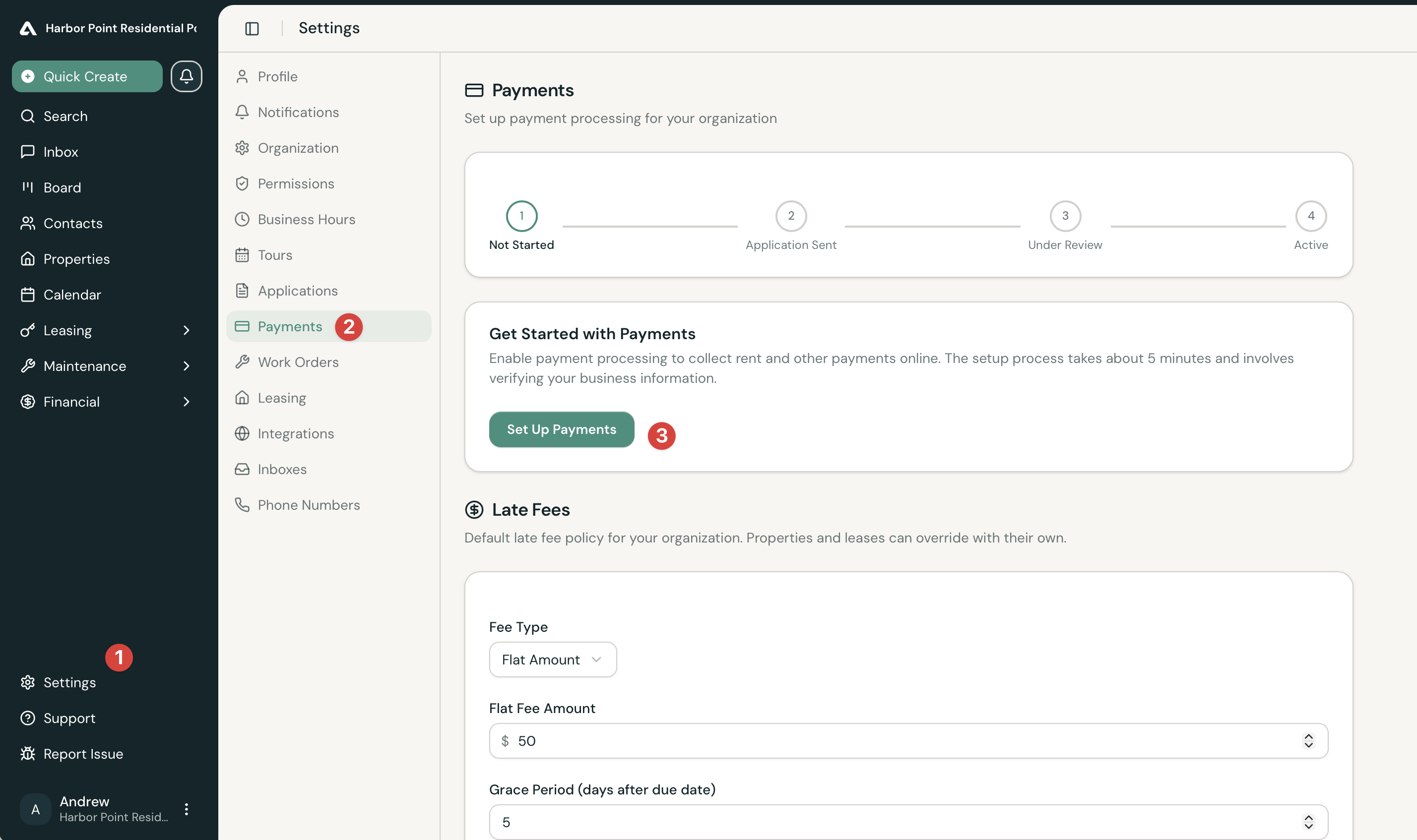
- Select Settings from the lower-left navigation.
- Select Payments.
The progress tracker shows whether your application is not started, sent, under review, or active.
Start the Application
- Select Set Up Payments. AveryIQ creates a secure application for your organization.
- When the application is ready, use the displayed email and reference ID to sign in.
- Select Open Application. The form opens in a new browser tab.
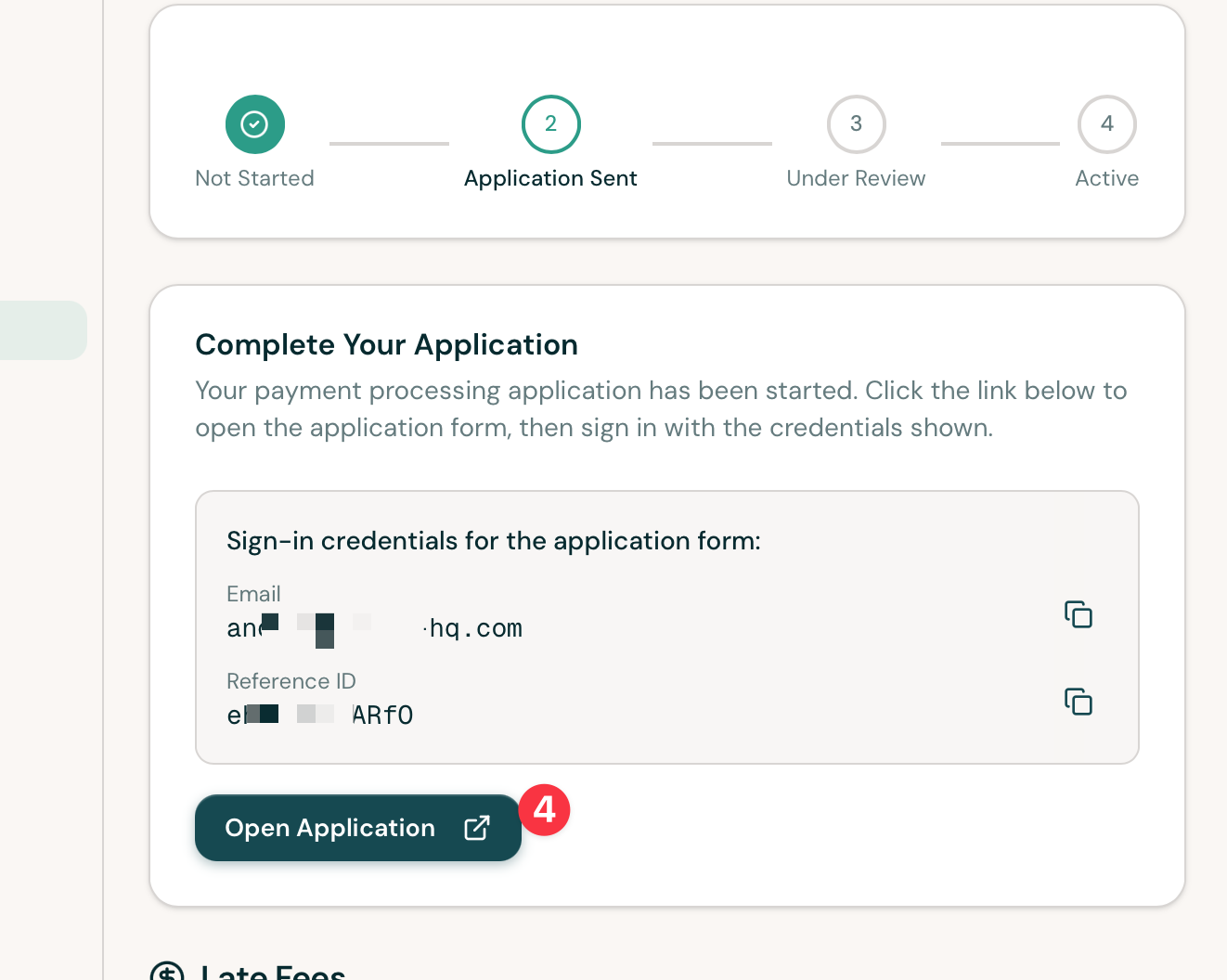
Keep this AveryIQ tab open until you have successfully entered the application. If you need to return later, open Settings > Payments again and use the same application link and credentials.
Complete the Business Verification
Complete each section of the secure application. It requests business details, information about responsible people, processing information, service choices, and banking documents.
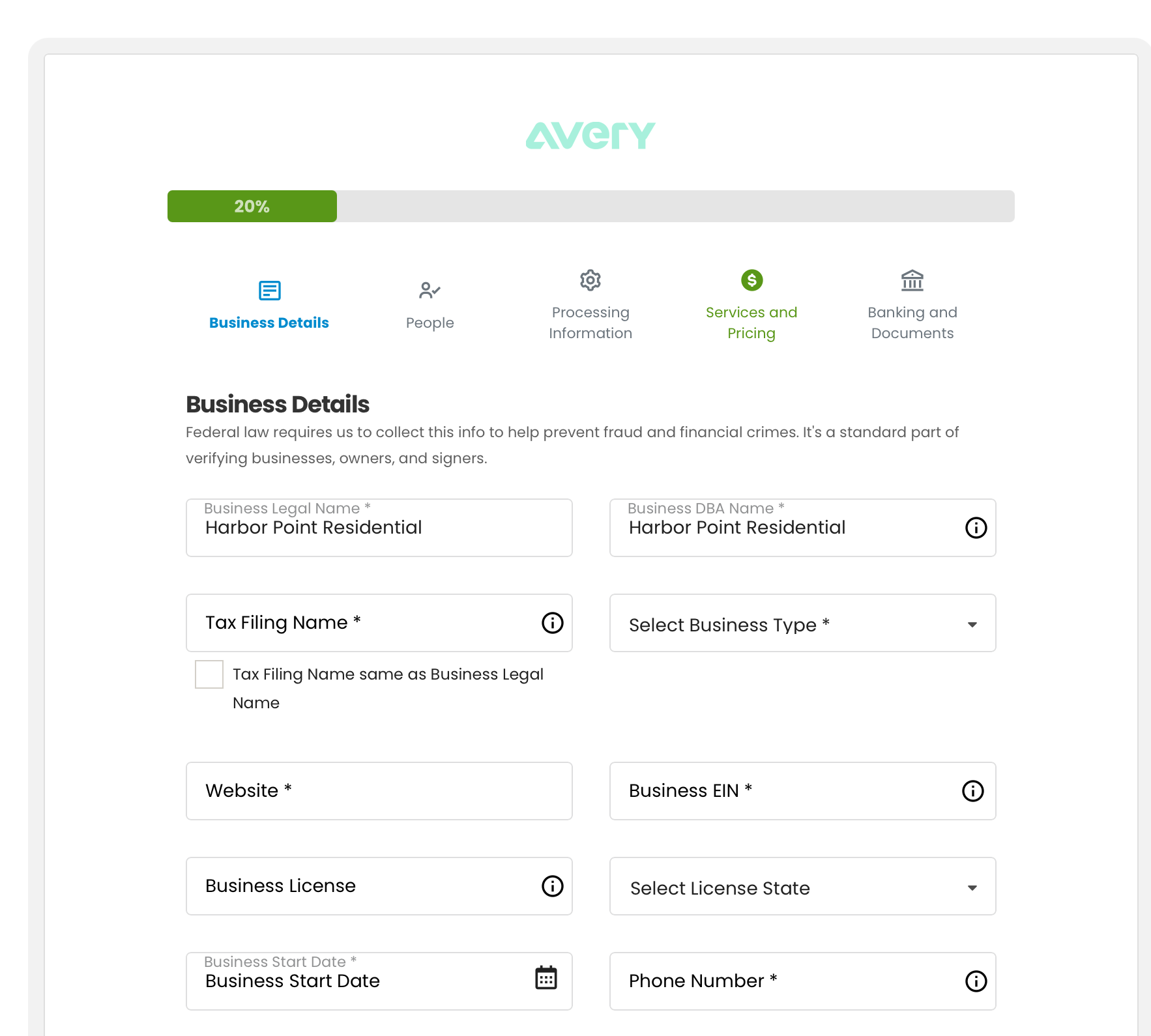
Review names, tax information, ownership details, and bank information carefully before submitting. Incomplete or mismatched information can delay the review.
Wait for KYC/KYB Review
After submission, the status in AveryIQ advances to Under Review. Review usually takes one to two business days. You do not need to submit another application while the existing one is being reviewed.
If the application is placed on hold, open Settings > Payments and follow the displayed instructions. Contact AveryIQ Support if the page says additional assistance is required.
Confirm That Payments Are Active
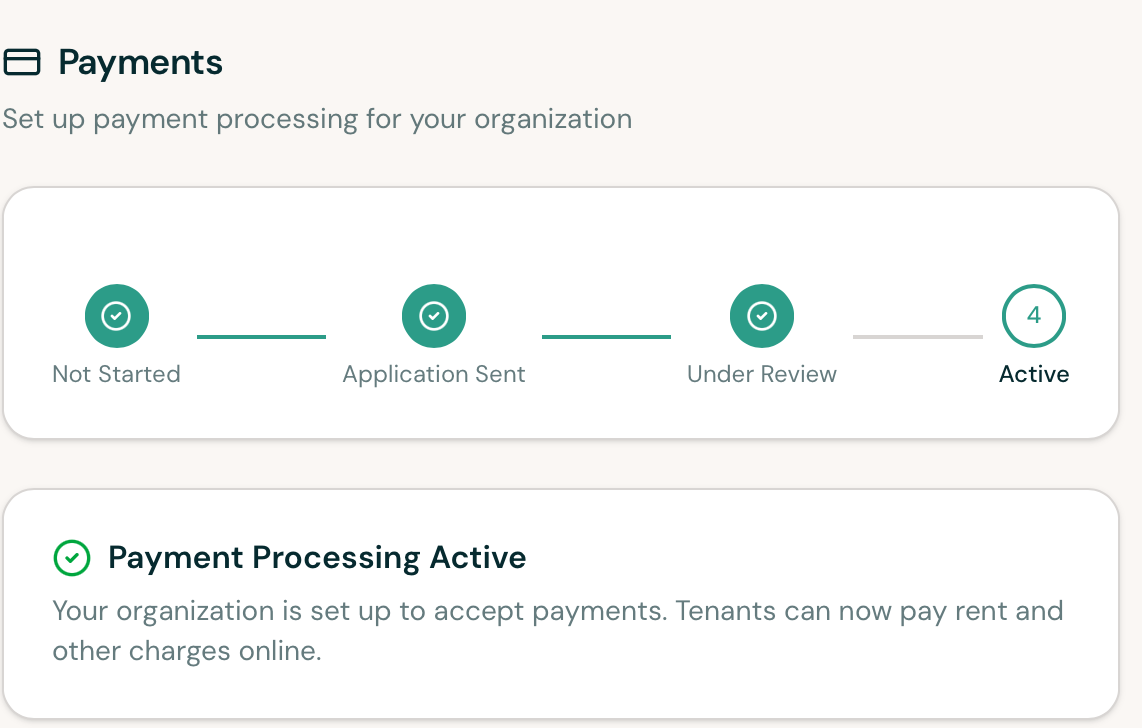
Return to Settings > Payments after approval. The tracker will show Active, and the page will confirm that residents can make online payments.
Choose the Available Payment Methods
The Payment Methods section sets the organization-wide default for resident payments.
- Turn ACH, debit card, or credit card payments on or off.
- For each enabled method, choose whether the resident or your organization pays the displayed processing fee.
- Optionally enter a minimum or maximum payment amount.
- Select Create Policy or Update Policy to save the settings.
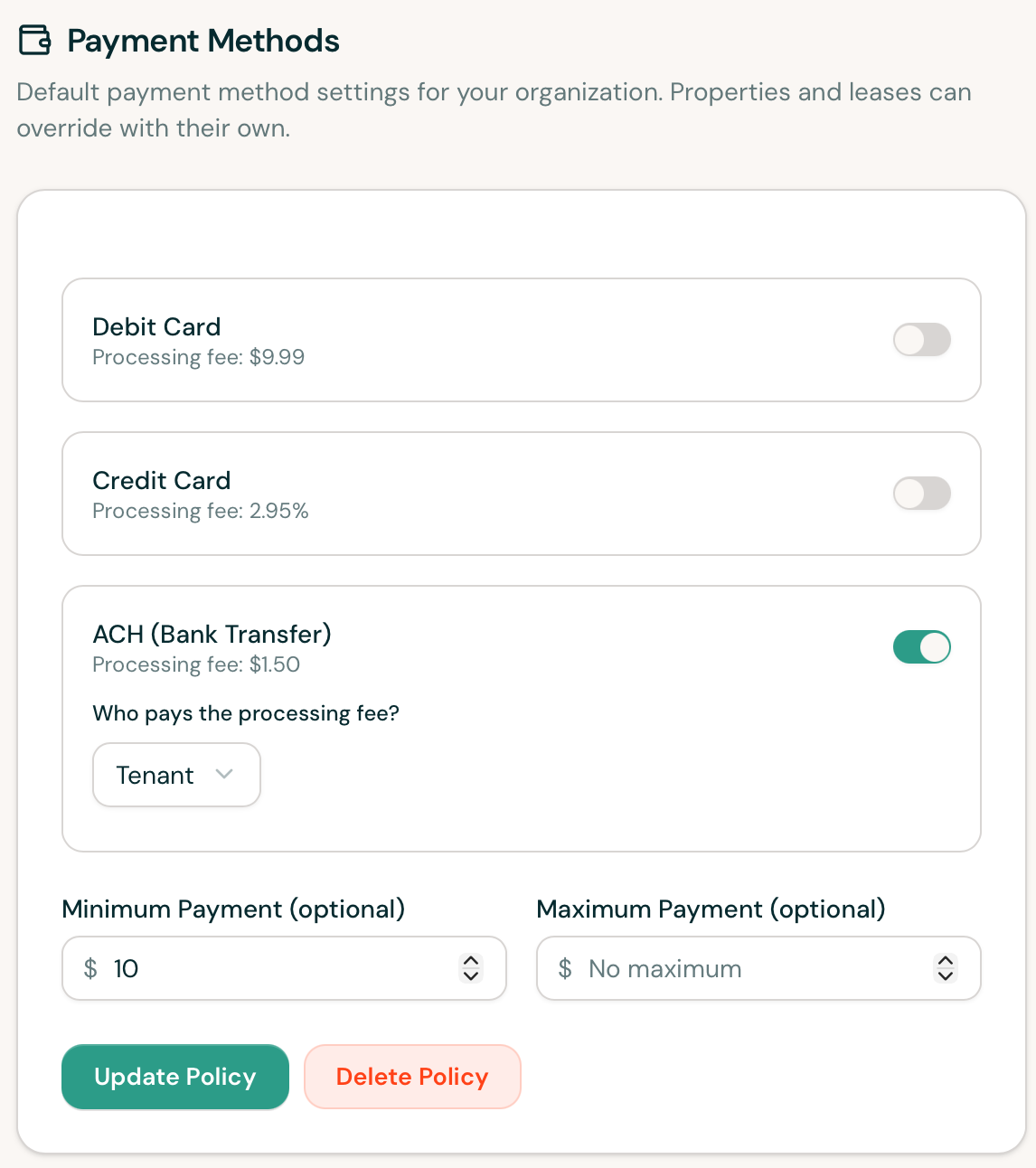
The processing fee shown beside each method is the current fee applied by AveryIQ. Properties and leases can use their own payment-method settings when they need to differ from the organization default.
What Residents Can Do Next
Once payment processing is active and a resident has charges on their account, they can use the Resident Portal to:
- Review their balance
- Add an eligible payment method
- Make a one-time payment
- Set up AutoPay
- Review pending and completed payments
See Rent & Payments for the resident-facing instructions.
Common Questions
Why is my application still under review?
The application may require additional verification. Check Settings > Payments for its current status and any instructions. If it remains on hold or shows an error, contact AveryIQ Support. Payabli, AveryIQ’s payment provider, may also email the address used for the application to request additional information, documents, or clarification. Check that inbox, including its spam or junk folder, for messages about the application.
Can different properties accept different payment methods?
Yes. The policy on this page is the organization default. A property or lease can override it with more specific settings.
Can residents enroll in AutoPay before payments are active?
No. Residents will see online payment and AutoPay options after payment processing is active and their account is eligible for online payments.