Set Up a Zillow Lead Inbox
Connect Zillow to AveryIQ so new renter inquiries and follow-up messages appear in the Team portal automatically. Avery creates or updates the lead, adds the renter’s message to the conversation, and keeps replies connected through Zillow.
Create the Inbox in AveryIQ
- Sign in to the Team portal and open Settings > Inboxes.
- Select Create Inbox.
- Enter a name, such as Zillow Leads.
- Set Type to Zillow Lead.
- Under Allowed Senders, select Anyone so AveryIQ can accept messages sent by Zillow.
- Leave AI Instructions blank unless your team needs Avery to follow additional organization-specific guidance.
- Select Create Inbox.
- Copy the new address ending in
@inbox.callavery.com.
Send Zillow Leads to AveryIQ
How you connect the inbox depends on how your Zillow account delivers rental leads.
Zillow Lead Forwarding
If your Zillow account includes Lead Forwarding:
- Sign in to Zillow from a desktop or laptop.
- Open your profile menu and select Settings.
- Select Lead Forwarding, then Edit lead forwarding settings.
- Choose Forwarding indefinitely.
- Add the AveryIQ inbox address you copied earlier as a recipient.
- Save the forwarding rule.
Zillow may allow multiple forwarding recipients, so you can keep delivering leads to your usual email address while also sending them to AveryIQ. See Zillow’s lead-forwarding instructions if the labels in Zillow have changed.
Zillow Rental Manager with Gmail
Zillow Rental Manager sends rental leads to the contact email address associated with each listing. If that mailbox uses Gmail and Lead Forwarding is not available:
- Follow Set Up Gmail Forwarding to add and verify the Zillow Lead inbox address.
- In Gmail’s search box, enter
from:(*@convo.zillow.com). - Review the matching messages and confirm they are renter inquiries or renter-message notifications.
- Select Show search options, then Create filter.
- Select Forward it to, choose the Zillow Lead inbox address, and select Create filter.
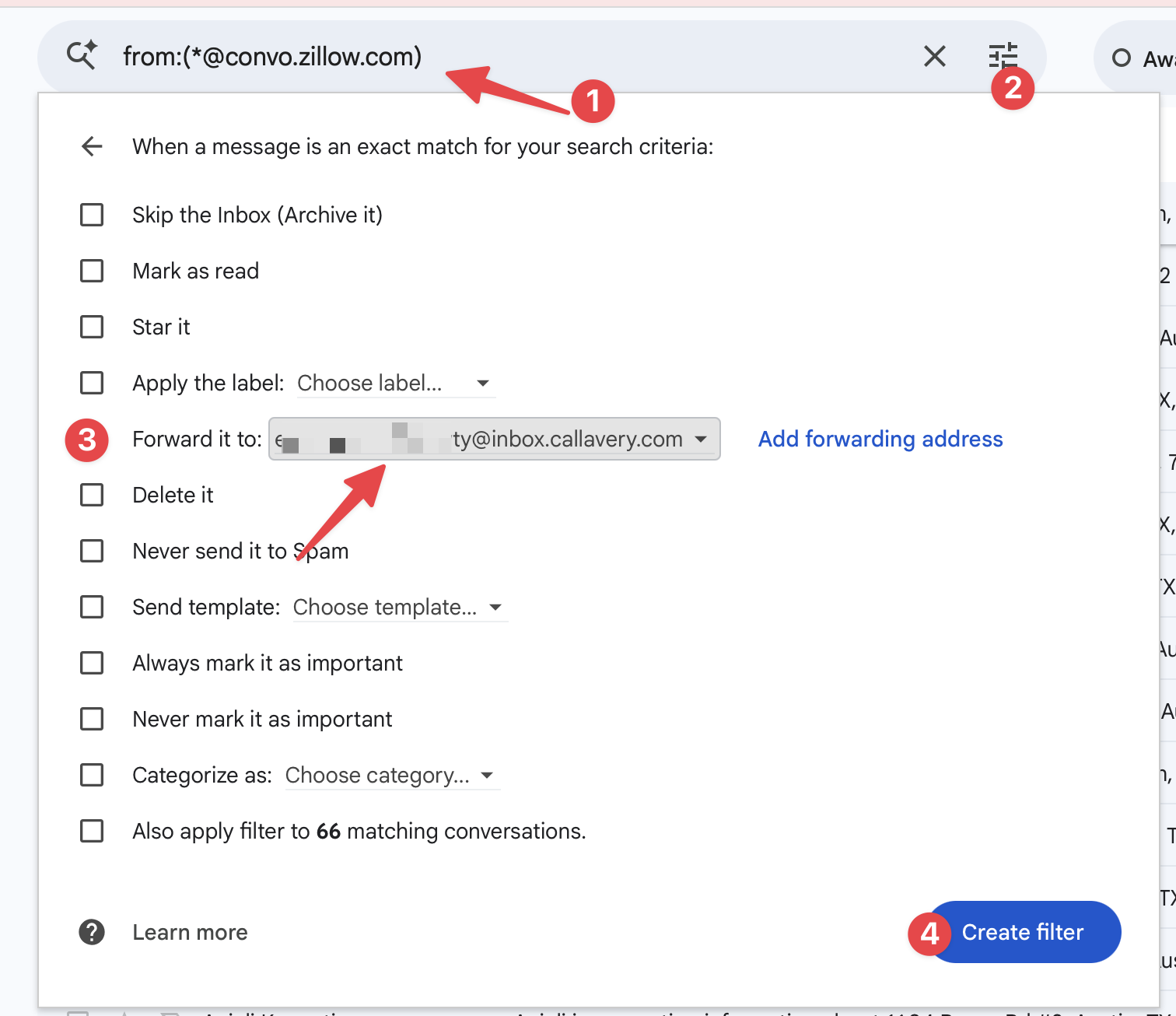
Keep Also apply filter to matching conversations cleared. Gmail forwards only new messages; existing messages are useful for checking the filter but should not be imported as new leads.
If your mailbox uses another email provider, create an equivalent rule that forwards new messages from Zillow’s conversation domain to the Zillow Lead inbox.
Forward only renter inquiries and renter-message notifications—not every Zillow account, billing, or marketing email. Zillow documents that Rental Manager leads are delivered to the listing’s contact email in its rental-leads guide .
The inbox requires a renter reply address on convo.zillow.com, reply.zillow.com, convo.hotpads.com, or reply.hotpads.com. General Zillow addresses such as [email protected] do not qualify. Unsupported emails are recorded as rejected in inbox activity without creating a lead or adding a conversation message. If a forward contains multiple different relay addresses and no supported Reply-To header, it is also rejected because AveryIQ cannot safely determine the recipient. Forward the individual renter message with its full reply details preserved.
Test the Connection
- Wait for a new Zillow renter inquiry or follow-up message. An ordinary test email will not contain the Zillow reply address AveryIQ needs to connect the conversation.
- Open Inbox in the AveryIQ Team portal and confirm that the renter appears as a lead with their message.
- Return to Settings > Inboxes and select the mail icon beside the Zillow inbox to review recent email activity.
If an email shows an error, confirm that the forwarding rule preserved the full Zillow message and that it was sent to the exact AveryIQ inbox address. Zillow uses private relay addresses for renter conversations; AveryIQ uses that relay so your reply reaches the renter without exposing their personal email address.