Import and Reconcile Bank Transactions
Use a financial account’s register to bring in statement activity, decide what each transaction means, and reconcile the books to a completed statement.
Importing a file does not post or reconcile its transactions. Imported rows are staged for review until you accept them, and reconciliation remains a separate proof that the selected book activity agrees with the statement.
Before You Start
- Add the financial account and confirm its purpose.
- Download an OFX, QFX, QIF, or CSV file from the bank or card provider.
- For the first reconciliation, know the statement’s beginning and ending balances.
Open the Account Register
- Open Financial > Banking > Financial accounts.
- Select the bank or credit-card account.
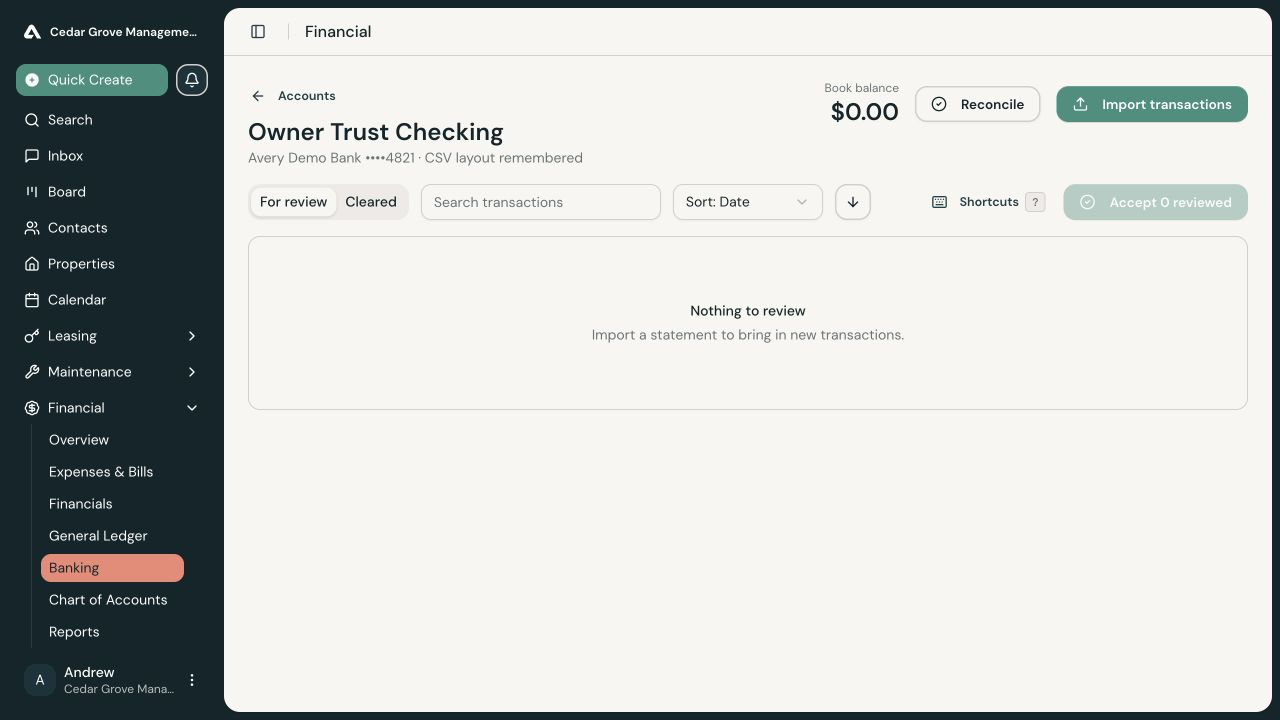
- Review the account name, masked identifier, and current book balance.
Import Transactions
- Select Import transactions.
- Choose the OFX, QFX, QIF, or CSV file.
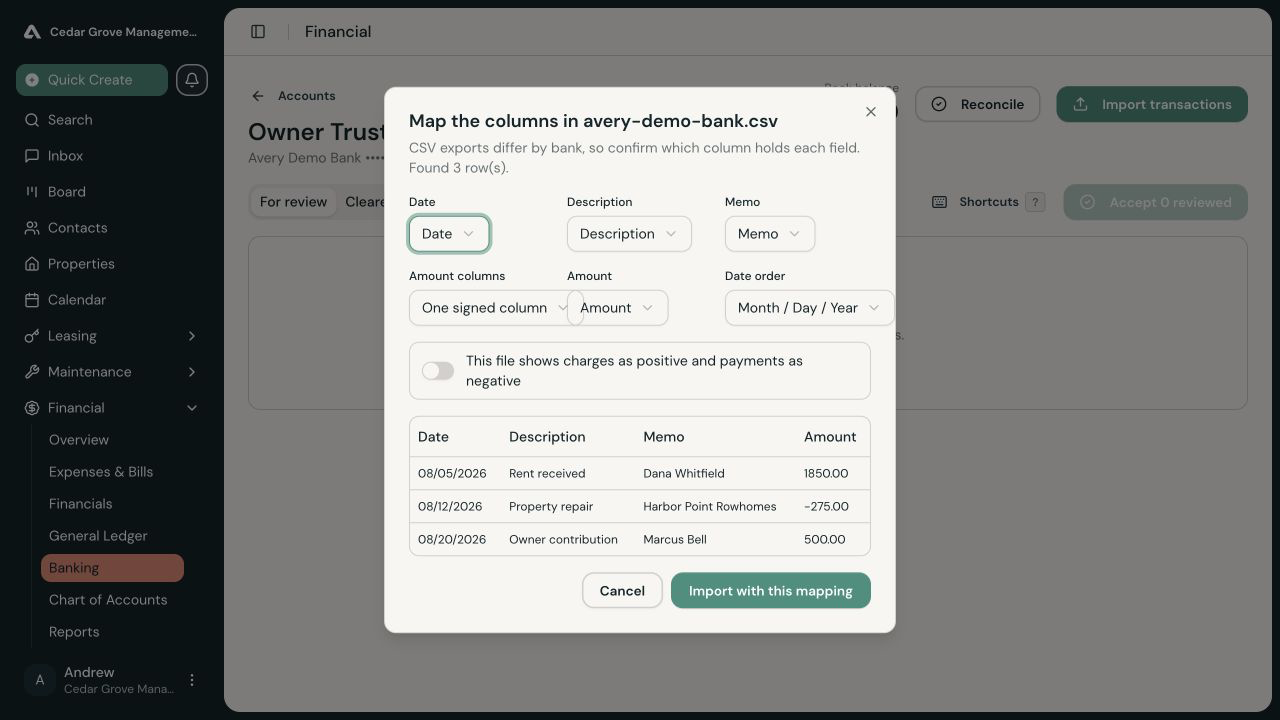
- For a CSV, confirm which columns contain the date, description, amount, and other required values.
- Select Import with this mapping.
AveryIQ remembers a confirmed CSV layout for later exports from the same account. Review the mapping again whenever the bank changes its export format.
Review What Each Transaction Means
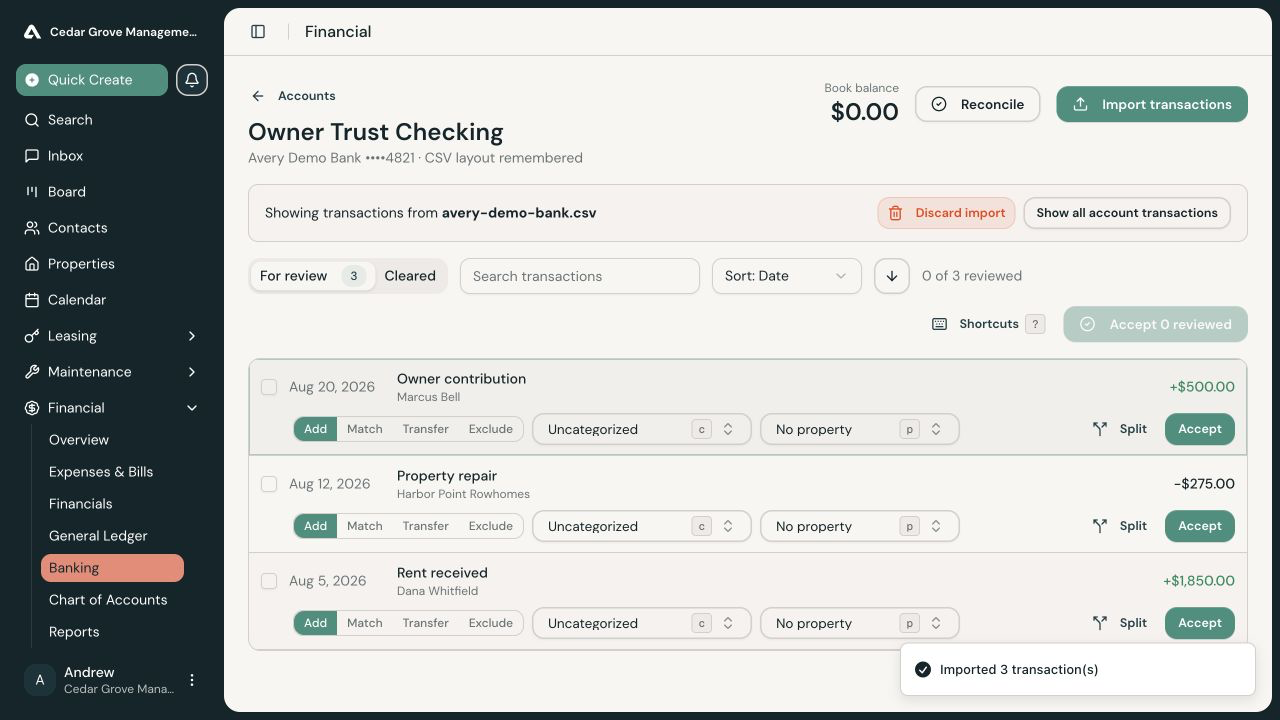
Imported transactions appear under For review. For each row, choose the appropriate treatment:
- Add to create new book activity with a category and, when applicable, a property
- Match to connect the bank movement to one or more entries already on the books
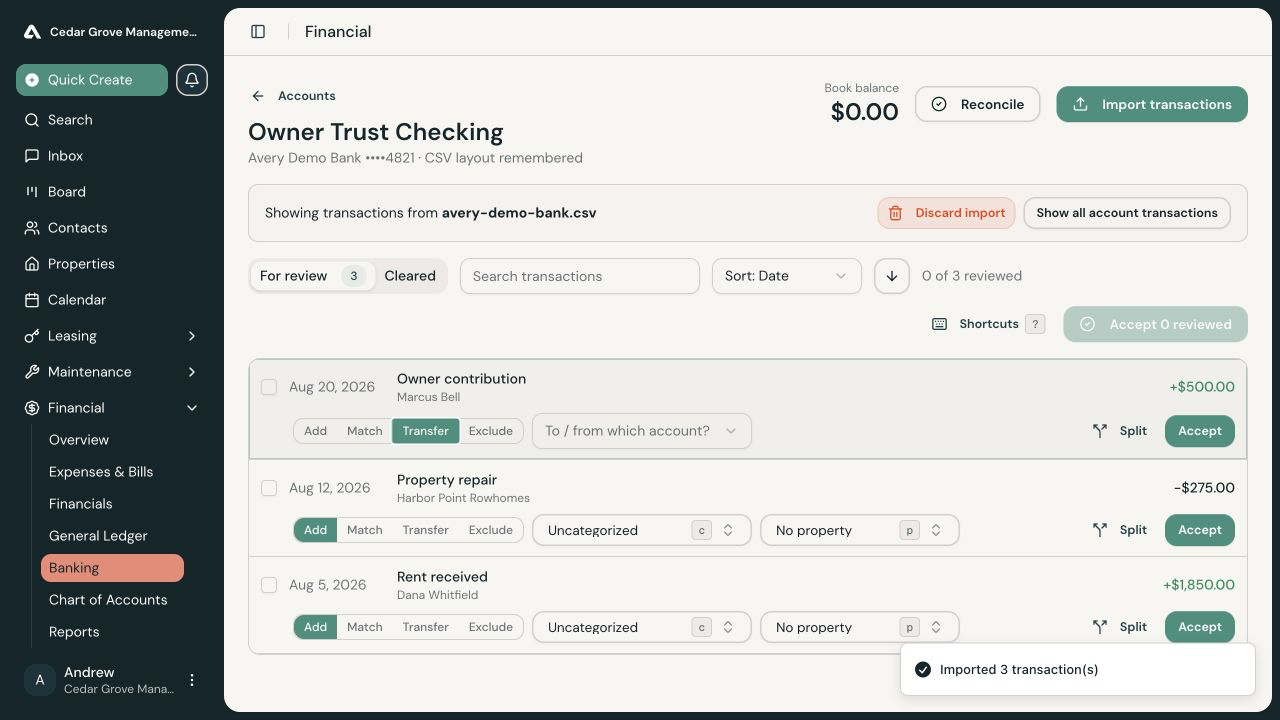
- Transfer when money moved between two of your financial accounts
- Exclude for a duplicate or a row that should not become book activity
- Split when one bank transaction belongs to several categories
Review suggestions rather than accepting them blindly. Confirm the amount, date, counterparty, category, property, matched entries, and transfer account.
Accept Reviewed Transactions
After assigning a decision, select the reviewed rows and choose Accept. Acceptance posts new entries or records the selected match, transfer, split, or exclusion. Accepted rows leave the review queue and appear under Cleared.
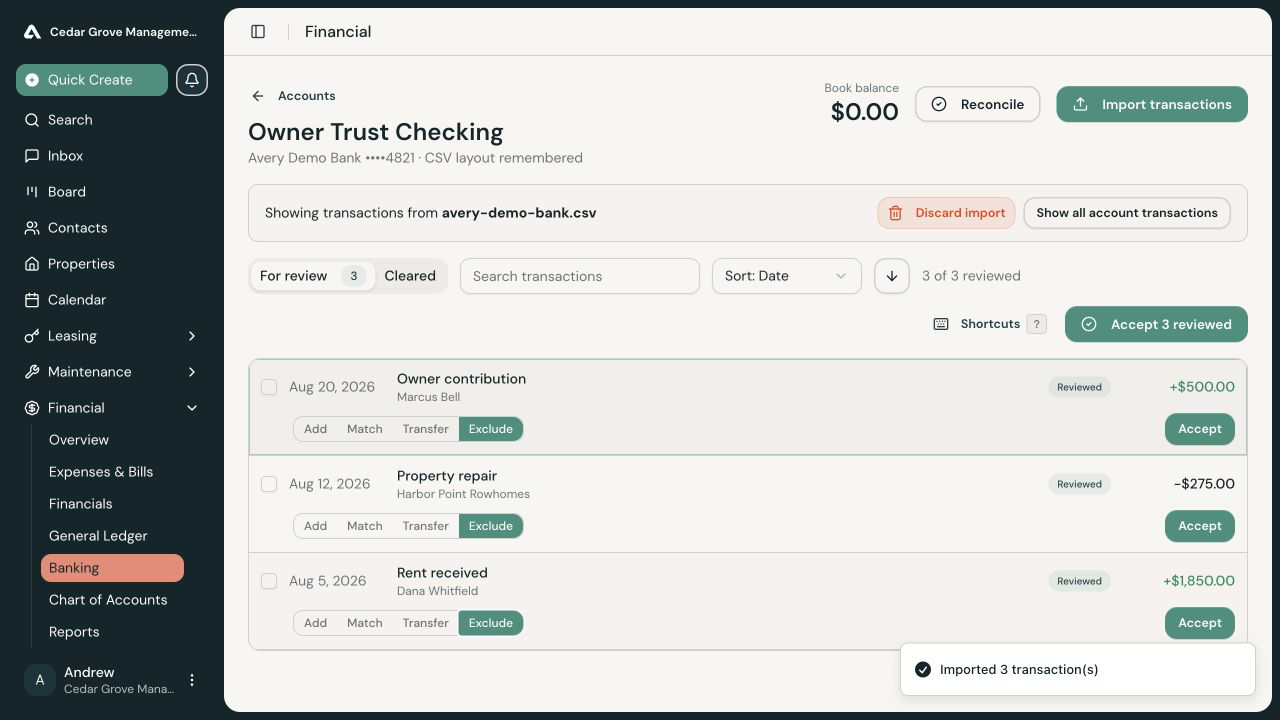
Discarding a statement import is available only while its staged rows are still being reviewed. It removes the import, not already posted journal activity.
Start a Statement Reconciliation
Select Reconcile from the account register, or open Financial > Banking > Reconcile.
- Choose the financial account.
- Enter the statement start and end dates, or select an eligible import to use its dates.
- Enter the statement beginning and ending balances. AveryIQ may prefill an ending balance contained in an OFX or QFX statement.
- Select Start draft.
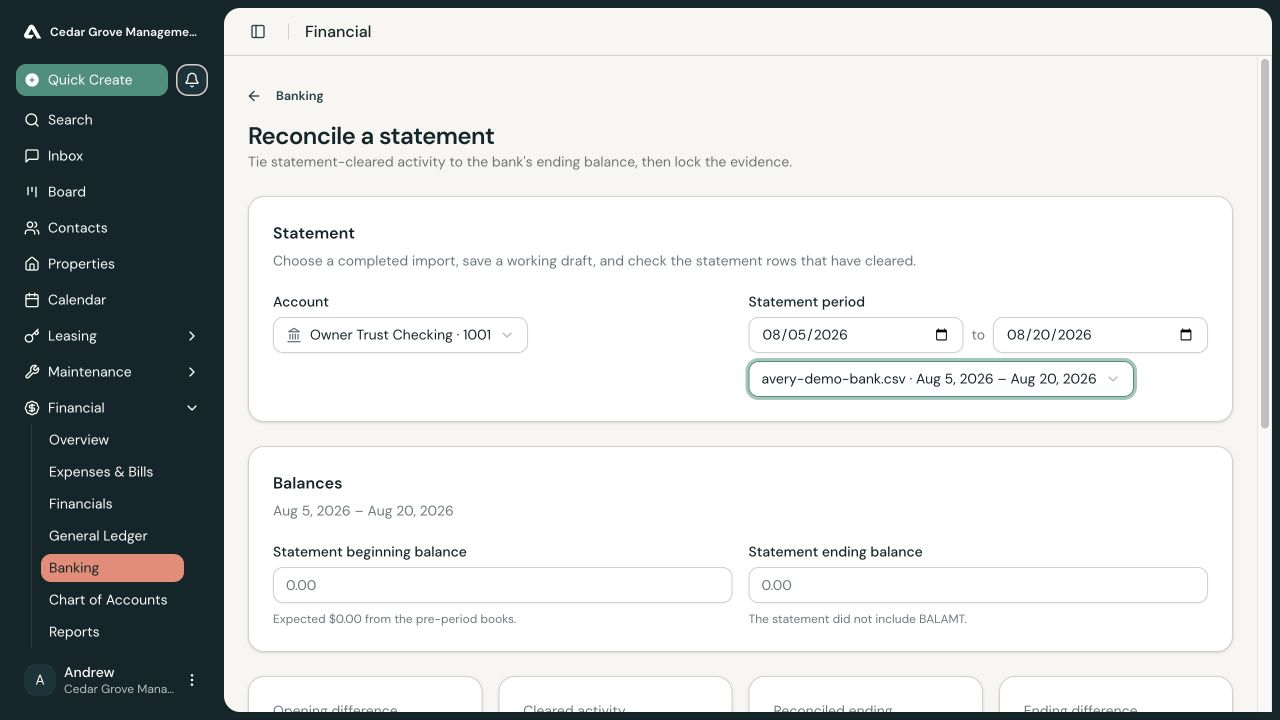
A reconciliation covers a statement period, not merely one uploaded file. A monthly statement can include transactions from several imports.
Mark Statement Activity as Cleared
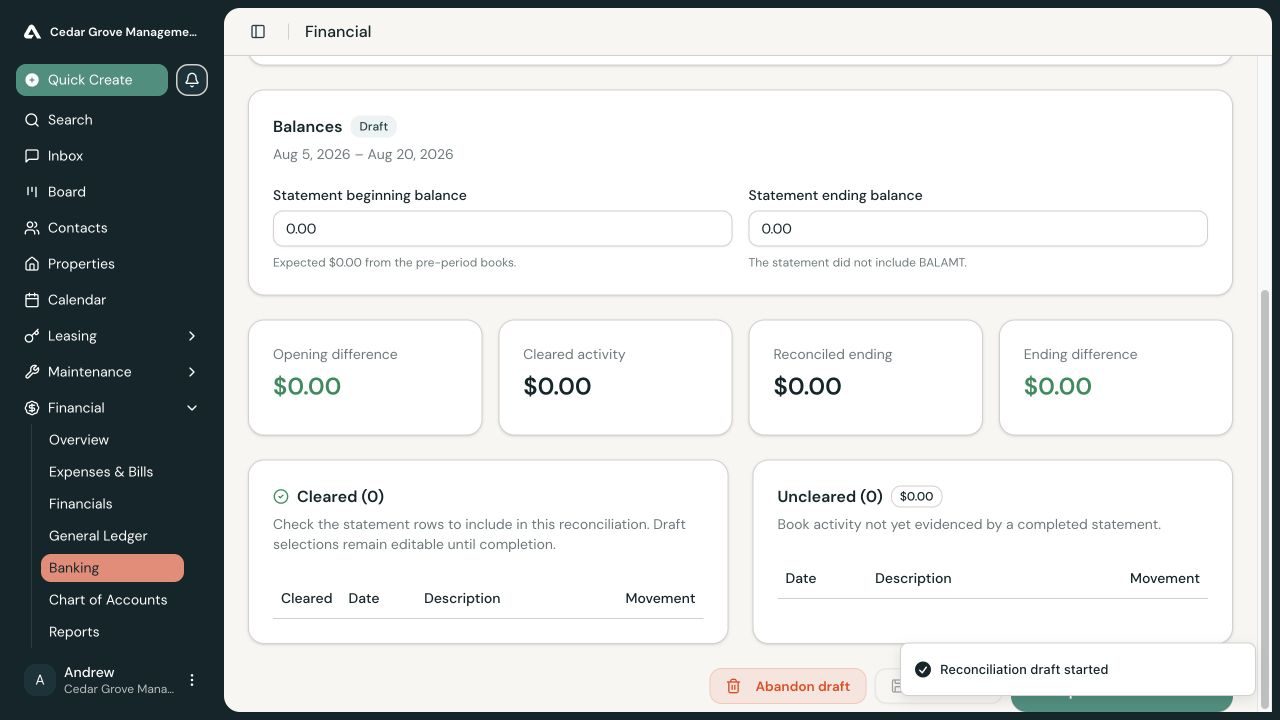
Check each statement row that cleared during the selected period. AveryIQ shows:
- Opening difference
- Cleared activity
- Reconciled ending balance
- Ending difference
- Book activity that remains uncleared
Save the draft whenever you need to stop and return later. Draft balances and selections remain editable until completion.
Complete the Reconciliation
Resolve every blocker and save any unsaved draft changes. The statement can be completed only when its opening and ending evidence agrees with the books.
Select Complete reconciliation to freeze the statement period, balances, cleared selections, actor, and completion time. Later reconciliations use the previous completed statement as their beginning evidence.
Uncleared book activity is not deleted. It remains available to clear on a later statement.
Correct a Draft
Before completion, edit and save the balances or cleared selections. You can also abandon the draft; this removes only the working reconciliation and does not change the journal or imported statement.
Completed reconciliation evidence is not an editable working draft. If the underlying accounting is wrong, correct the relevant business record or journal through its supported reversal or correction workflow rather than changing the completed statement history.