Add a Bank, Card, or Cash Account
Add each real-world financial account before entering its starting balance or importing transactions. AveryIQ maps the account to the general ledger and uses its purpose to keep business money separate from client money.
Open Financial Accounts
- Select Financial from the Team Portal navigation.
- Open Banking.
- Select Financial accounts.
- Select Add financial account.

Choose the Account Type
Enter a recognizable name, then choose:
- Bank account for checking, savings, and trust-bank accounts
- Credit card for a card whose amount owed should be tracked as a liability
- Cash for petty cash or another physical cash account
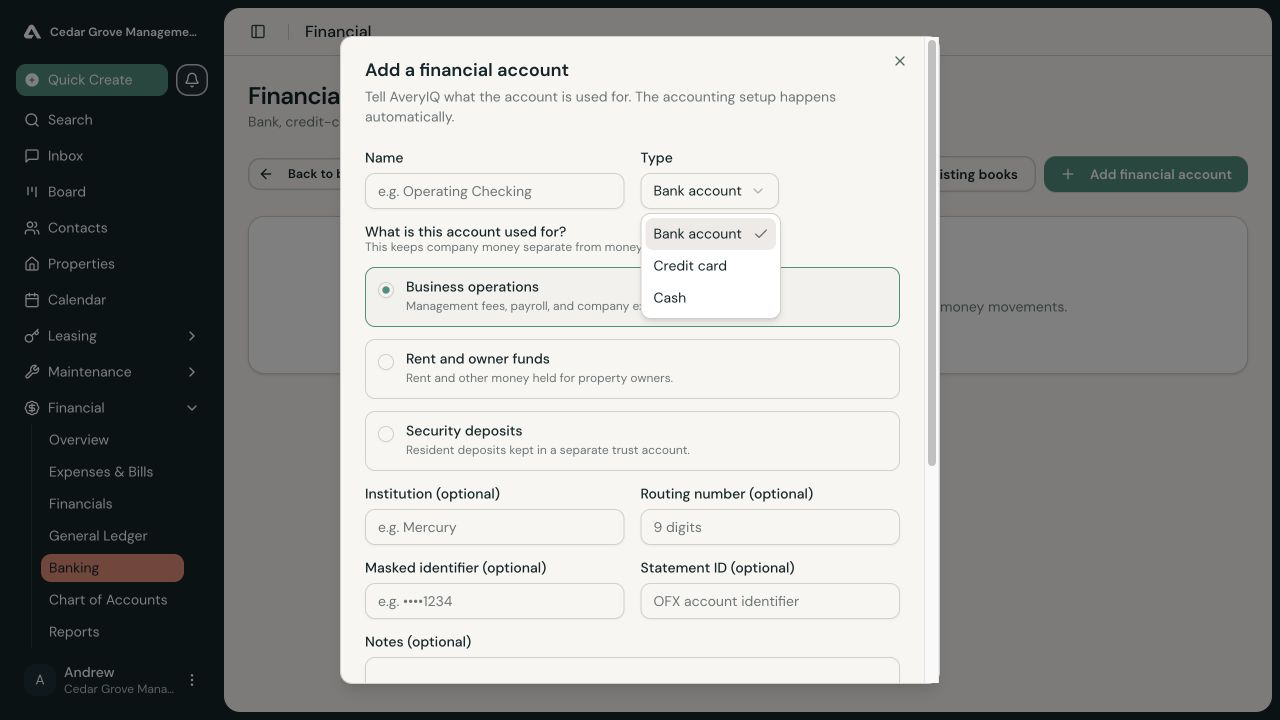
The account type cannot be changed after creation. If the wrong type was selected, add the correct account before it has financial history.
Choose What the Account Is Used For
For a bank or cash account, choose the purpose that describes the money it holds:
- Business operations for management fees, payroll, and company expenses
- Rent and owner funds for rent and other money held for property owners
- Security deposits for resident deposits held separately
AveryIQ uses the purpose to select the recommended ledger mapping. It supports one primary account for each trust purpose. If that purpose is already set up, edit the existing account rather than creating a second primary account.
Credit cards are mapped as liabilities and do not ask for a cash purpose.
Enter Account Details
Add any details that will help identify the account during imports and review:
- Financial institution
- Routing number for a bank account
- Masked identifier, such as the last four digits
- Statement ID used by an OFX or QFX export
- Internal notes
Do not put a complete bank account number in the masked-identifier or notes fields.
Review the Ledger Mapping
AveryIQ shows the ledger account it will use. Keep the recommended mapping unless your accountant has intentionally designed a different chart structure. The advanced mapping control can use an eligible existing account or create a new ledger account.
Choose the Default Account
Turn on Default account if this should be used when a financial workflow does not specify another account. Enabling it replaces the previous default.
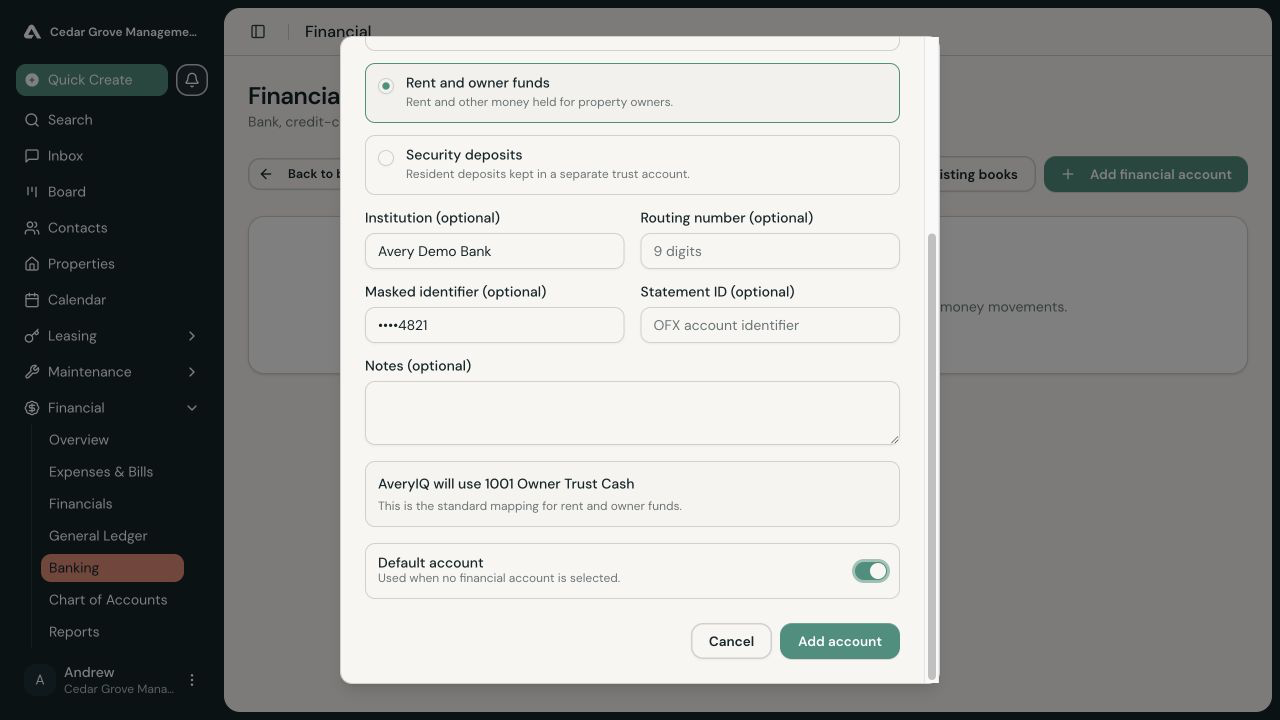
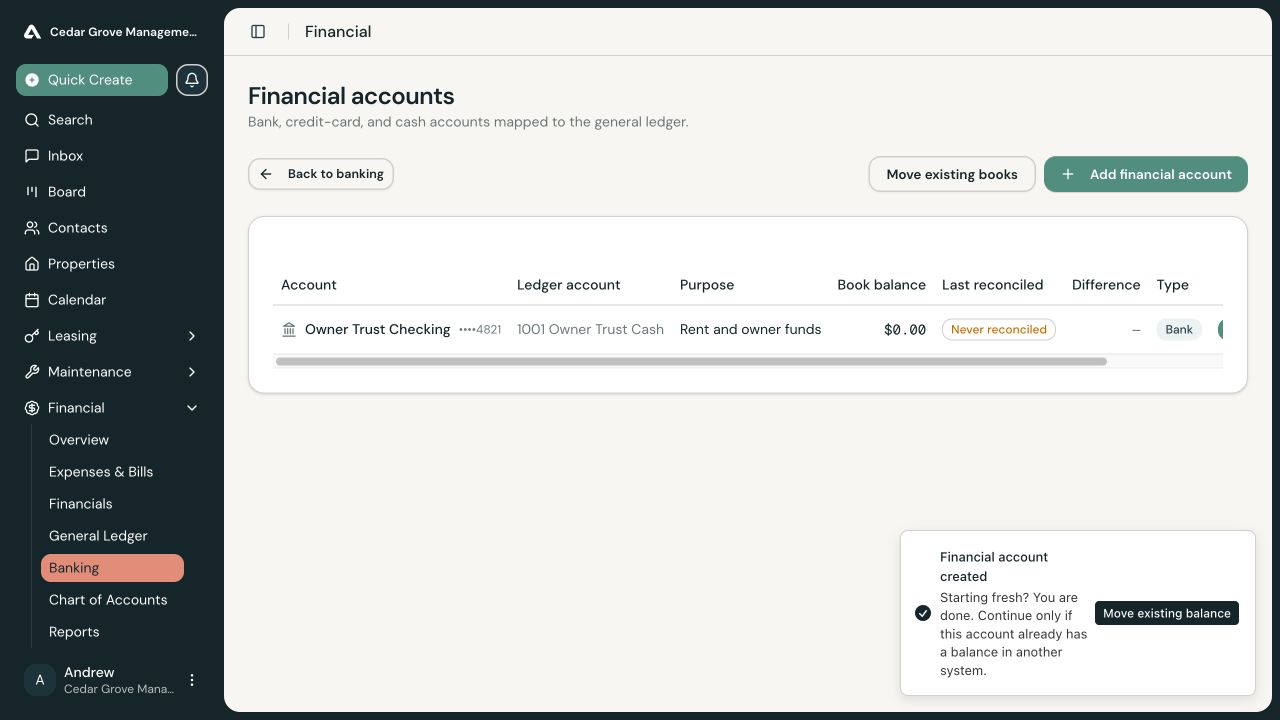
Select Add account to finish.
Correct an Account Purpose
Open an existing account to edit its descriptive details. AveryIQ may allow the cash purpose to be corrected while the account has no posted balance or reconciliation history. After financial activity exists, the purpose is locked to protect prior accounting and trust classifications.
Continue Setup
- Starting fresh with no previous balance: the account is ready for new activity.
- Carrying a balance from another system: continue to Move Starting Resident and Owner Balances or Import an Accountant-Prepared Opening Balance.
- Ready for ongoing statement activity: continue to Import and Reconcile Bank Transactions.