Record Expenses and Manage Bills
Use Expenses & Bills to turn receipts and invoices into accurate accounting records, track amounts still owed to vendors, record payments, and preserve the documents that support each transaction.
A paid expense and an unpaid bill are different:
- A paid expense records money that already left a bank, card, or cash account.
- An unpaid bill records an amount you owe now and will pay later.
- A bill payment settles an existing bill. Do not record another expense when paying a bill; the cost was already recognized when the bill was recorded.
Before You Start
- Add the bank, credit-card, or cash account used to pay expenses.
- Add the vendor when you want the expense or bill associated with a vendor.
- Confirm that your expense categories are available in the chart of accounts.
- Use an Accounting Operator to record expenses, bills, and payments.
- Use an Accounting Approver for reversals, voids, and other corrections.
Your organization’s approval policies may send a transaction for approval instead of posting it immediately.
Open Expenses & Bills
Open Financial > Expenses & Bills. The workspace is divided into four views:
- For Review contains uploaded or emailed receipts and invoices that have not been recorded yet.
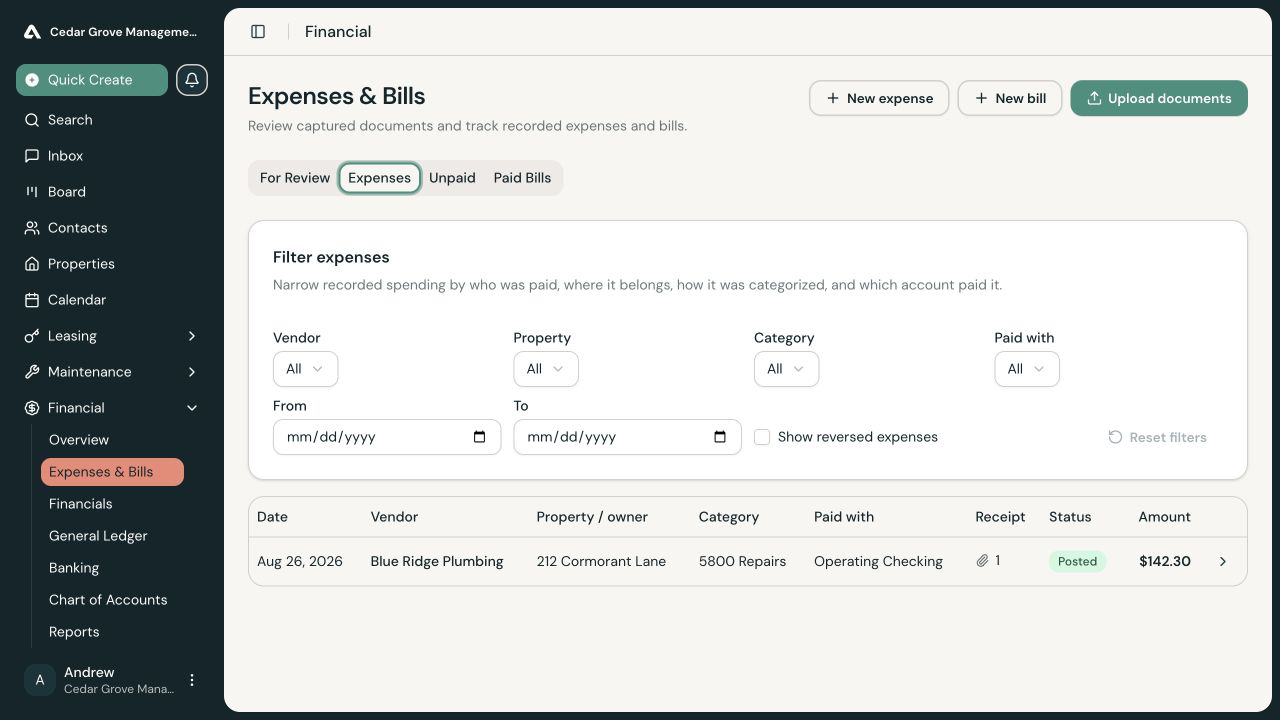
- Expenses contains paid expenses recorded on the books.
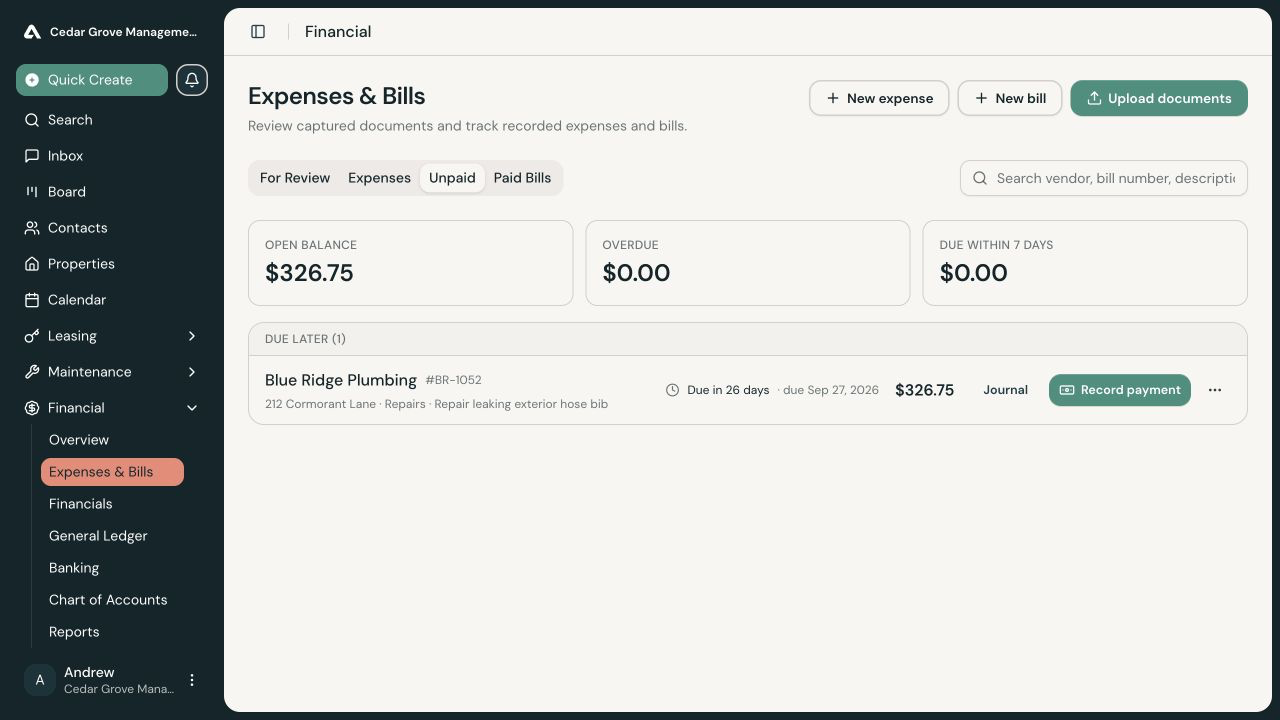
- Unpaid contains open and partially paid bills.
- Paid Bills contains fully settled and voided bills.
Upload a Receipt or Invoice
Select Upload documents to add one or more receipts or invoices. You can add an optional note to help the reviewer identify the files.
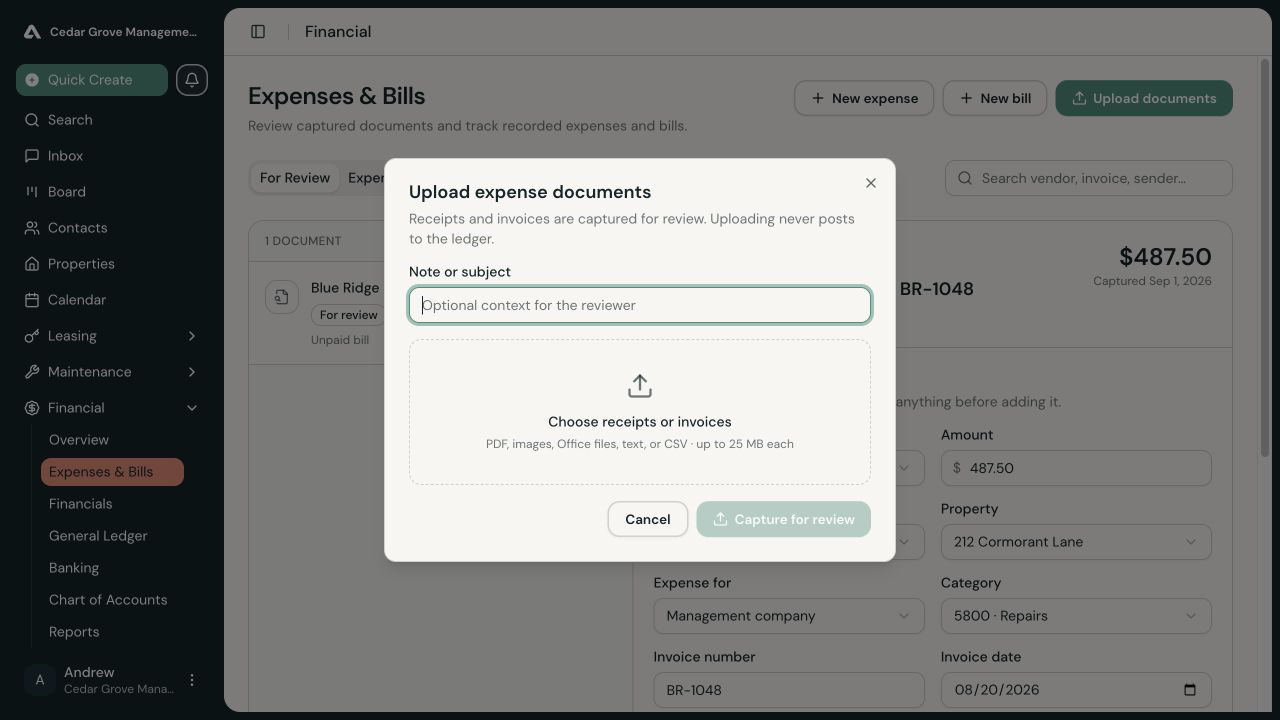
Documents received through a configured Expenses Smart Inbox also appear in For Review. Avery extracts proposed values from the document, but those values remain suggestions until a team member reviews and records them.
Review a Captured Document
Select a document in For Review, then confirm or correct:
- Whether it is a paid expense or an unpaid bill
- Amount and vendor
- Property and who bears the cost
- Expense category
- Paying account for a paid expense
- Invoice number, invoice date, and due date
- Description and source files
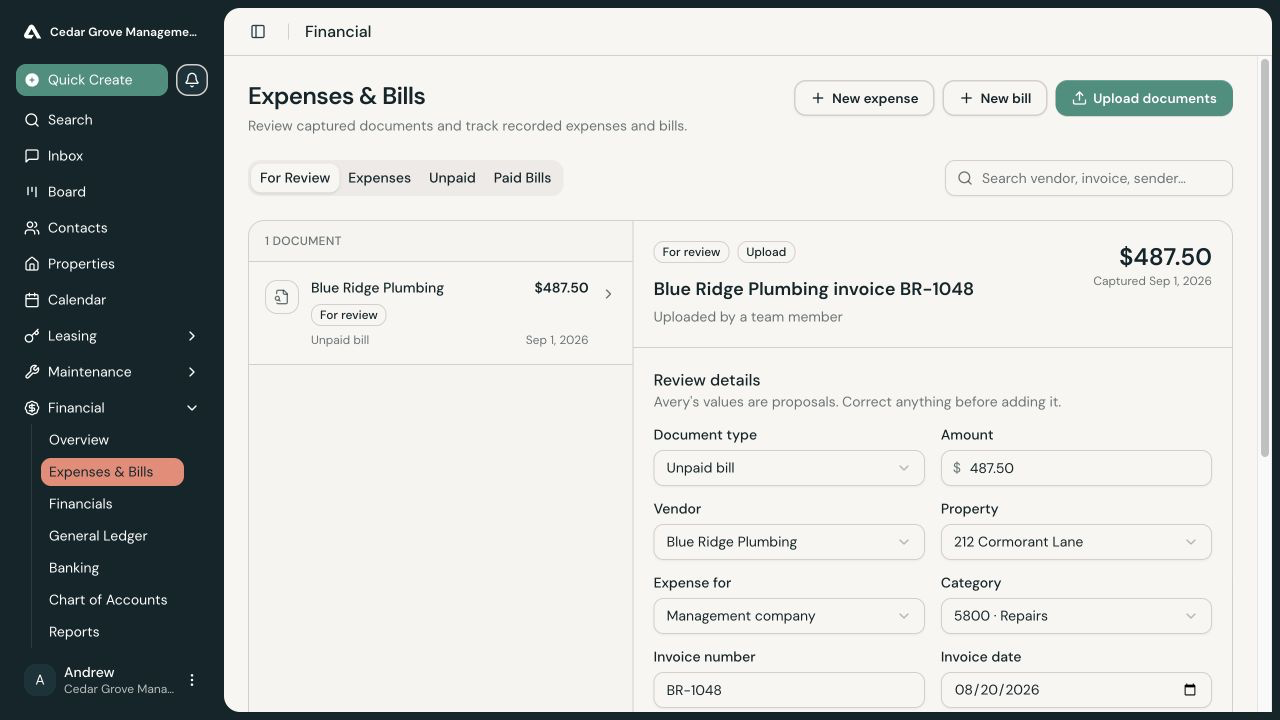
If Avery flags missing information or a possible duplicate, resolve that review first. You can keep a legitimate similar document separate or merge a duplicate into its existing document. Neither choice posts accounting activity.
At the bottom of the review:
- Select Add expense when the document describes money already paid.
- Select Create bill when the invoice is still owed.
- Select Match when the document supports an expense or bill already on the books.
- Select Exclude when the document should not become an accounting record.
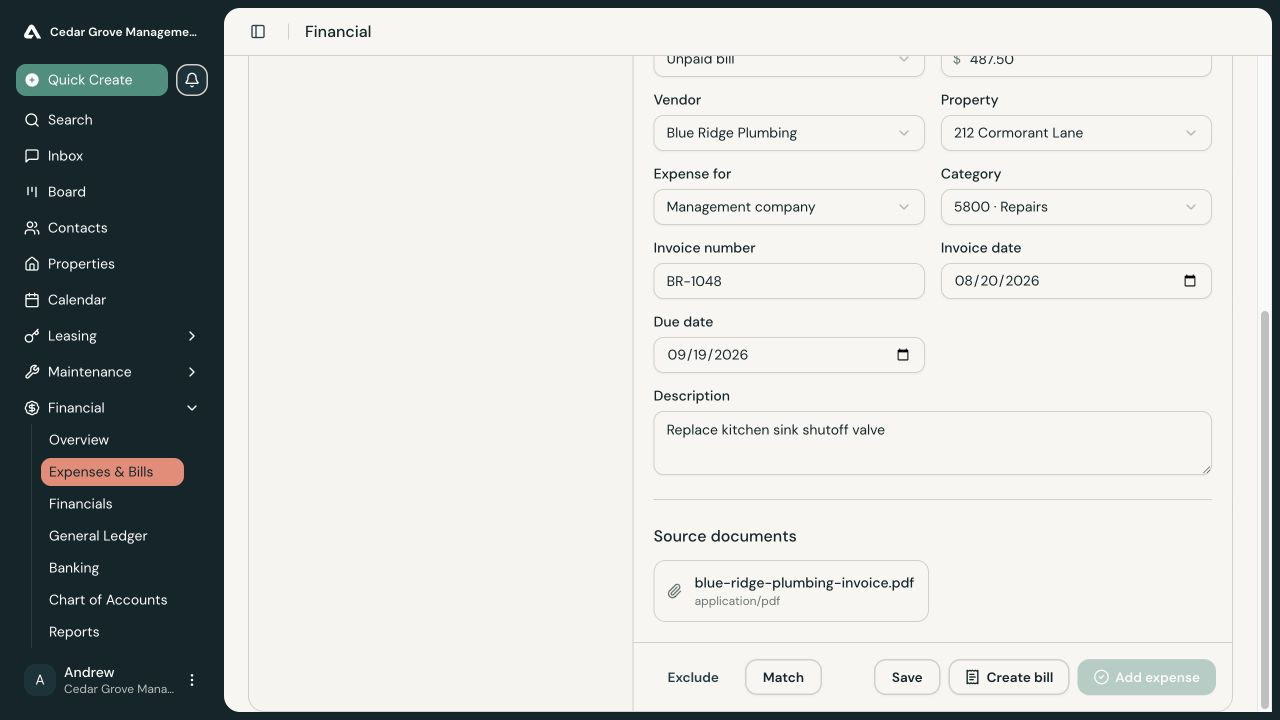
Creating a bill moves the document from For Review to Unpaid. Adding a paid expense moves it to Expenses and attaches the source files to the recorded expense.
Record a Bill Without a Document
Select New bill when you need to enter a vendor invoice manually. Enter:
- Vendor and amount
- Bill date and optional due date
- Whether the management company or property owner bears the cost
- Property and, when required by ownership, the unit
- Expense category
- Invoice number, terms, and description
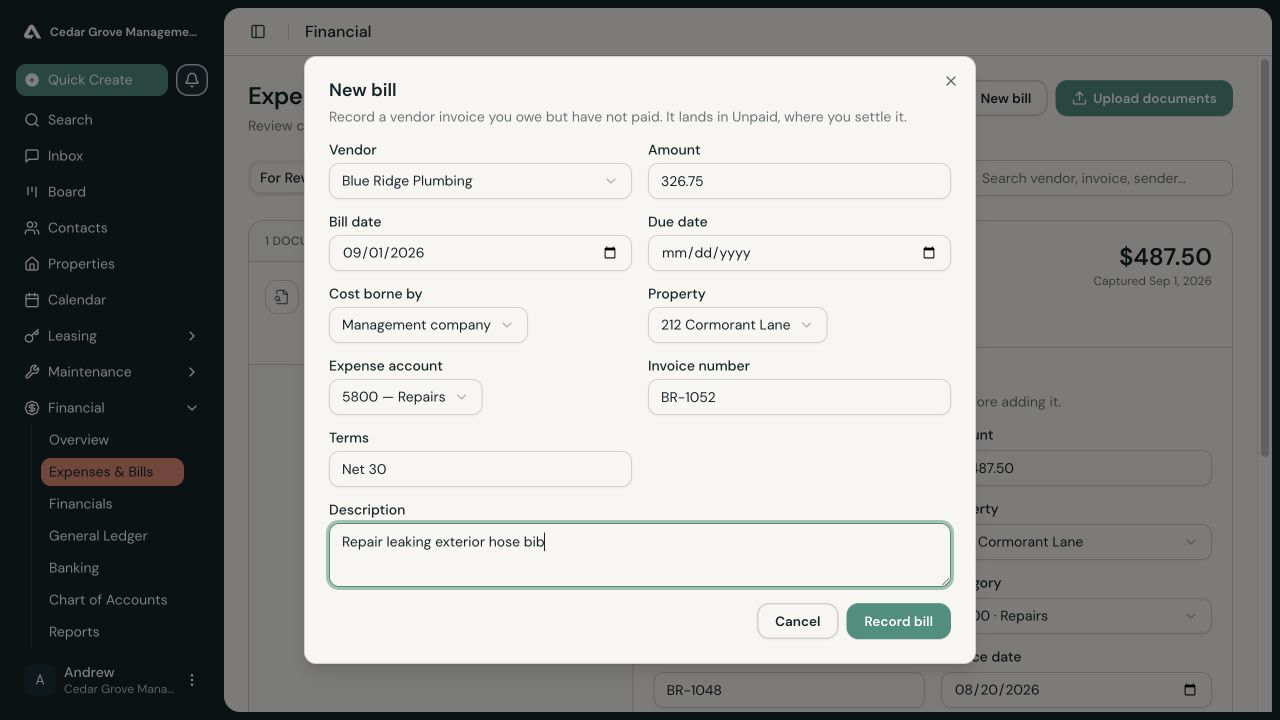
An owner-borne bill requires a property so AveryIQ can identify the responsible owner. If units have separate owners, select the unit whose owner bears the cost.
Select Record bill. The bill appears in Unpaid unless it is waiting for approval.
Track Unpaid Bills
The Unpaid view groups bills by due-date status and summarizes the total open, overdue, and due within seven days. Each row shows the vendor, property, category, remaining balance, due date, and a link to its journal entry.
Record a Bill Payment
On an open bill, select Record payment. Confirm:
- The amount being paid, up to the bill’s open balance.
- The payment date.
- The bank, card, or cash account used.
- An optional check number or confirmation reference.
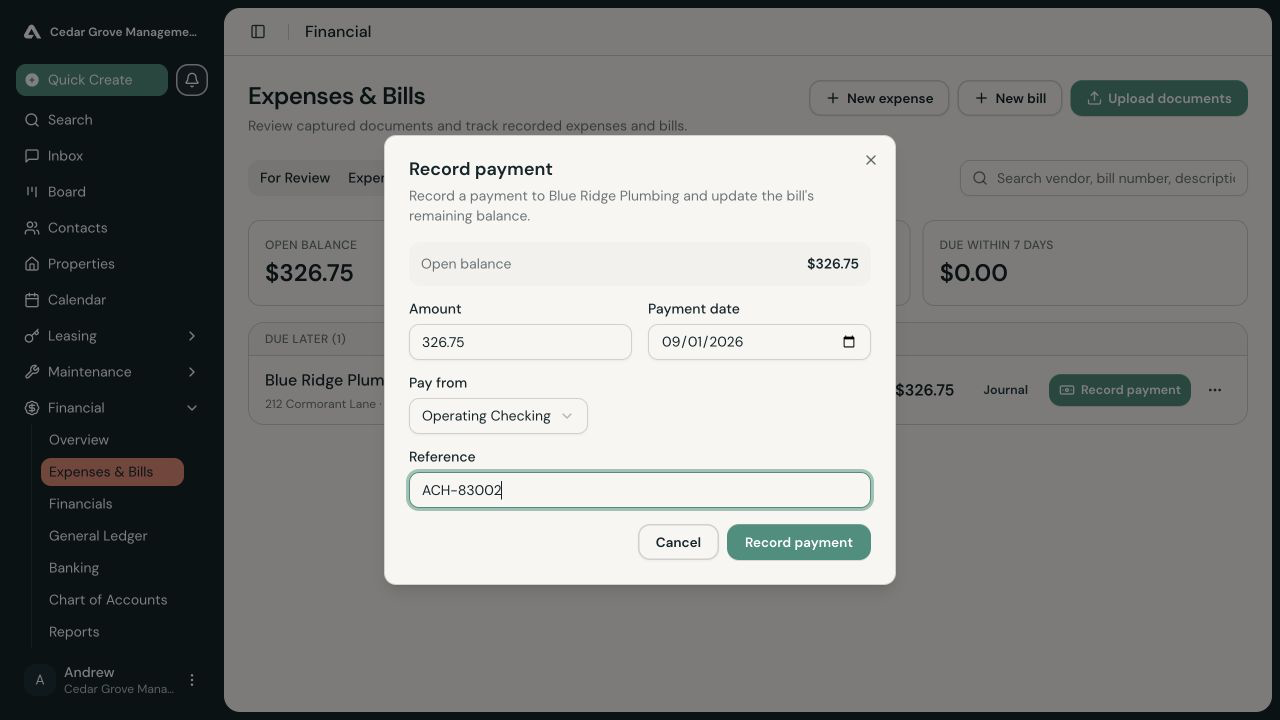
You can record a partial payment. The bill remains in Unpaid with the remaining amount and a Partially paid status. A fully settled bill moves to Paid Bills.
For an owner bill paid from operating cash, confirm that the management company is fronting the owner cost. Owner trust payments remain subject to the available trust-funds safeguards.
Review Paid Expenses and Receipts
Open Expenses to filter recorded spending by vendor, property, category, paying account, or date. Turn on Show reversed expenses when you need to review corrected history.
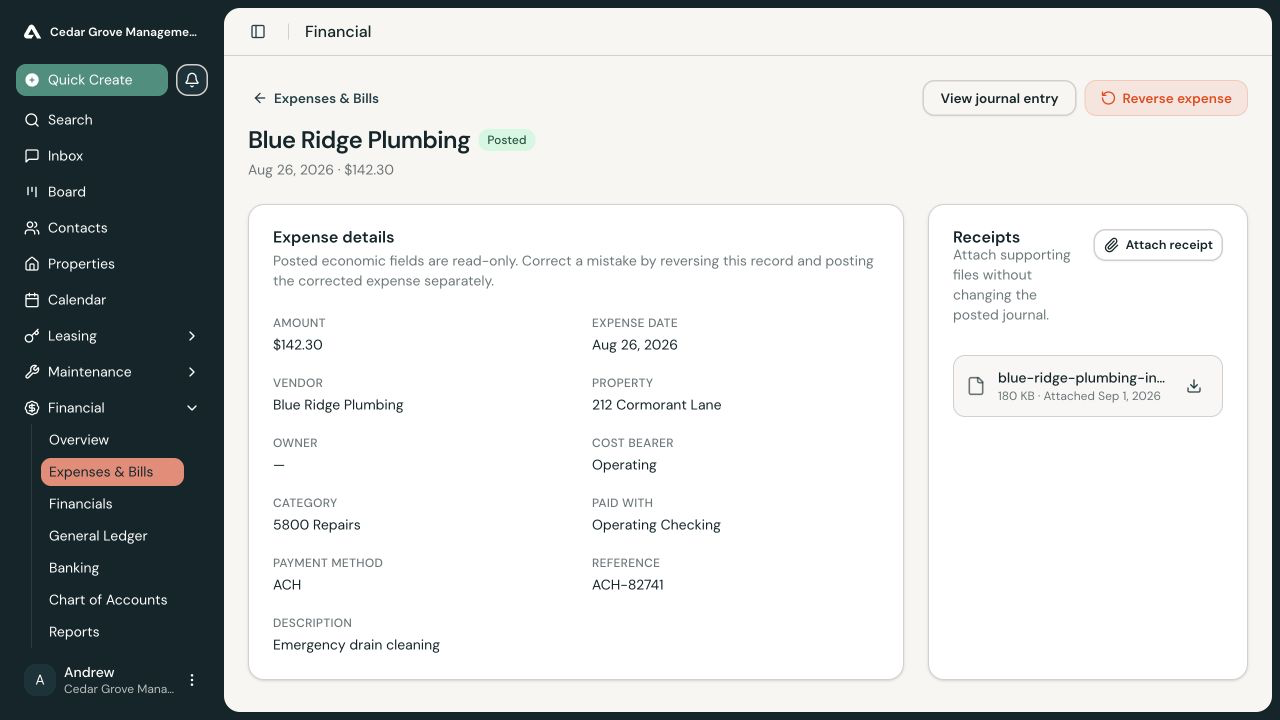
Open an expense to review its accounting details, journal entry, and receipts. You can attach additional supporting files without changing the posted journal.
Correct an Expense or Bill
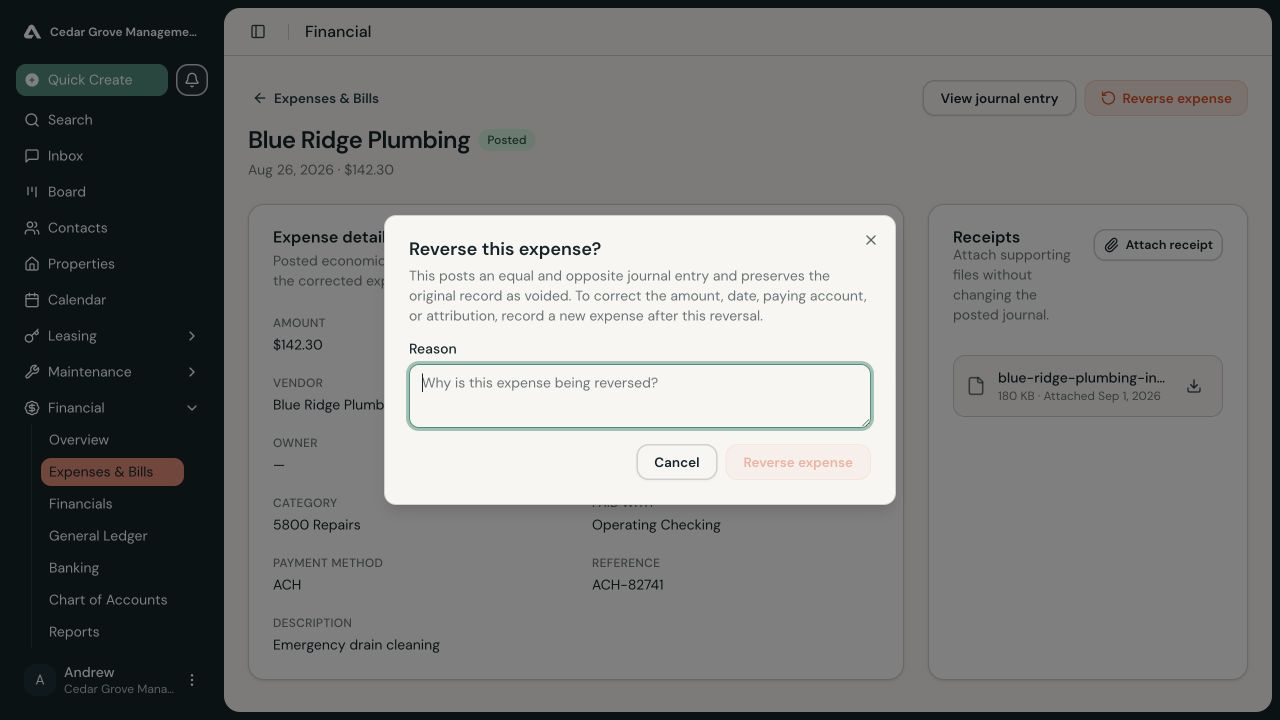
Posted amounts, dates, paying accounts, and attribution are not edited in place. Corrections preserve the original record and its accounting history.
To correct a paid expense:
- Open the expense.
- Select Reverse expense.
- Enter the reason.
- Record the corrected expense separately.
To correct an unpaid bill, open its correction menu. A bill can be voided only before a payment or vendor credit has been applied. Enter a reason for the void. If the bill came from a captured document, that document returns to For Review.
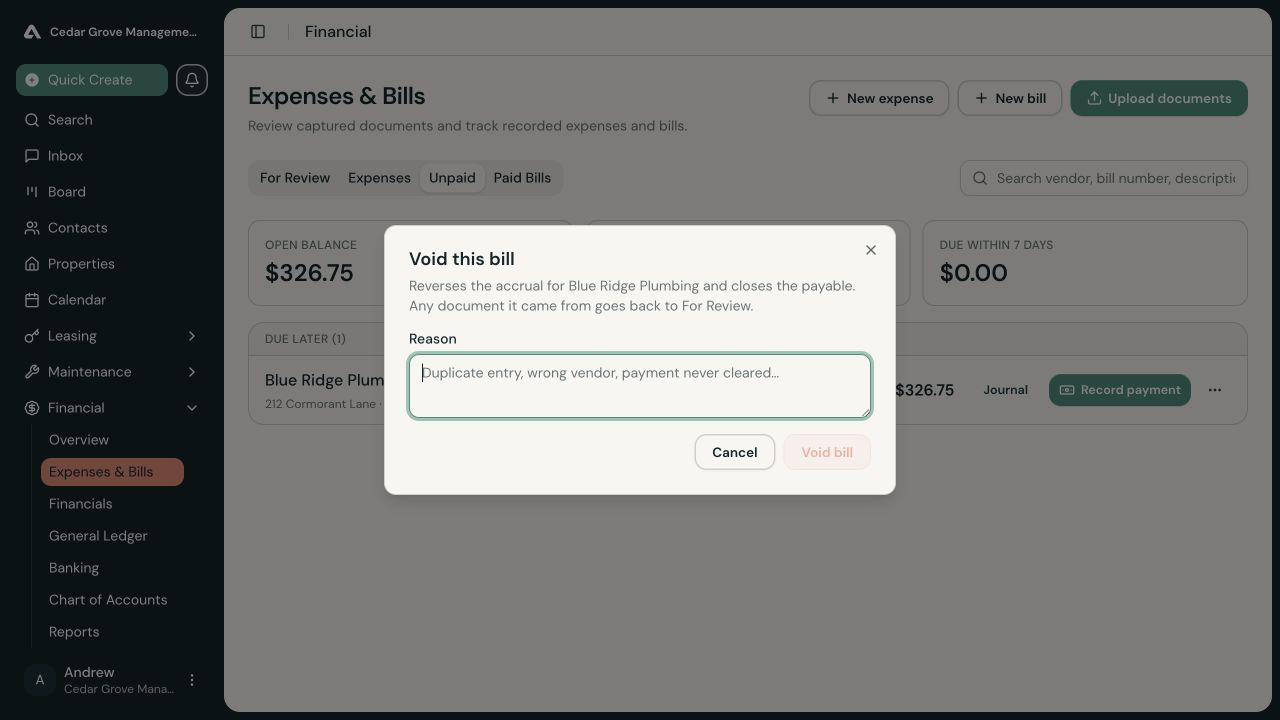
If a payment or vendor credit was already applied, reverse that settlement first. Reversing a payment reopens every bill that the payment covered.