Avery Smart Inboxes
Avery Smart Inboxes give your team purpose-built email addresses that turn forwarded messages into organized work in AveryIQ. Start with what you want Avery to do, create the matching inbox, and then send only the relevant messages to its address.
Choose What You Want to Accomplish
- Set up forwarding with your email provider so selected messages reach an existing Smart Inbox automatically.
- Capture leads from listing sites, lead services, and other inquiry sources.
- Forward invoices and receipts to an Expenses inbox.
- Turn internal emails into tasks with a Tasks inbox.
- Create maintenance work from email with a Work Orders inbox.
How Smart Inboxes Work
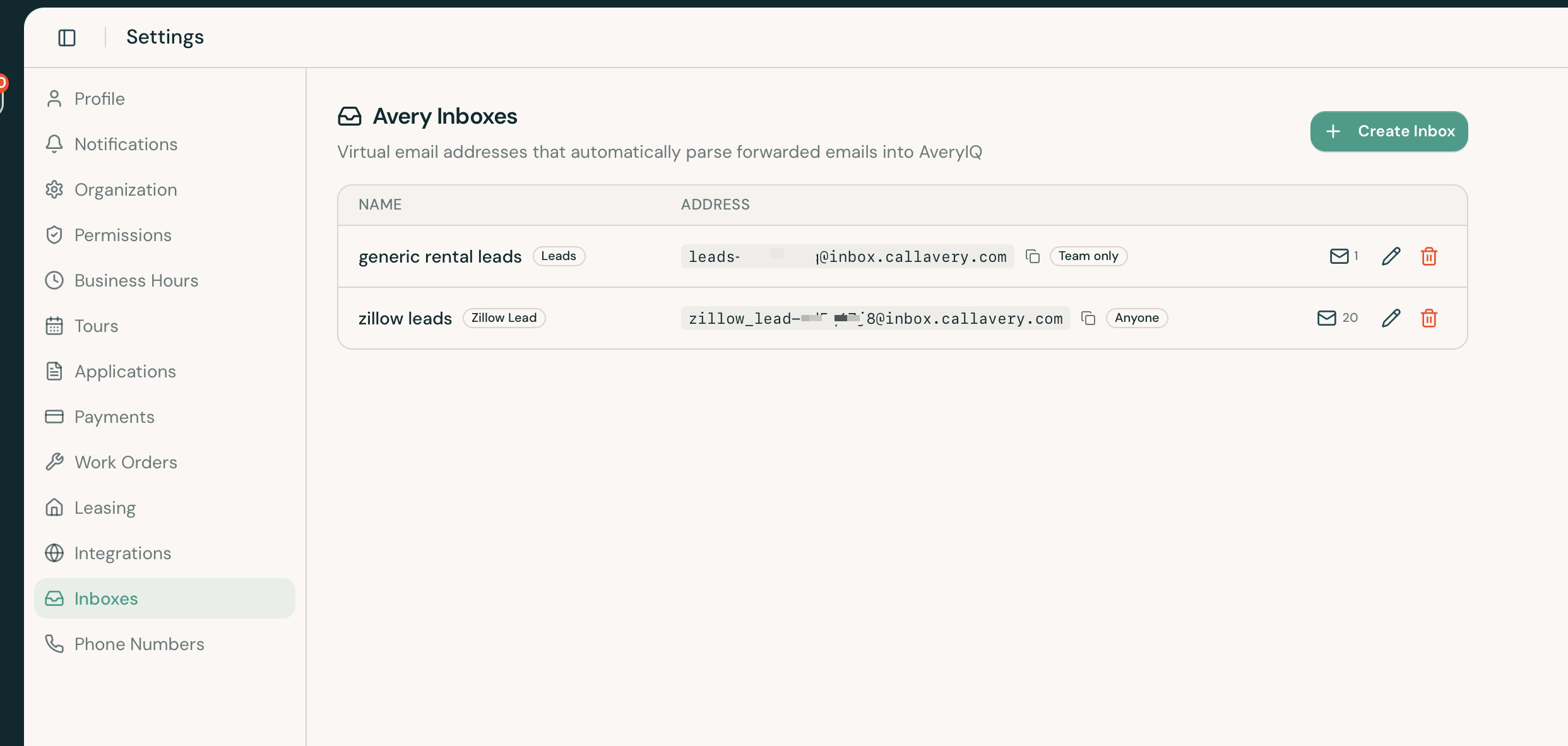
- Open Settings > Inboxes in the Team portal.
- Create an inbox for the outcome you want, such as Leads, Expenses, Tasks, or Work Orders.
- Copy the generated address ending in
@inbox.callavery.com. - Send messages to that address directly or create a rule with your email provider to forward matching messages automatically.
- Select the mail icon beside an inbox to review its most recent emails and troubleshoot messages that could not be processed.
Choose Who Can Send to the Inbox
Select Team members only when only verified members of your AveryIQ team should be able to submit messages. This works well for internal tasks and other private workflows.
Select Anyone when messages will come from an outside sender, such as a listing service, vendor, or applicant. Email forwarding normally preserves the original sender, so an outside message forwarded through your mailbox still needs an inbox that accepts outside senders.
Only share a Smart Inbox address with people or services that should be able to create that kind of record.
Add AI Instructions When They Help
AI instructions are optional. Use them to identify the details Avery should look for when the messages have a consistent format. For example, a lead inbox might ask Avery to extract the prospect’s name, phone number, move-in date, and property of interest.
Keep the instructions specific to the inbox’s purpose. They supplement the inbox type; they do not change an Expenses inbox into a Leads inbox.