Move Starting Resident and Owner Balances
Use the guided opening-balance workflow when you know the balances that need to move but do not want to build a debit-and-credit trial balance. AveryIQ turns your answers into one balanced, auditable opening position.
Before You Start
- Add and classify every financial account.
- Choose the first date AveryIQ will record new financial activity.
- Obtain the closing book balance for each bank, cash, and credit-card account from the previous day.
- Gather unpaid resident charges, resident credits, security deposits, and owner funds that AveryIQ does not already contain.
Do not use this workflow if ordinary financial activity is already being recorded in AveryIQ. Use the accountant import only after an accountant has reviewed the existing activity and confirmed that the opening rows will not duplicate it.
Start Guided Setup
- Open Financial > Opening Balances.
- Select Move starting balances from your old system.
- Select Start guided setup.
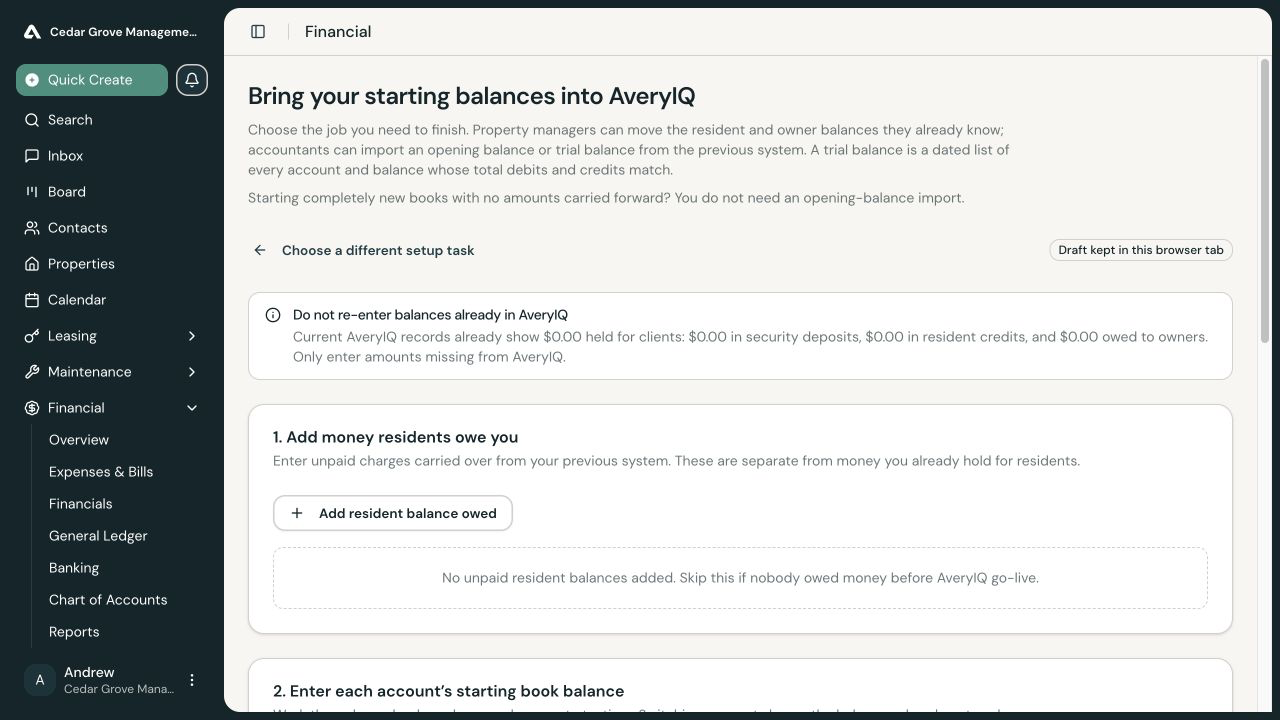
Your draft is kept in the current browser tab. Finish it in the same tab, and do not rely on the draft as the only copy of your source information.
Add Money Residents Owe
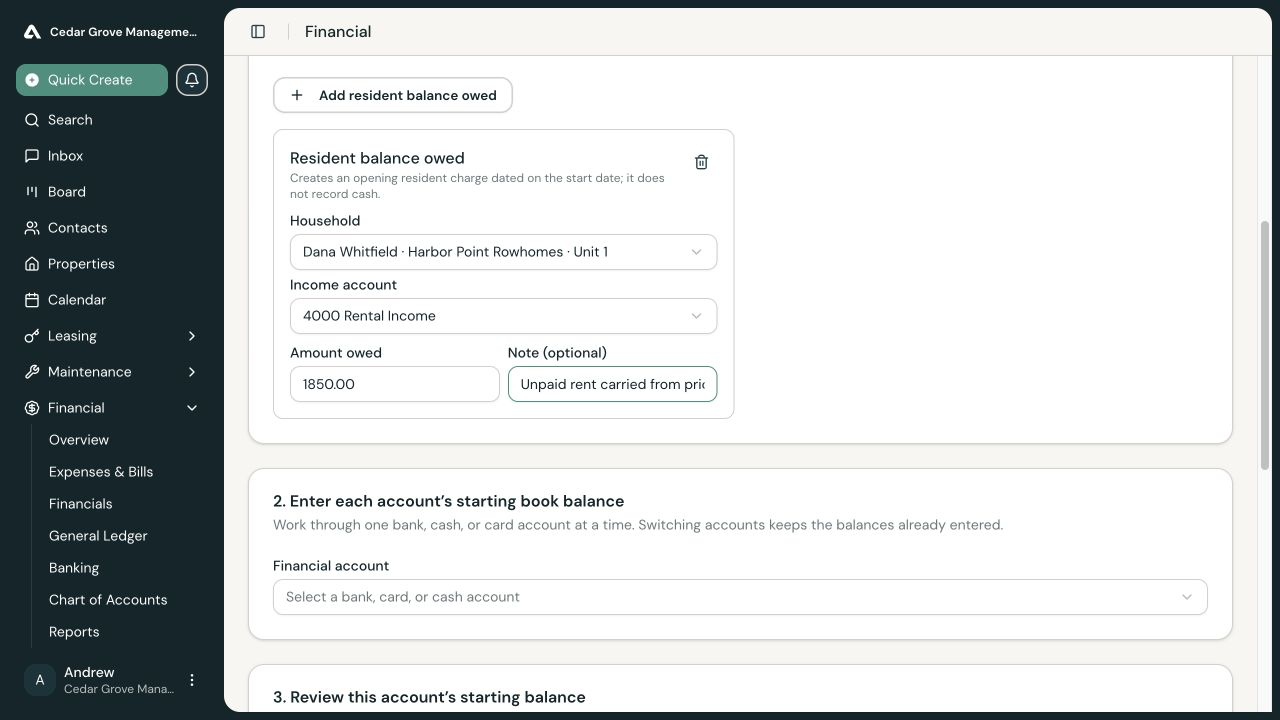
Select Add resident balance owed for each unpaid charge carried from the previous system. Choose the household and income category, enter the amount, and add a useful note.
This creates an opening resident charge. It does not record cash, a payment, or a security deposit.
Skip this step when no resident owed money before the go-live date.
Enter Each Financial Account’s Starting Balance
Work through one financial account at a time:
- Choose the financial account.
- Enter its previous-system book balance immediately before the go-live date.
- For a credit card, enter the amount owed—not its available credit.
- Switch accounts and repeat until every carried-forward account is complete.
Use the previous system’s book balance here. Your first bank reconciliation will separately compare the books with the statement and outstanding items.
Explain Client Money
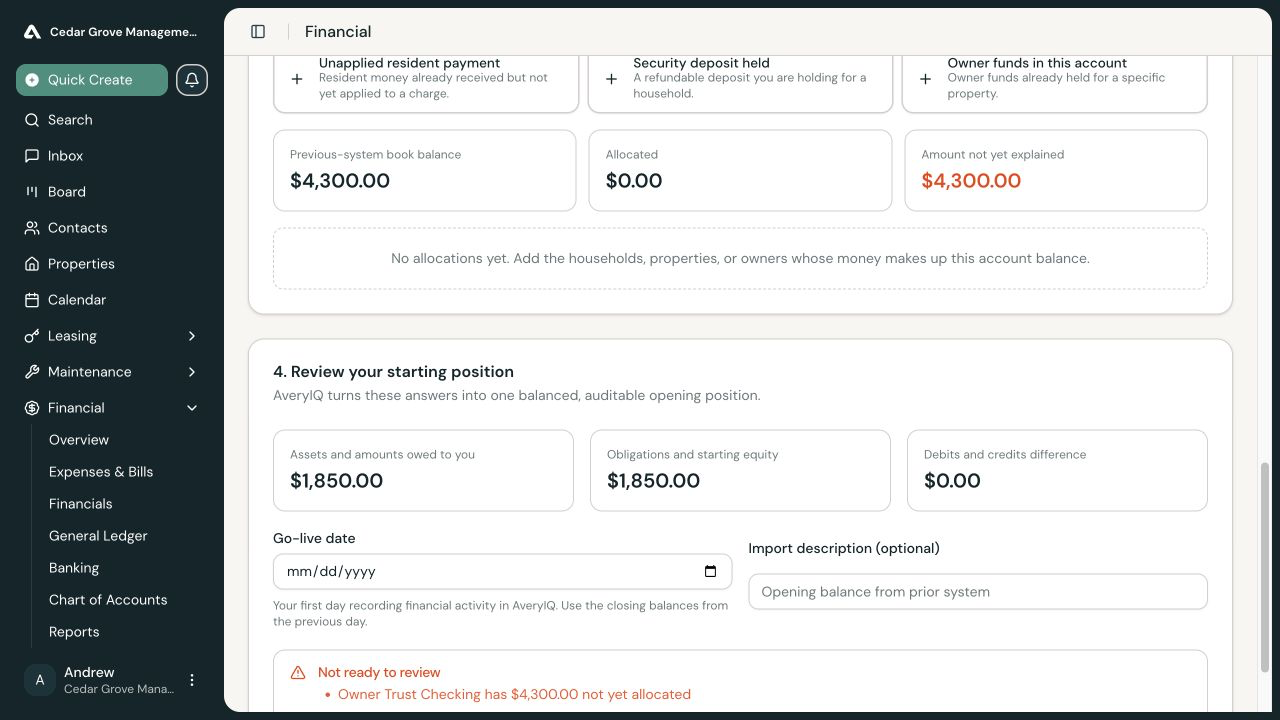
For an owner-trust or deposit-trust account, explain who owns every part of the starting cash balance. Add the applicable balances for:
- Resident credits
- Security deposits
- Owner funds
Choose the related household, property, unit, or owner as requested. The total allocations must equal the trust account’s starting book balance. AveryIQ will show any amount that remains unexplained.
Only enter amounts missing from AveryIQ. Do not duplicate deposits, credits, or owner balances that are already recorded in the product.
Review the Starting Position
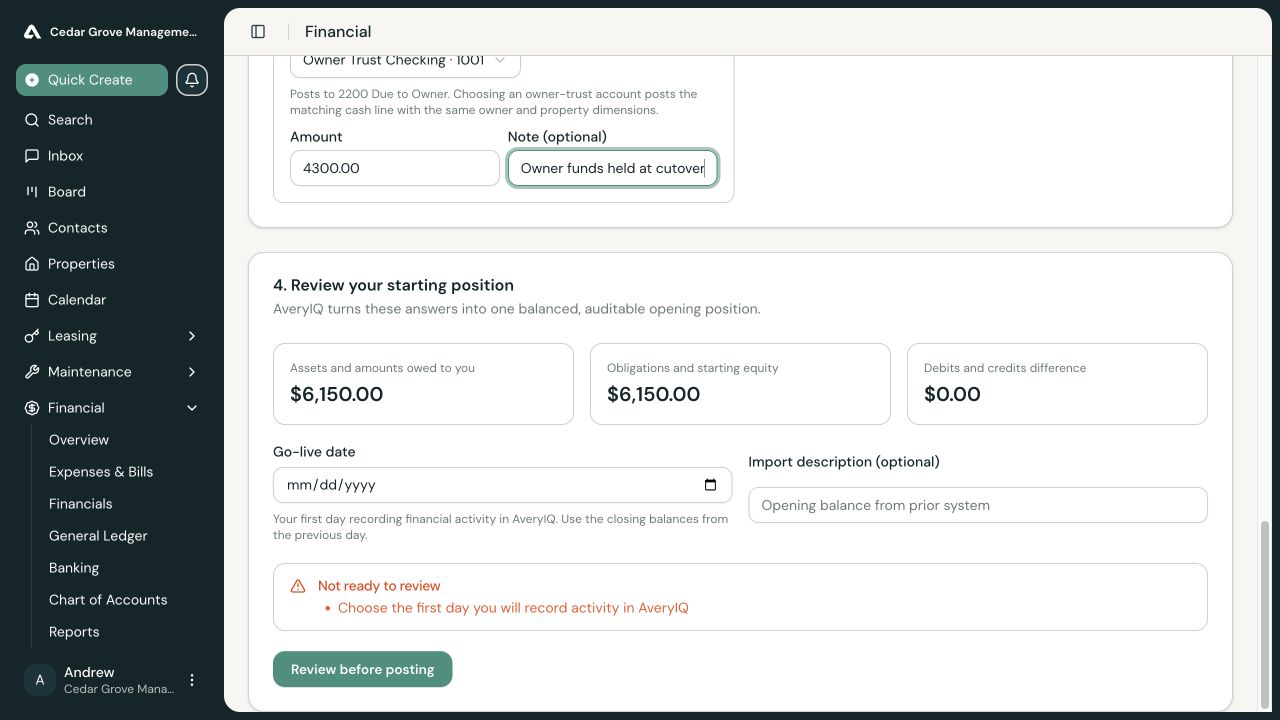
Review the total assets, obligations, opening equity, and any debit-and-credit difference. For an operating position, record a genuine unexplained remainder as opening equity only when that accurately describes the previous books. Guided trust-custody balances must be allocated and cannot be balanced with an opening-equity plug.
Enter:
- Go-live date: the first date AveryIQ records new activity
- Import description: an optional explanation of the source
Select Review before posting after every blocker is cleared.
Post the Opening Balances
On the final review, confirm the date, row count, totals, and supporting resident balances. Check the acknowledgement that opening entries are immutable, then select Post opening balances.
The request may require approval under your organization’s accounting policy. Do not submit the same draft again while approval is pending.
Correct a Posted Import
Opening balances cannot be edited after posting. If the import is wrong, enter a reason and reverse the entire opening import before posting a corrected replacement. AveryIQ refuses a reversal when later payments, credits, or deposits have already been applied to its supporting opening records.